Hardware
We need to make sure we understand our hardware requirements and find a machine that supports them. Finally, there are some firmware configuration we should check before installing an operating system.
- What is a Server?
- Layers of Computing
- Quick-Start Examples
- Common Language
- Community Impact
- Firmware Configuration
- Next Steps
What is a Server?
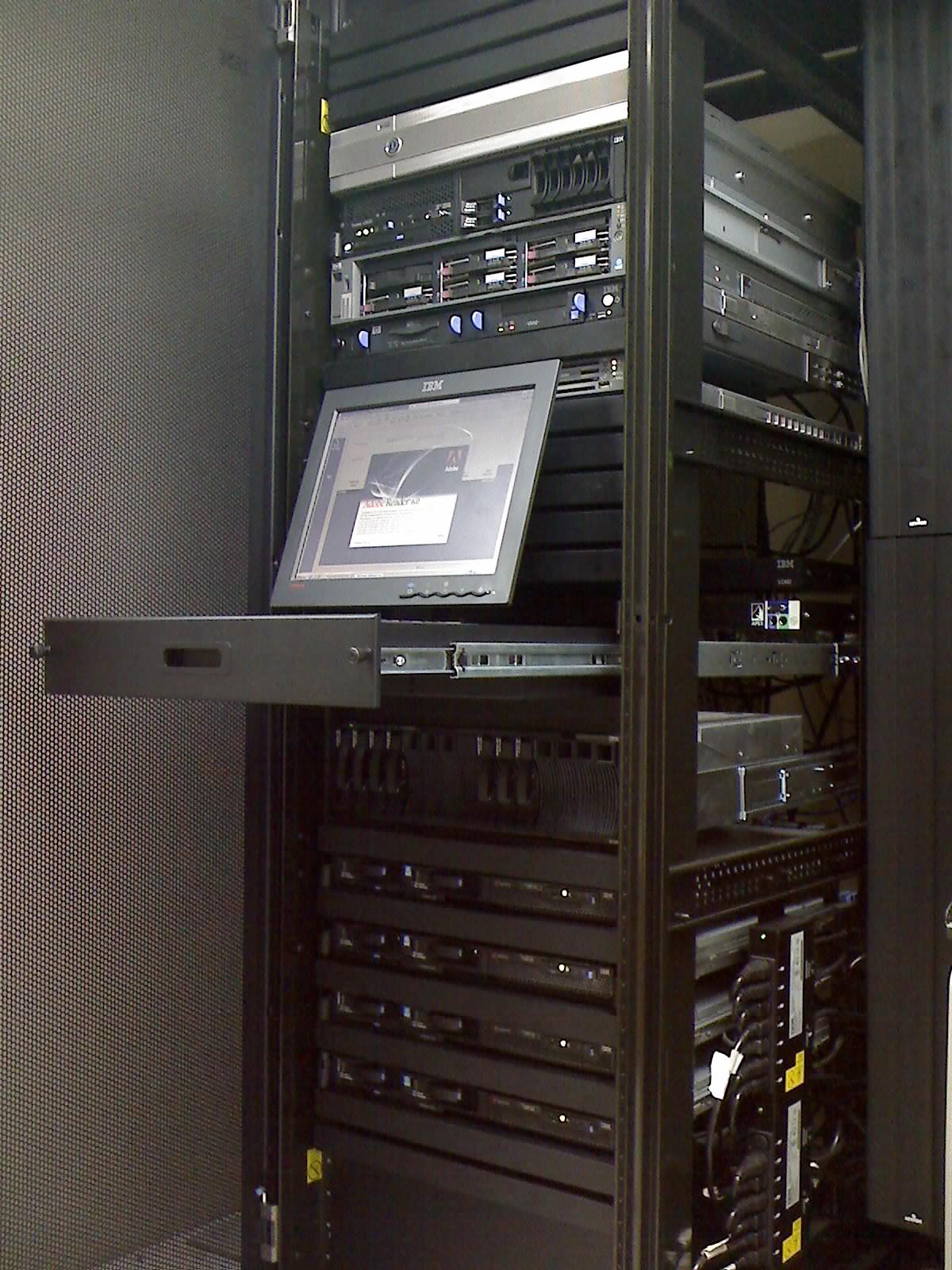
When most people think of a server, they imagine a rack in a data center at a large tech company. Within computers, "server" can be referring to both specialized hardware and software. While server hardware is geared towards reliability and uptime, any computer can run the software needed to host a server.
Server Rack with a Console Display |
Linux distributions, such as Debian, power an estimated 95% of the top one million web servers. Server applications are a specialized type of software that runs on top of your operating system to handle the requests of clients. Through server software, your computer can accept incoming connections over your local network.
Servers are not typically accessed physically with an attached display, but are controlled remotely through a connection to their desktop or command line – called "headless". Within a data center, server racks may have a display that can be used to remotely access individual computer units within the stack.
These servers have enterprise-grade hardware that are built to maintain as close to 100% uptime as possible. This includes features like error-checking RAM, hot-swappable hard drives and redundant power supplies. Servers often incorporate RAID – or a Redundant Array of Independent Disks – that allow hard drives to mirror themselves in real-time. In the event that one drive fails, it has a perfect duplicate to switch to immediately.
Supermicro SBI-7228R-T2X |
Dell PowerEdge M1000e |
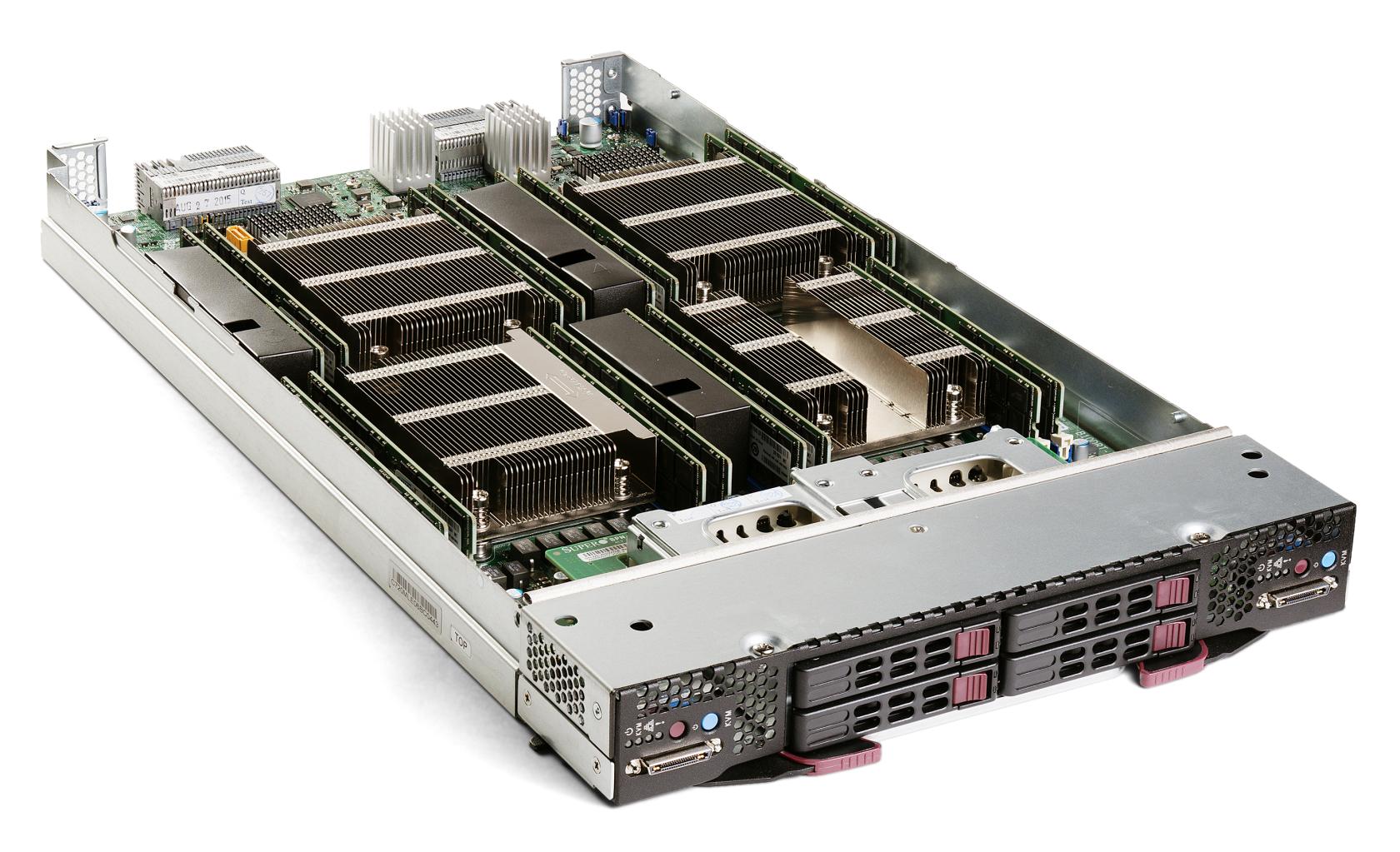
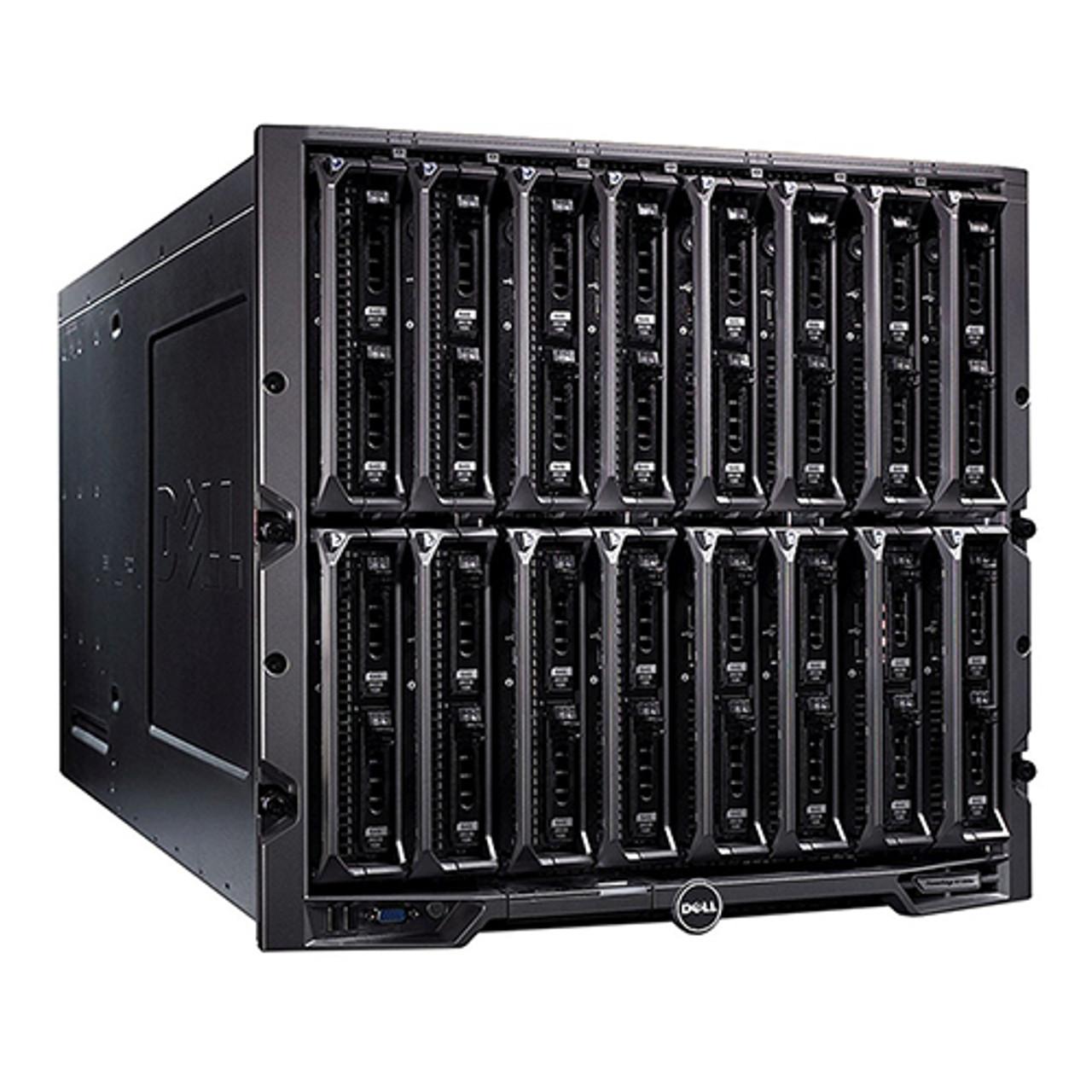
These form factors are traditionally known as "blade" or "rack" servers. Data center servers use this compact design because it allows them to be stored efficiently. Temperature control is greatly important when running a server – or a server farm – and this form factor has cooling fans integrated into each unit.
Tower servers are also a common form factor for a home or small business server. These have similar features to a rack server, but are contained in a discrete form factor that work excellent for single-server setups.
Dell PowerEdge T360 |
HP Z440 |
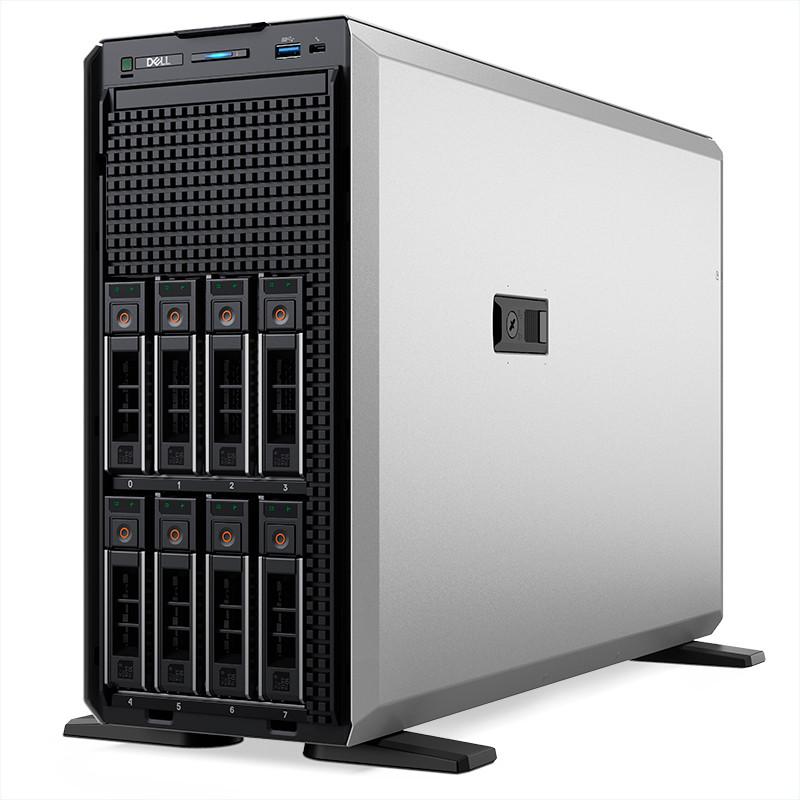
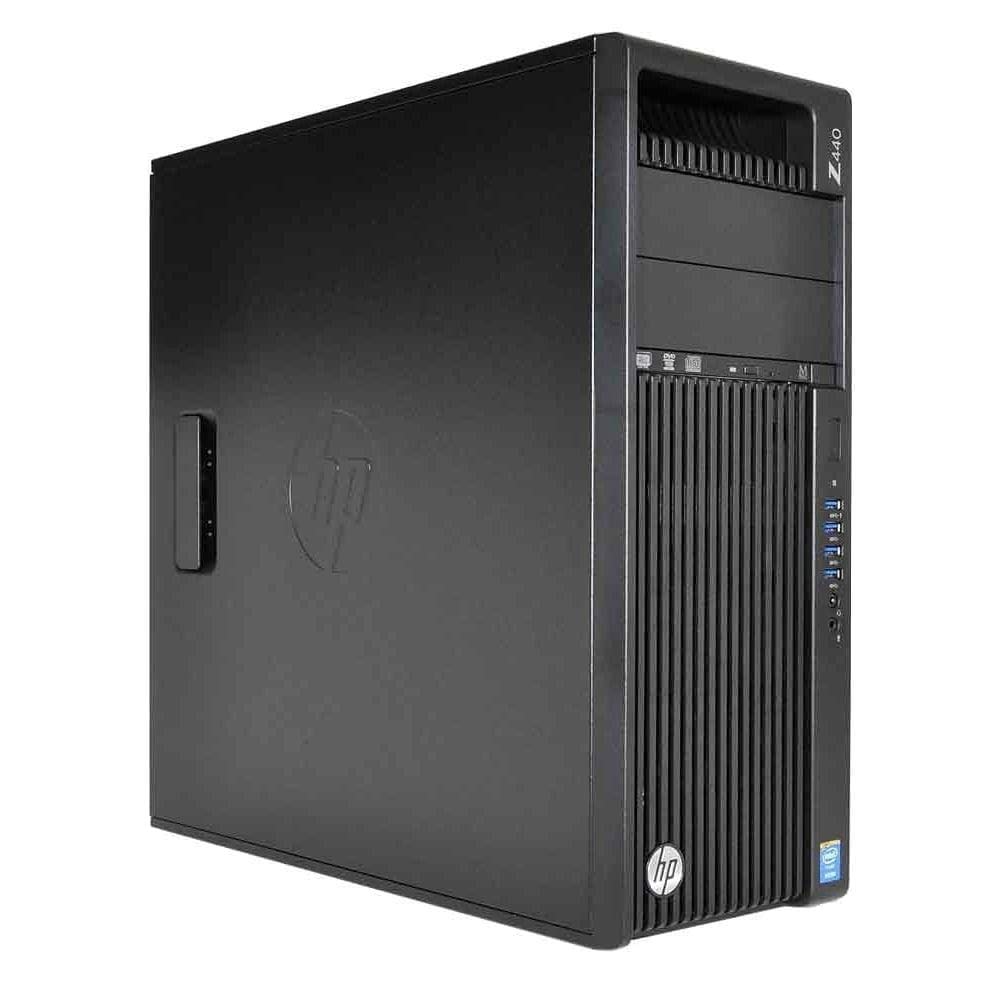
Consumer-grade computers can work as a server if the required software is installed and precautions are taken to offset the hardware differences. While conventional desktops can maintain excellent uptime, hardware malfunctions can result in downtime. Without a consistent and secure onsite and remote backup solution in place, this can result in permanent data loss should a hard drive fails or a power surge occurs.
Layers of Computing
Computers are built heavily around the concept of abstraction – or simplifying complex mechanisms in ways that allow you to build modular systems that can work together while also being easier to understand and maintain. This creates a pipeline for independent modules – each completing their own complex task – to communicate with each other through a common technical language.
Abstraction

Abstraction is related to modular design – or creating discreet modules that communicate through a common language. Similarly, systems thinking enables people to consider the complexity of our real world – and all of its relationships – at both the large and small scale.
|
|
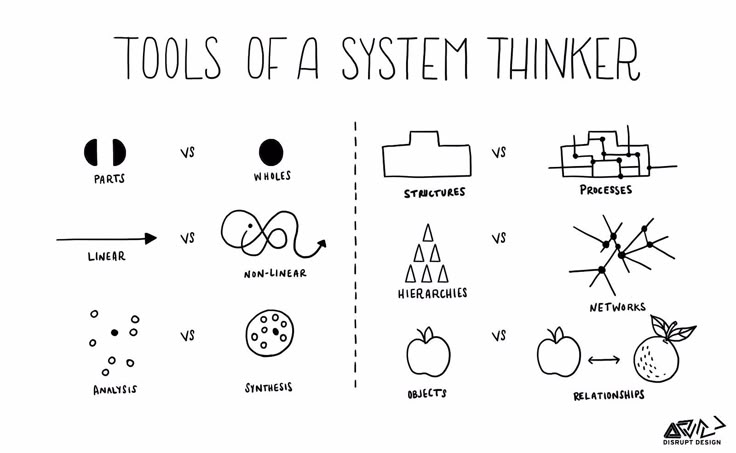
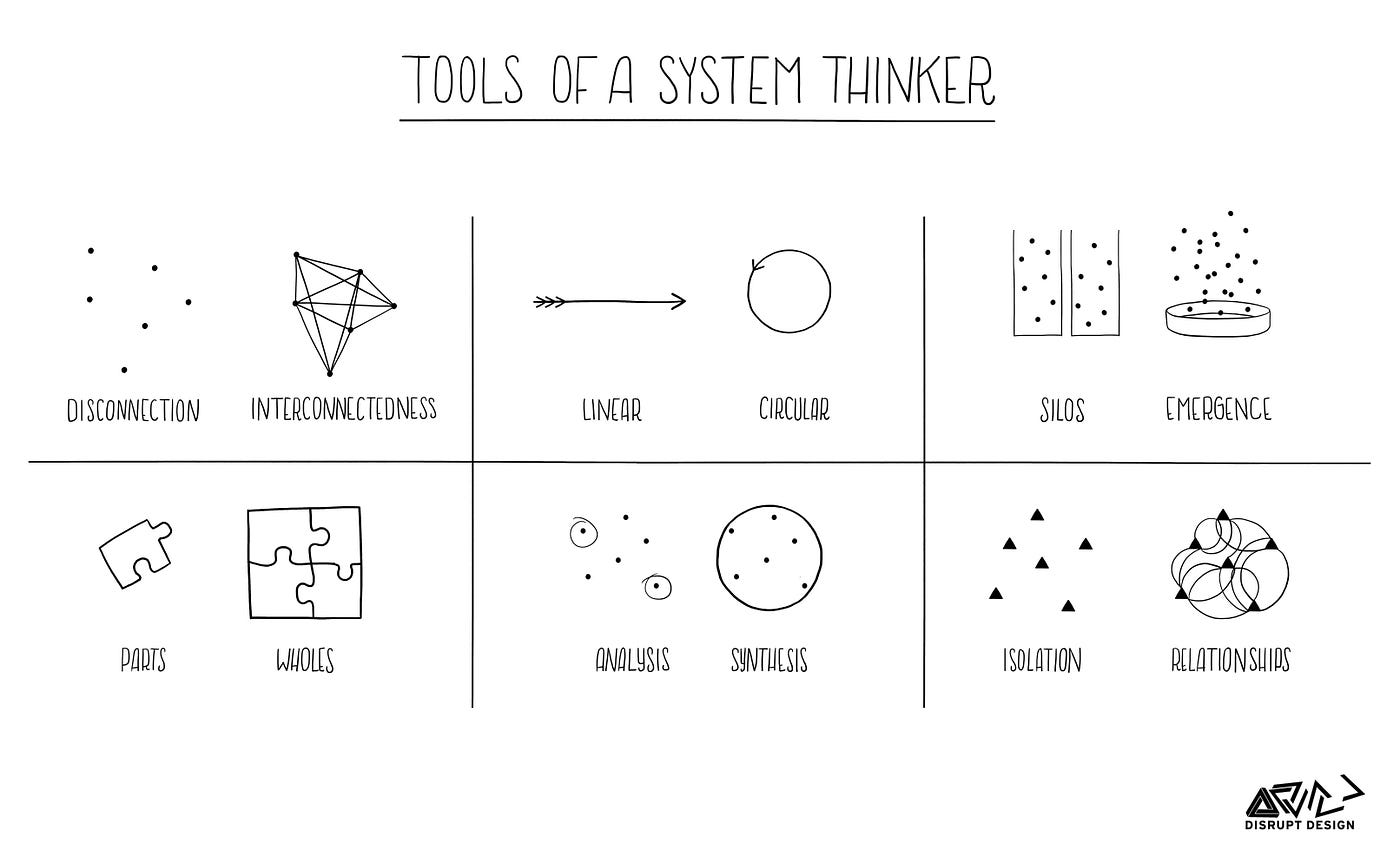
While you may need to have some knowledge about hardware specifications to build a computer, you don't need to understand the mechanical underpinnings of the physical engineering. You aren't required to know how to code just to install and use a software package.

Abstractions within a system are defined along lines that denote architectures, standards, protocols and specifications. USB ports are an abstraction that allows us to connect an external device to a computer. Thanks to the common language built through the USB protocol, users can often connect these devices without needing to give it much thought.
There standards are often defined by the technology's originating corporation – such as Intel's x86 processor architecture – or agreed upon through a committee. They allow manufacturers and developers to use hardware interchangeably within compatible environments. By developing standardized systems, computers can translate software code written by Humans into a language usable by our computer.

A software compiler can take human-readable, high-level programming languages and translate them until they are low-level machine code that can run on your hardware. There are many different programming languages – each requiring their own compiler – and they can be sorted by their level of abstraction.
Visual Language
As the name implies, these programming languages use a visual metaphor to build programs instead of using natural language elements. These can be an excellent pathway for learning the core logic concepts behind programming.
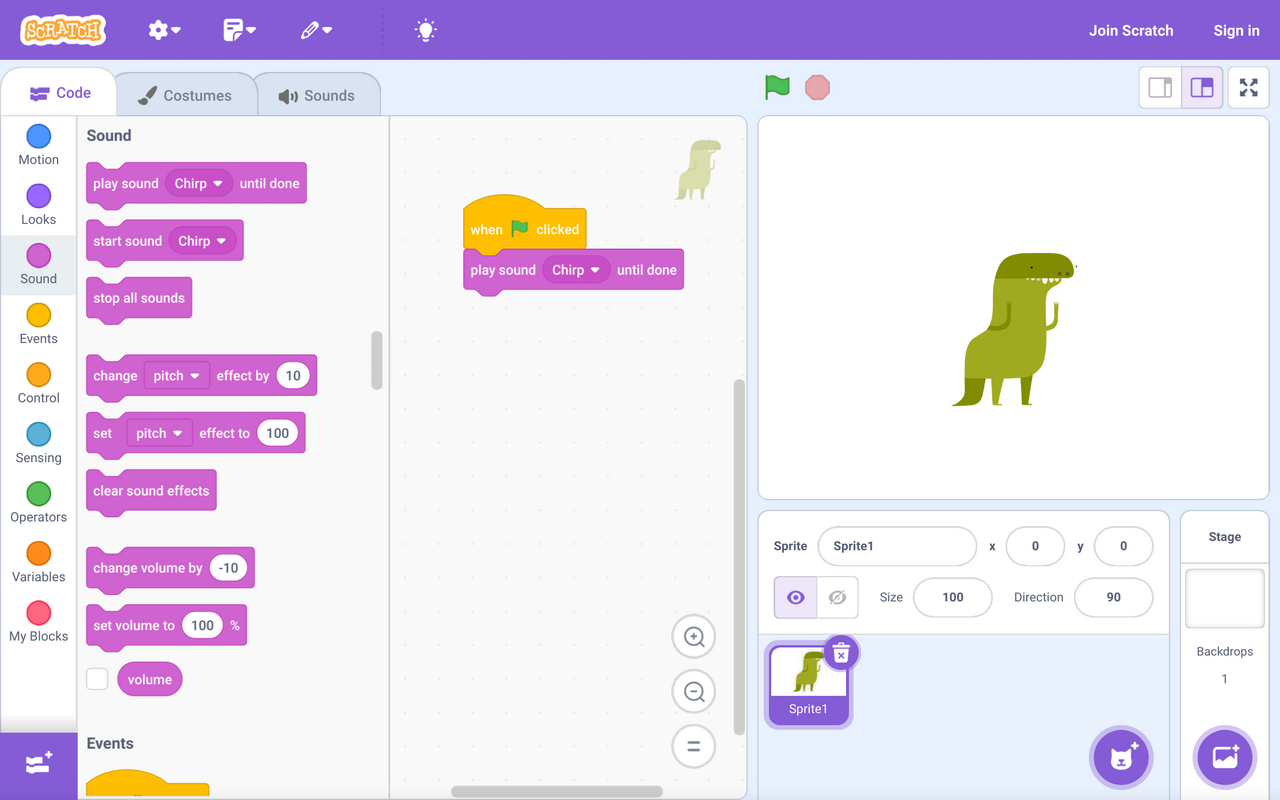
This code uses the Scratch visual programming language to play a sound when a button is clicked.
High-Level Language
These programming languages are highly abstracted from raw machine code and generally use text-based natural language elements.
#include <iostream>
using namespace std;
int main() {
return 5 + 7;
}This code uses the C++ programming language to return the sum of 5 and 7.
Assembly Language
This category offers mnemonic representations of physical machine instructions while still operating extremely efficiently.
mov abx, 5
mov cdx, 7
add abx, cdxThese x86 assembly code instructions will produce the sum of 5 and 7.
Machine Language
This language is completely without abstraction and represents the literal binary data that is being processed by the computer.
Machine language is dependent on the hardware being used, which is why computer components are created to follow existing standards.
00000000 ; Stop Program
00000001 ; Turn on bulb
00000010 ; Turn off bulb
00000100 ; Dim bulb by 10%
00001000 ; Brighten bulb by 10%This theoretical set of machine code instructions could be used to control a light bulb.
Following these abstractions, there are three levels to computing, each building on the other to achieve a general-purpose operating systems. By building a system consisting of physical hardware parts and integrated firmware, we create a digital software space for performing tasks through applications.

Below, we will explore these computational layers and learn how they come together to create a computer system capable of performing complex tasks.
Hardware
This is the physical side of computing, accomplished using integrated circuits created from silica and rare earth metals. Hardware receives its directions from the software and firmware allowing the entire computing system to execute the commands required for completing the desired task.
The term "hardware" derives from its relatively rigid nature in respect to change.

Hardware includes the motherboard, which acts as a seat for all hardware parts within a computer and enables their communication. The CPU performs precise calculations, the GPU handles graphical manipulation, and the RAM stores data currently in use by software. Long-term data storage is accomplished through high-capacity platter disks or solid-state flash memory drives.
Dell Precision T3600 Motherboard |
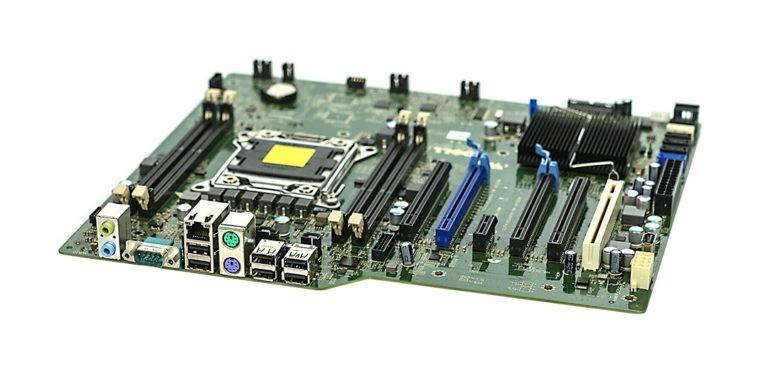
Many motherboards contain an RTC (Real-Time Clock) that keep track of time even when the computer temporarily loses power. Other hardware components may include: network interface cards, sound cards, BlueTooth, and USB for connecting external devices.
Firmware
This low-level software enables the hardware to interact with higher level software such as your operating system. Hardware components have programming embedded into them that enable them to communicate.
"Firmware" reflects the heterogenous blend of software and hardware.
Hardware abstraction provides an operating system with access to the low-level functions on a hardware component without needing to know its low-level machine code.

While easier to modify that hardware, altering firmware may require replacing a physical module or flashing a reprogrammable memory chip. Motherboards contain a reprogrammable firmware interface such as BIOS (Basic Input Output System) or UEFI (Unified Extensible Firmware Interface).
AMI UEFI Manager |
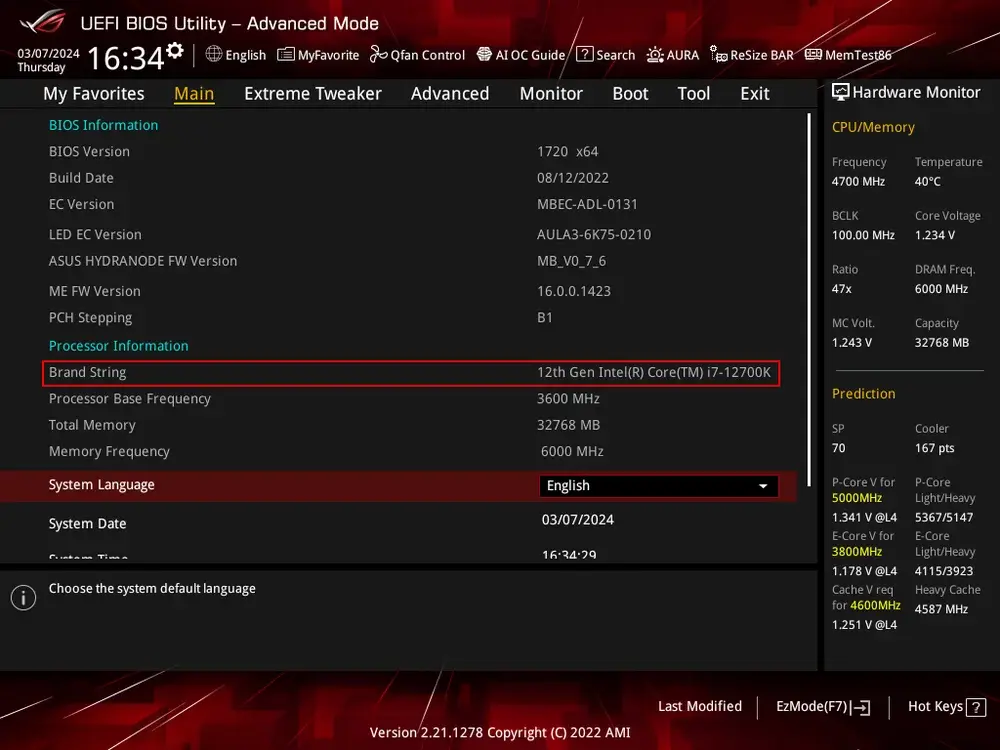
These offer access to hardware-level configurations such as which storage device to boot from or which components to disable. RAID allows your computer to enable low-level storage drive duplication to make sure you never lose your data.
When the hardware is first turned on, the BIOS or UEFI will execute the POST – or Power-On Self Test – to ensure all hardware is functional. After this, the firmware hands control to the software-based bootloader stored on the storage device and loads the operating system.
Software
The operating system offers a general-purpose interface for completing tasks, either using a command-line or graphical user interface. These generally take more storage space necessitating that they're stored on internal data drives.

Drivers are leveraged as necessary to expand on the functionality of hardware beyond what is offered by the firmware. These are special software packages that directly "drive" hardware from the operating aystem. This is common for components like graphic cards, sound cards and other controller chips.
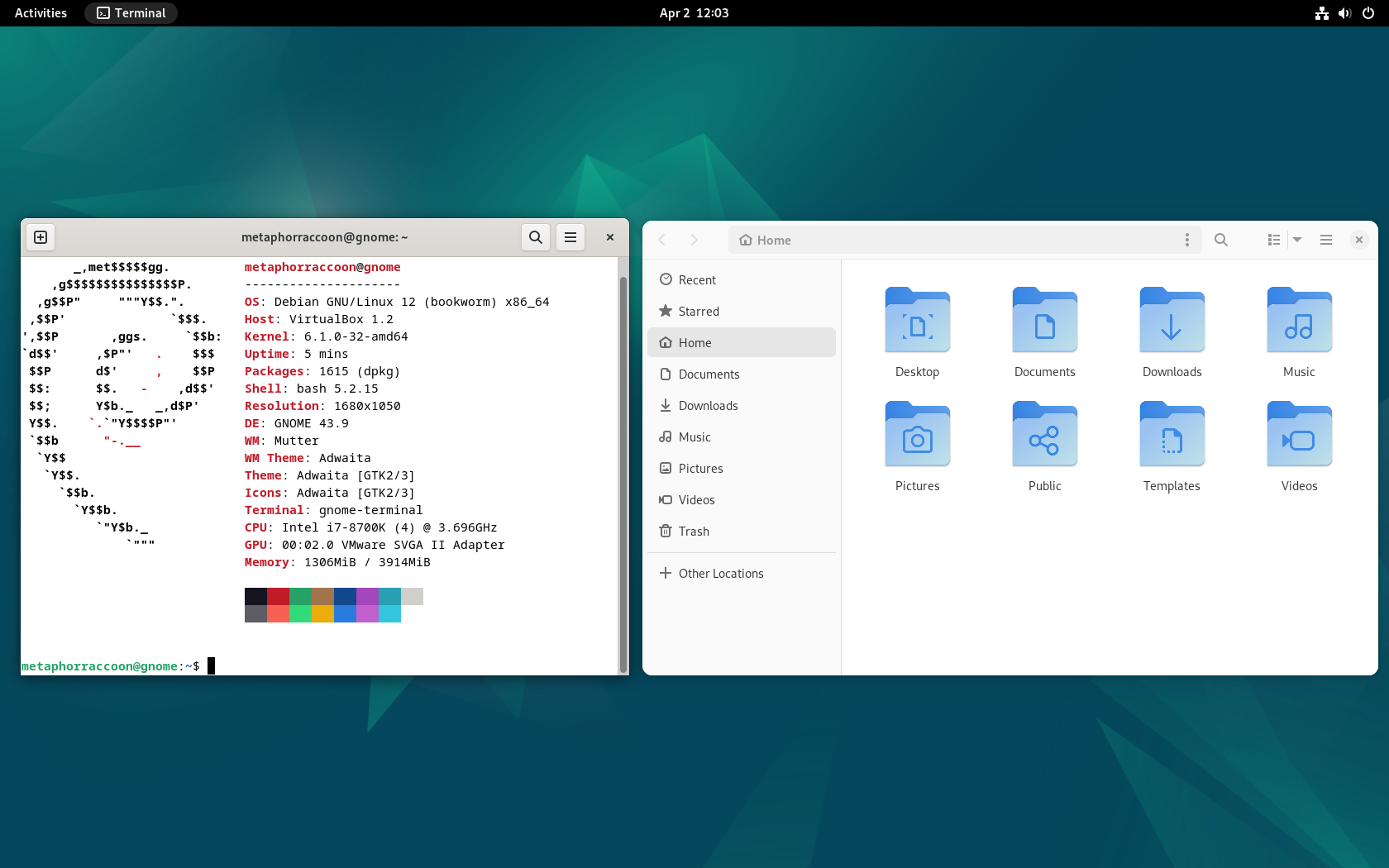
Debian 12 GNOME |
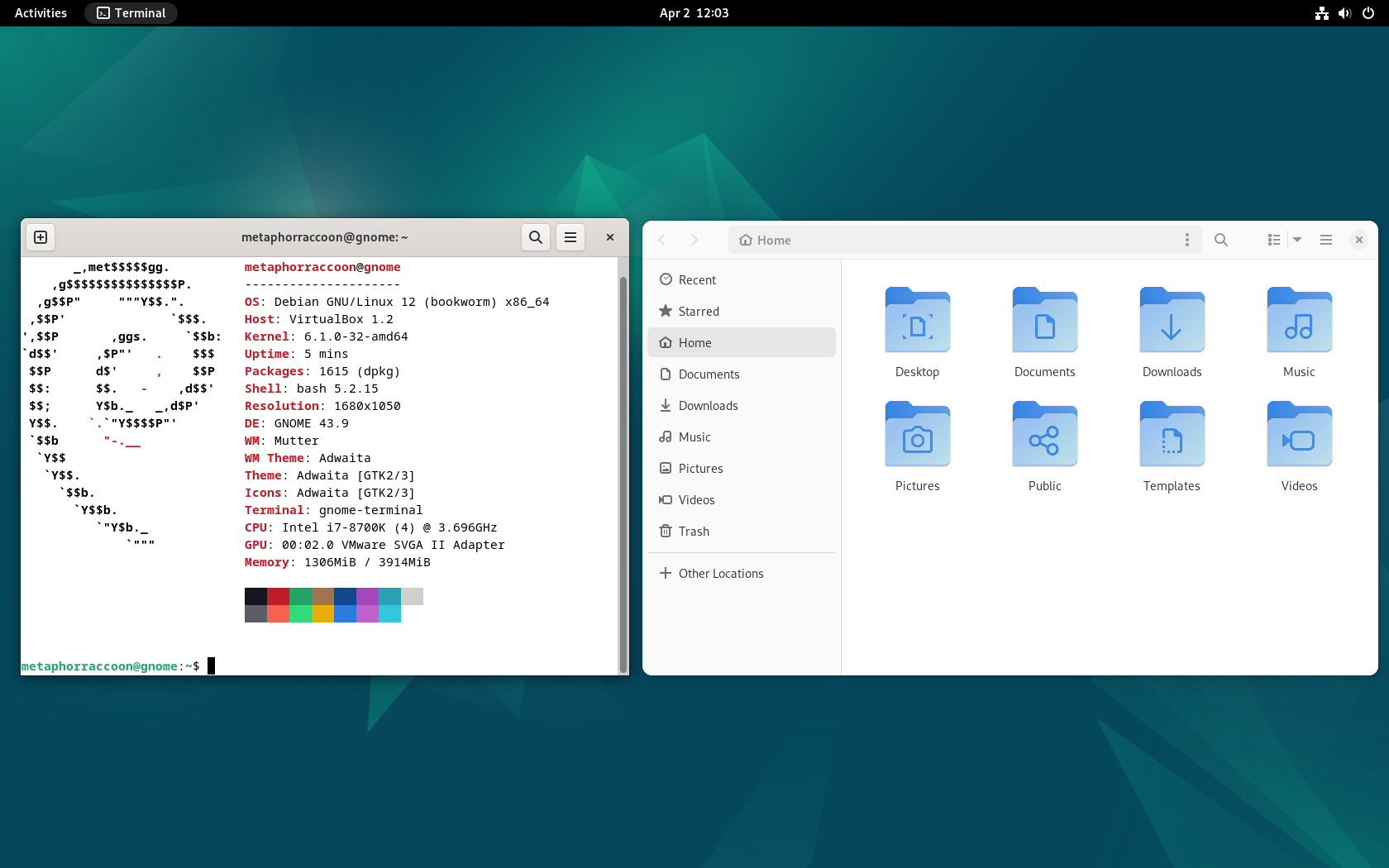
An operating system creates a user environment for running applications to perform specific tasks like opening a web browser or editing a word document. This type of software is often intended for one user through their user account on a computer they are accessing locally.
Compared to user applications like a web browser that are used while sitting in the chair at your computer, server software lets your computer respond to requests from client devices accessing over the network.
Quick-Start Examples
This is an overview of some quick-start computers you can use to create a server for your self-hosted cloud services.
Single-Board Computers
The Raspberry Pi – who popularized this style of computer – currently sell three versions of their board: 3B+, 4, and 5. Other options include: similar vendors such as Banana Pi, Orange Pi and Pine Board; the completely open hardware Libre Board; the Asus TinkerBoard and the Texas Instruments Beagle Board.
|
Sell Cost $50 – $200 |
Single-board computers work well for small servers, but can struggle under heavy usage. While cost-effective, they are also examples er, but these computers can run for months without needing to be restarted.
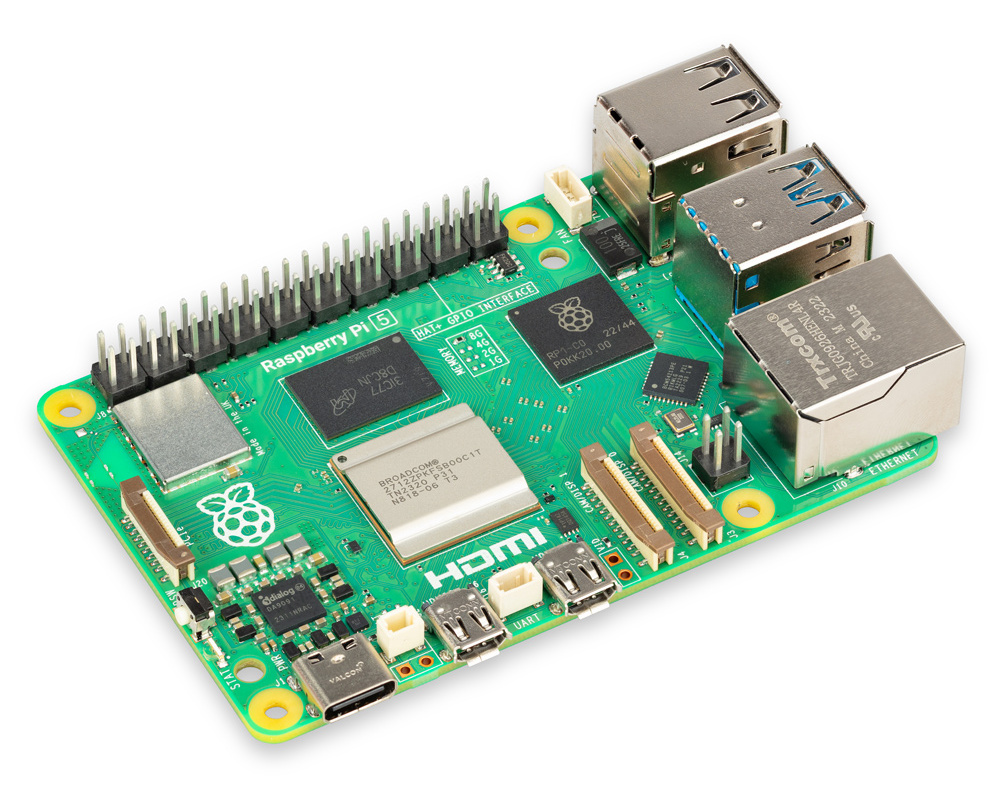
Great for hosting a small server where you run services only for yourself.
Home Server
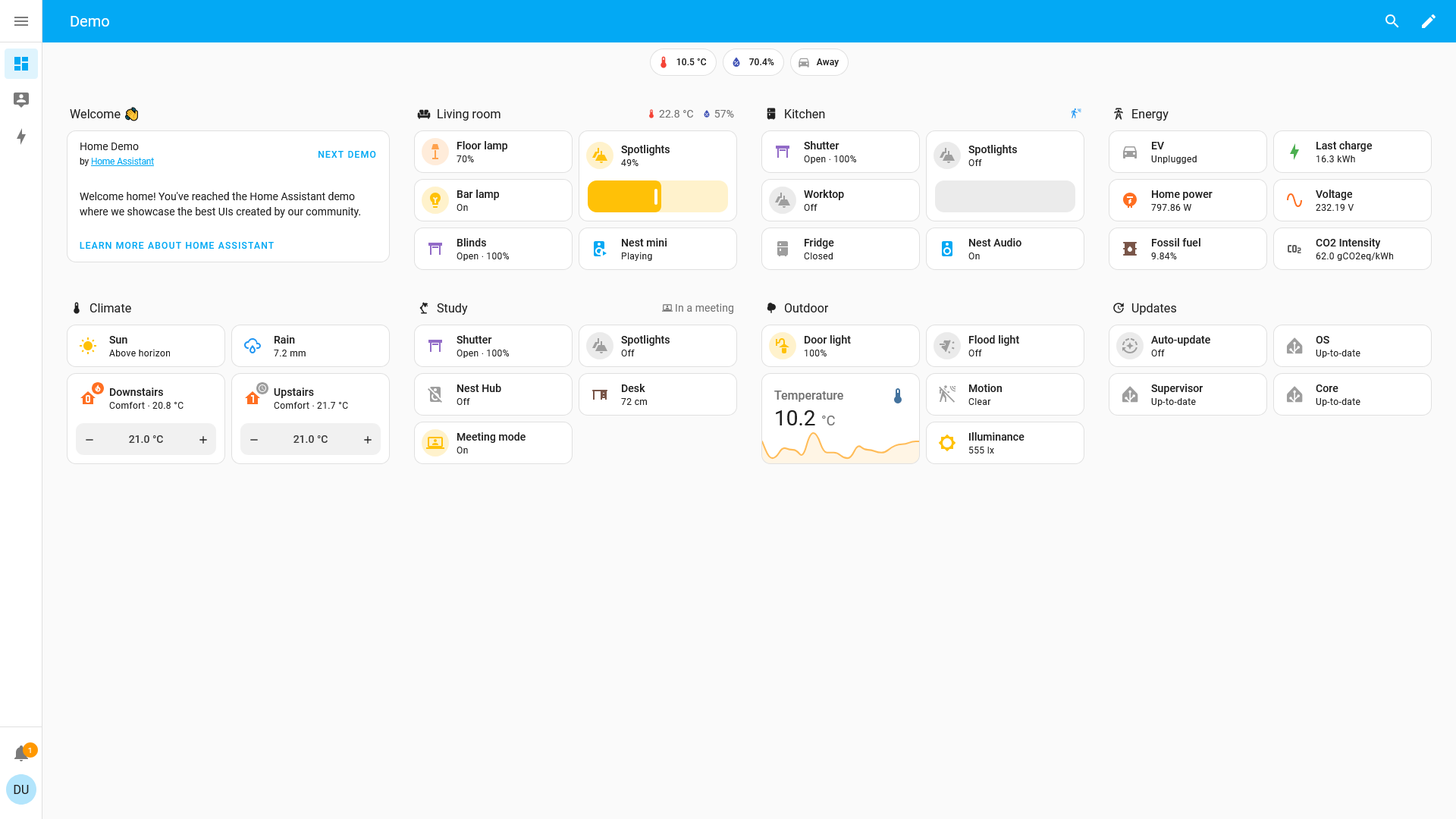
Use a Raspberry Pi 4 for Home Assistant to manage your smart devices and Grocy to keep track of your kitchen inventory.
Personal Cloud
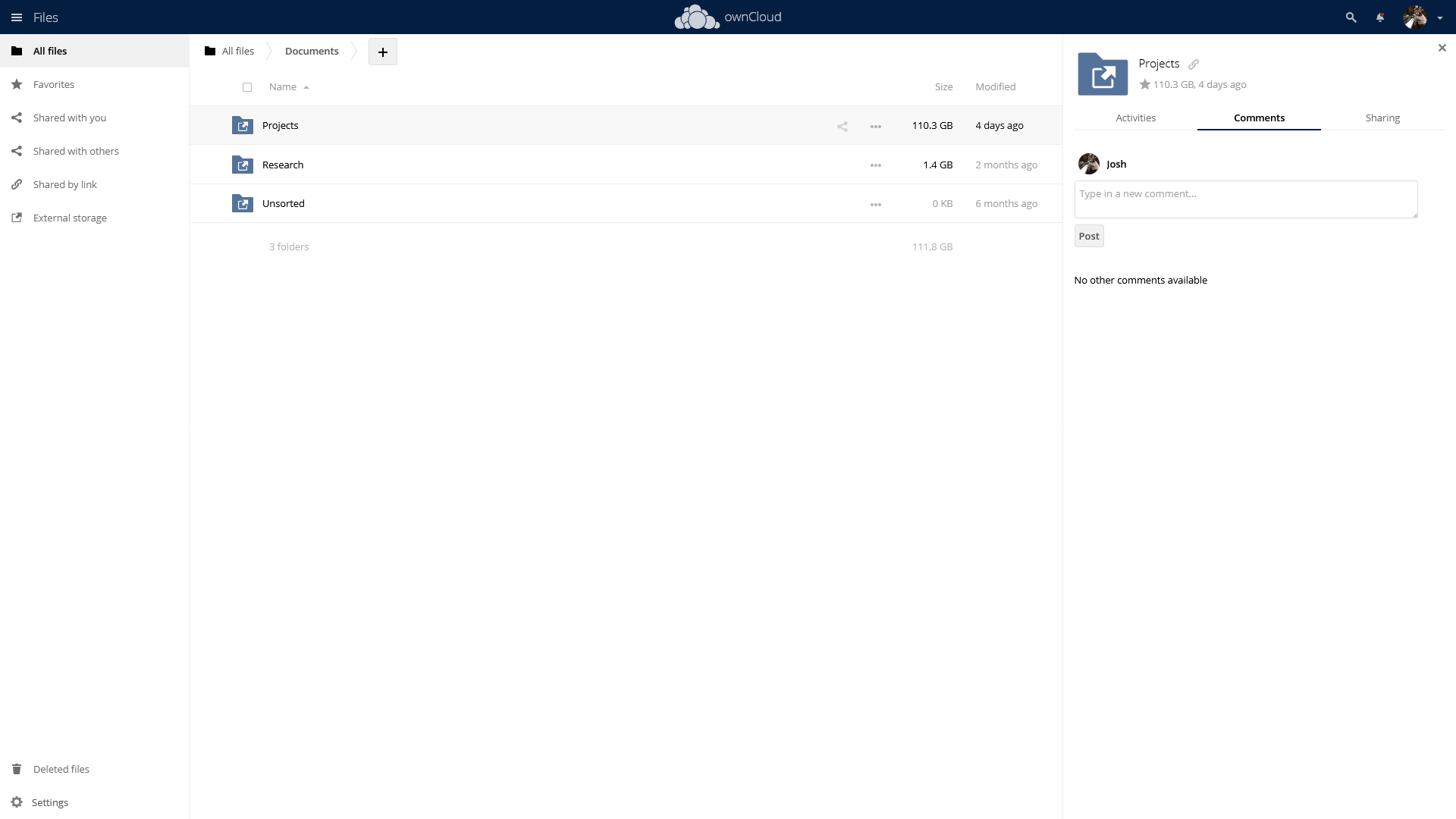
The Raspberry Pi 5 and a USB 3.0 Hard Drive can be a personal OwnCloud server for your calendar, contacts and files. Add Collabora to edit documents, slideshows and spreadsheets directly in your browser.
Personal Wiki
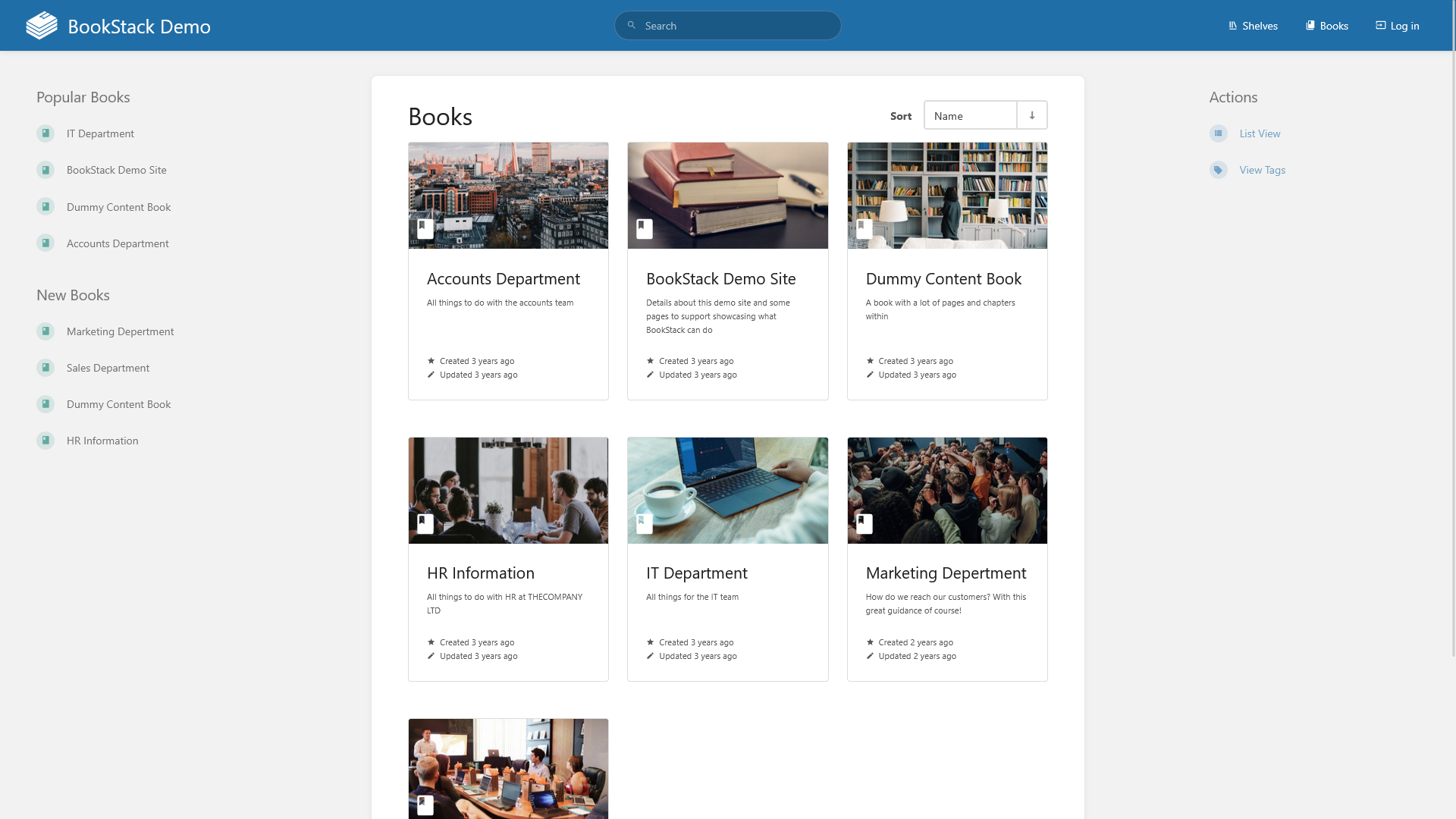
Use the Libre Computer Solitude for hosting your own BookStack to keep track of your personal knowledge.
Your experiences may vary.
Always make sure to test for stability when installing new services.
This class of commodity computers use ARM processors that are part of a system-on-a-chip. They are extremely power efficient with performance specifics being dependent on the model you purchase. Generally, they are powered using a USB connector and a high-quality cable.
By default, many come with an Ethernet port, Wi-Fi, Bluetooth, USB, HDMI and 3.5mm audio output. These board also come with a GPIO port which offers programmable pins for HAT add-ons and project development.
| Minimum Specifications |
|
Developer_board |
Processor
|
|
Memory |
Memory
|
|
View_in_ar |
Graphics
|
|
Hard_drive |
Storage
|
|
Lan |
Connectivity
|
| Where To Buy |
|
Language |
Online |
Mini PC
Small form-factor traditional computers have become popular for creating your own personal media server and set-top boxes using Plex or Jellyfin. These are sold by many notable PC manufacturers, such as Intel NUCs or Dell's OptiPlex and Precision series. There are other direct-to-consumer options like System76, BeeLink and GeekomPC.
|
Sell Cost $150 – $1500 |
Mini PCs can work well for a small personal media or cloud server, but lack the power to support multiple users. Many computers in this form factor cannot support a graphics card or additional hard drives. High-speed NVME hard drives are increasingly common, greatly improving performance for basic cloud servers.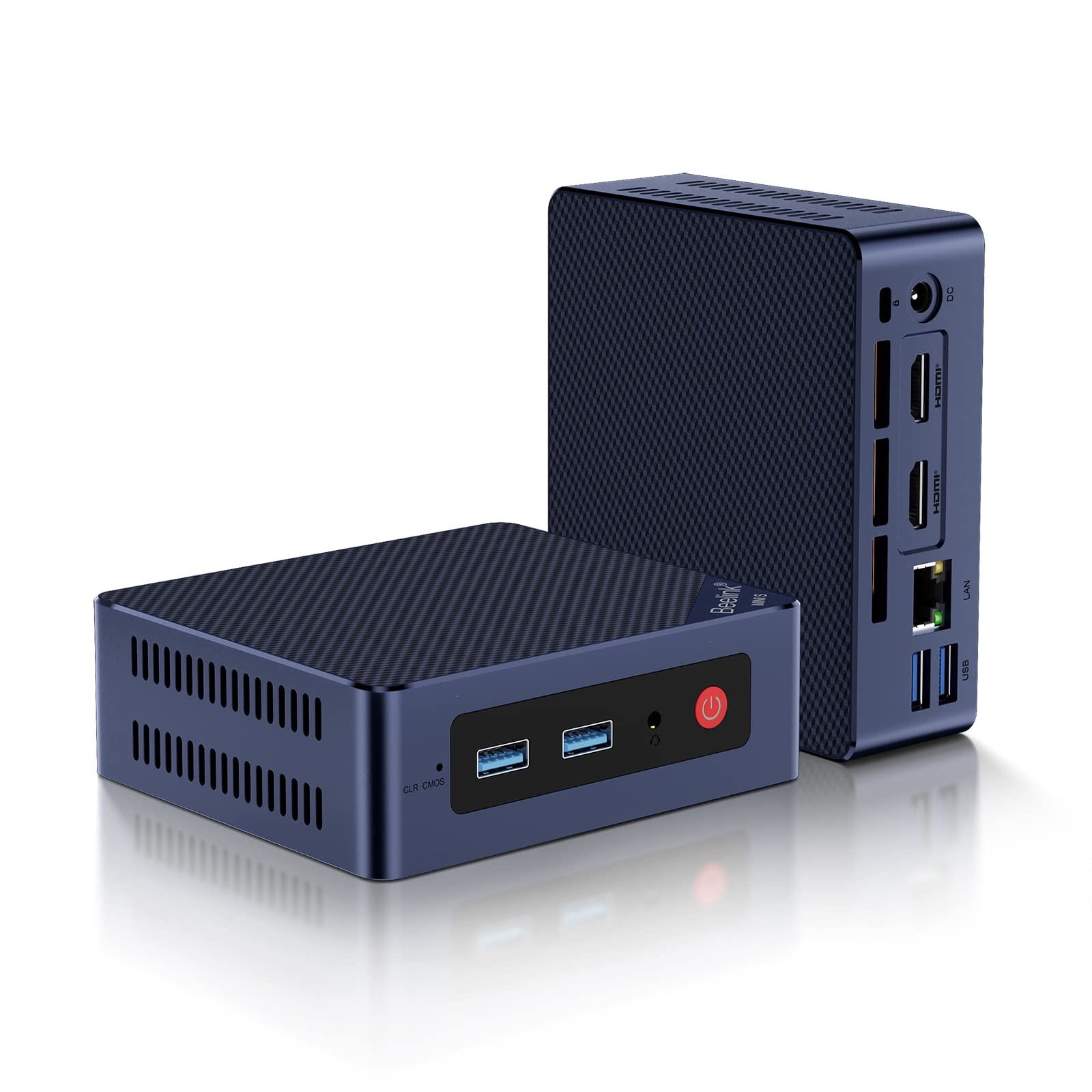
Great option for hosting a small media server or a cloud solution for your family.
Media Manager and Server
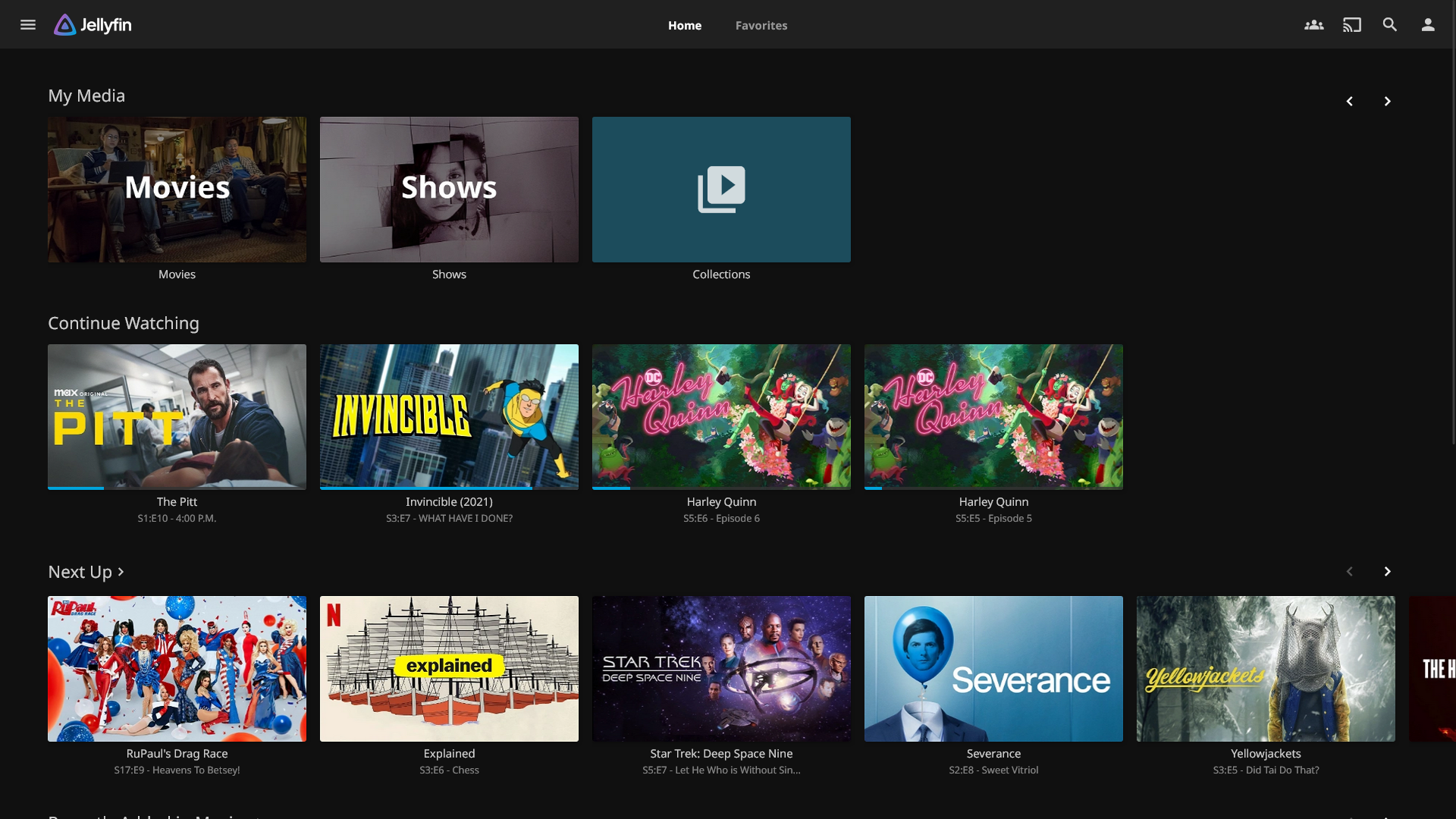
Host your own Jellyfin media server to stream your media remotely. Personal media managers like Radarr, Sonarr, Lidarr, Readarr and Bazarr can help keep track of your media, while Prowlarr can aggregate search results for missing media to send to your peer-to-peer qBittorrent server.
Personal Blog, Website and Wiki

Express yourself with a WordPress blog, build a knowledge base with MediaWiki and host your own personal website or resume.
Your experiences may vary.
Always make sure to test for stability when installing new services.
These types of computers uses the traditional x86 architecture which gives them more processing power at the cost of more power usage. Depending on the model, they may use a desktop or mobile processor and have differing levels of extensibility for add-ons like graphics cards or hard drives.
These computers can be reasonably priced with a traditional x86 processor and expandable storage. Many mini PCs come with different connectivity options such as USB, HDMI, 3.5mm audio, optical audio, Ethernet, Wi-Fi and Bluetooth.
| Minimum Specifications |
|
Developer_board |
Processor
|
|
Memory |
Memory
|
|
View_in_ar |
Graphics
|
|
Hard_drive |
Storage
|
|
Lan |
Connectivity
|
| Where To Buy |
|
Language |
Online
|
|
Storefront |
In-Store |
Workstation Computer
These desktops offer the most versatility and can be upgraded over time. Desktop computers are reliant and extensible, making them a great option for always-on server. They can be upgraded over time, making it easy to add more storage, RAM or a more powerful graphics card as your user base grows.
|
Sell Cost $500 – $2000 |
Desktop tower computers offer the most power and extensibility for a versatile personal server. They can run multi-purpose services including an OwnCloud personal cloud, Collabora office software, Jellyfin media server, qBittorrent peer-to-peer server and procurement services to curate your media.

Best option for hosting a server for use by yourself, friends and family.
Cloud Office Suite
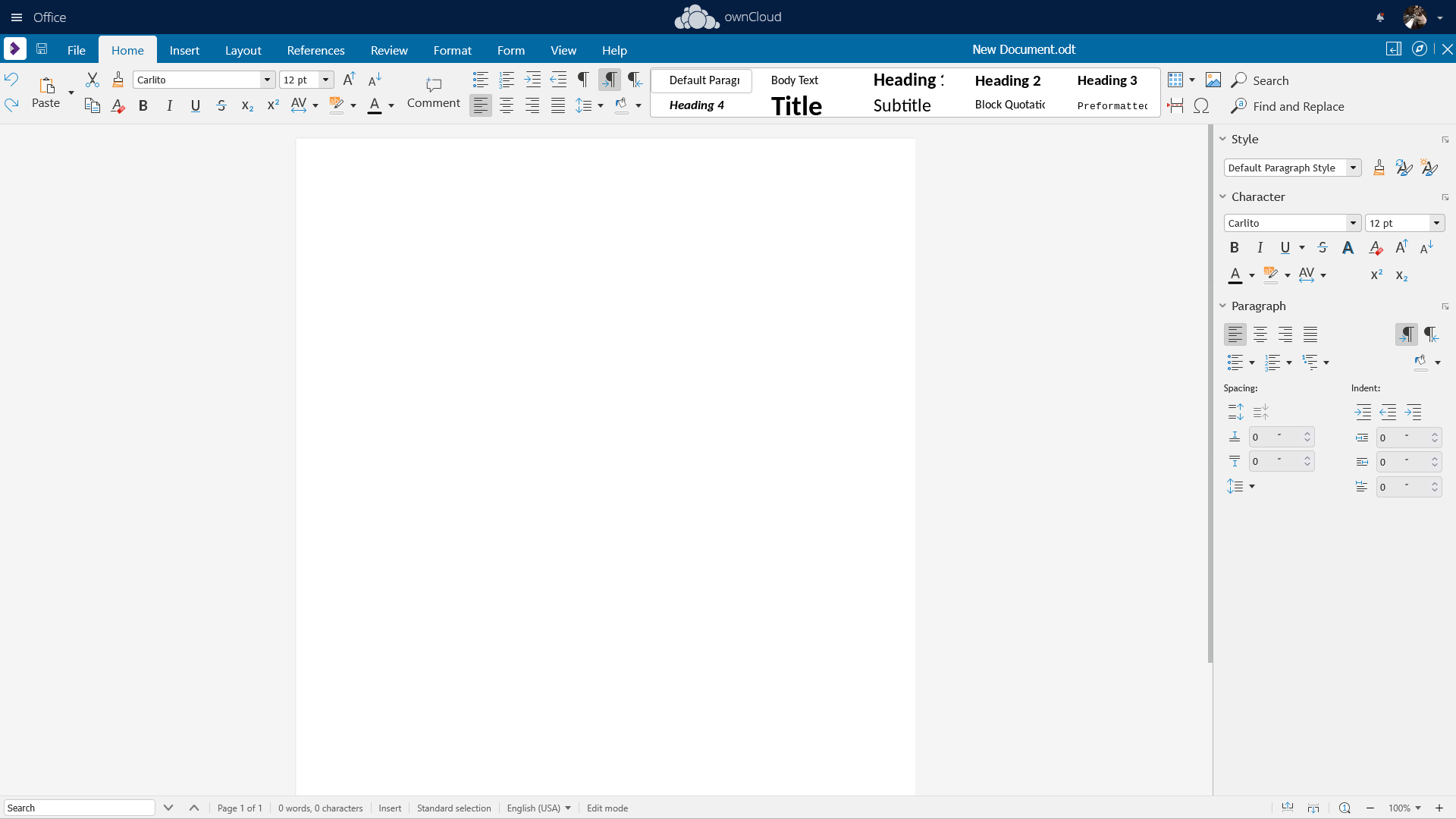
Host OwnCloud for calendars, contacts and remote document access, as well as Collabora to edit files directly in your browser. Plan our your next project with Vikunja, organize documents with Paperless-NGX, and develop code right in your browser with vscode. Manage your passwords, Two-Factor Authentication and secure documents using BitWarden.
Online Community

Host a WordPress blog to share updates, document a project using MediaWiki, build community through a Flarum forum, and manage your own streaming with OwnCast.
Your experiences may vary.
Always make sure to test for stability when installing new services.
These computers have space for a dedicated graphic cards, as well as both traditional hard drives and NVME solid state disks. There are even external USB or Thunderbolt storage options to use for your backup solutions. RAM can also be easily upgraded as needed to run more concurrent services.
| Minimum Specifications |
|
Developer_board |
Processor
|
|
Memory |
Memory
|
|
View_in_ar |
Graphics
|
|
Hard_drive |
Storage
|
|
Lan |
Connectivity
|
| Where To Buy |
|
Language |
Online
|
|
Storefront |
In-Store |
Common Language
Computers are complex machines that require the near constant communication and synchronization to continue functioning. These systems consist of numerous modular parts, each containing their own components and core functions. From the procedure that powers on your computer to the process that controls electron flow within a integrated chip, standards are what define our global infrastructure and facilitate communication.
Building a global computer network, more commonly known as the Internet, requires a great deal of planning. We need to ensure that computers are created in a way that promote synergy and harmony – a method for ensuring parts can work together even when created by competitors. Building upon this foundation, we need to reach an accord about how each of these parts can communicate with the others to create larger systems.
As a collective, we convene to curate standards – or a mutually agreed upon definition about something and how it should operate. They are a lingua franca, allowing us to bridge systems through common language each party can understand. Standards help set the stage for creation and collaboration on an unrivaled scale by ensuring the ability to share important information across a divide.
Coming to an agreement on standards can be a contentious process that is never quite finished. As computers gained prominence, many corporations vied to create their own proprietary standards in an attempt to corner the market. This meant that computers and parts created by one manufacturer would not always compatible with another's.
Everyone from engineers to corporations explored their own ideas about how the Internet should work. Starting in the 1960s, the Protocol Wars polarized researchers and nations alike as we debated how a World Wide Web of computers would take shape. This required finding robust and reliable means for computers to connect across vast distances. It wasn't until the early 1990s that we firmly agreed on a standard – just in time for the Unix Wars to begin.
Reasearchers were learning how to computers worked about as quickly as corporations sought to generate a profit from them. By creating divergent standards, consumers were often locked-in to the ecosystem of the hardware manufacturer.
The prevailing Internet standard was not created by any one corporation, but through an organization focused on the creation of open standards. This means that, instead of being owned by any one party, these standards are freely available for anyone to use so that no one can own the Internet.
Standards
During the first booms within digital computers, we quickly faced the reality that there were many ways to achieve the same end. Finding a path from one point to another can contain many complexities along the way. Standards ensure consistency and play an important role in defining expectations.
|
Hub |
Interoperability This allows individual components or entire systems to work seamlessly with other discrete parts. Originally intended for technical information systems, it has expanded to consider external factors – such as social, political and power structure. Interoperability is crucial within technical fields – like computers and networks – for widespread adoption. |
| Security |
Security Standards often contain best practices that help guide security decisions and provide safety. This allows us to take steps to protect sensitive data through add-on mechanisms – such as encryption, authentication and access controls. By defining expectations, standards can help us avoid the risks caused by unsupported or incompatible systems
|
| Verified |
Reliability Standards will often formalize the minimum requirements to ensure safety and continued operation. This can prevent accidents and injuries caused by product failures, as well as provide assurance that the system will keep functioning. |
These are an important part of global systems like agriculture, communication, science and technology. Defining measurements, symbols and terms we can more easily have conversations across languages and geographical boundaries.
The metric system is an example of a standardized system – what you consider a kilogram is the same as everyone else. These form a foundation on which other standards can be built, enabling larger systems with more complexity.
Technical standards set the rules for building computer components that work together and networks that can seamlessly share information over great distances. They cover a broad area from dimensions and processes all the way to safety and performance requirements. Standards are used for creating both hardware and software.
Software
|
Web |
This is used to code websites made available on the World Wide Web. |
| Lan |
This forms the foundation for computers connecting over the internet. |
|
This allows us to send emails to people regardless of where they are in the world. |
|
| Directory_sync |
This enables two computers to exchange files over a network. |
| Docs |
This file format can be used to store text files on a computer's storage. |
| Wysiwyg |
This can be used to save text with rich formatting to your hard drive. |
Hardware
|
Developer_board |
This allows computers to extend their hardware with add-on boards. |
| Memory |
This forms the foundation for memory in modern computer systems. |
| Bluetooth |
This allows devices to communicate over a personal area network. |
| Tv |
This allows high-quality video and other data to be transmitted over a cable. |
| Usb |
This enables devices to share power and data on a local connection. |
| Hard_disk |
This provides an interface for accessing locally installed hard disk drives. |
For standards to be used and become widely accepted, they need to be formalized with technical aspects thoroughly documented. They are often maintained by organizations that focus on their continued development. How complex is will vary based on the specific problem it is addressing.
The prominence of a standard can be greatly affected by how it is implemented:
|
Gavel |
These du jure standards have been created by officially recognized Standards organizations – such as IEEE, ISO, and ANSI. These standards help ensure global collaboration by defining important terms.
For example: the Internet, websites, email, mobile broadband, and cellphone service
|
| Stars |
These de facto standards are not created by any official organization so they are not strictly required. They are often created by private manufacturers and have gained widespread adoption within consumers.
For example: PDFs, MP3s, HDMI cables, USB connectors, PCIe extension ports, Bluetooth and 3.5mm audio cables. |
Not all standards are created equal and come from many different entities. They can be proprietary "closed" standards or community-focused open standards. They each fill their own niche, coming with their own intentions and complexities
Some standards are maintained by a private corporation and are not available to the general public. Generally, these cost a fee or require some other contribution before they can be used. While this may increase profit, adoption may be limited because of the additional steps and increased cost.
This has the potential to create perverse incentives for the standard owner to focus solely on their profit generation. Membership can provide corporations means of providing their voice to its development and push back against this.
HDMI, Bluetooth and USB are examples of "closed" standards that require licensing to claim compliance.
This process may drive manufacturers to alternative open standards that are community-developed. All necessary documentation and specifications are openly available to the public. These also generally come with an open license that opens the avenue to extensibility and new features. Based on how they are implemented, there may be variability from the standards as written.
The Internet and cell phone mobile broadband are examples of open standards.
Standard Systems
When independent computer systems need to communicate, they need to use a well-defined format. The messages exchanged between two computers have a precisely defined intention, resulting in an expected effect based. The content of these messages and they recieve are all determined as part of their related standards.
That's why it is imperative for every party involved to mutually agree on these 'call and responses'. The same way that programming languages define our expectations for writing applications, standards can be used to formalize how they communicate.
While a standard is the guideline for maintaining uniformity, they can be employed in different ways:
|
Rule |
Specification Standards often come with specifications that provide details about the requirements – such as dimensions, materials and procedures – for a specific entity. They are used to describe both the problem and it's solution.
These can be incredibly in-depth because they are used to explicitly describe integral parts, including manufacturing, testing and handling. They are important for creating contracts because they are a mutually agreed-upon definition for expectations.
Motherboard standards contain specifications about their dimensions and fastener locations.
|
| Forum |
Protocol Defined through specifications, these create the means for communication across disparate systems. While standards ensure devices are compatible, protocols enable them to agree upon the language to communicate with.
They govern how data is shared through our global information infrastructure by formalizing parameters:
Protocols are often implemented at both the hardware and software level to ensure compliance. Multiple protocols are often used to handle various dimensions of communication – such as finding a computer on the network, establishing the connection, and ensuring it's continued security.
The Internet standards define the protocols required for global network communications.
|
| Layers |
Interface This is a shared boundary between two separate systems that is used to share information through direct interaction. While a standard dictates how an individual process should occur, an interface enumerates what processes can occur.
A graphical user interface allows us to control our computer with a mouse and keyboard. Similarly, a hardware interface allows computer parts to communicate with software applications.
The UEFI specification creates an interface for controlling hardware components. |
Community Impact
Communities can be created within any space where people come together – leading to all kinds of closely or loosely connected group identities. These communities can emerge – knowingly or not – when we make decisions that impact other people.
When we build technology and create digital spaces, it can be easy to forget the effect we have on our physical world, from the server stored in our garage to the houses along the block. We leave our mark on the spaces left in our care and our personal decisions have reverberating effects that can be felt by others – through both subtlety and verve.
Technology has been designed from the ground up to be abstracted, but we must not allow ourselves to lose sight on the fine details lost by the collapse of integral complexity. Before we "break ground", we must take the time to seriously reflect on how our choices can affect those around us – both physically and digitally.
Ecosystems
Hardware can create digital spaces where we can operate without the limitations of reality. Despite this, hardware resides within the physical world and global ecosystems that we rely on. The choices we make for something as menial as self-hosting can affect us, our neighbors and every denizen of the newfound digital world.
Modern cloud computing infrastructure has staggering effect on our global ecosystems. By self-hosting, we can take responsibility for the stewardship of our environment.
eWaste & Refurbishment
E-Waste – or electronics waste – is a pressing concern that we all need to take action on. Within each electronic device, there are both rare earth materials and potentially harmful toxins. As our dependence on computers grow, these materials need to come from somewhere, often resulting in exploitation and human rights abuses. While some materials can be recycled, others may find a final resting place within a landfill.
|
Precision_manufacturing |
Precious Metals Gold, Silver, Platinum, Palladium, Copper, Nickel, Tantalum, Cobalt, Aluminum, Tin, Zinc
|
| Diamond_shine |
Rare Earth Elements Neodymium, Dysprosium, Terbium
|
| Skull |
Toxins Lead, Mercury, Cadmium, Beryllium, Bromine, Polyvinyl Chloride
|
When electronics are buried in landfills, these materials and toxins can spread through liquids or dissipate into the air. These ingredients leech into our global ecosystems, travelling through rainwater into the soil that grows our crops and feed the animals from land, sea and air. We consume them with the water we drink, food we eat and air we breath. Plastic has become pervasive within every corner of the planet.
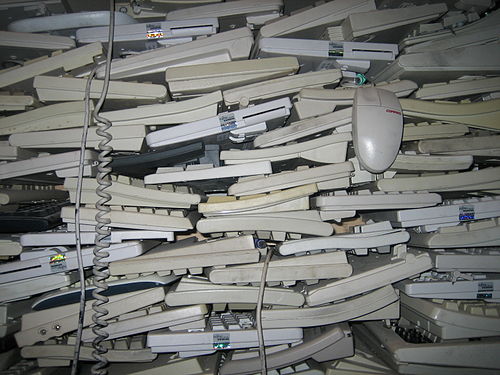
Recycling grows more difficult as devices trend towards smaller form factors filled with deeply integrated parts. When materials cannot being reclaimed or recycled, these toxic materials can be sequestered for the health of our communities. Electronic recycling rates are globally low at 20% – and highest within the EU at 35%.
Learn more about global electronic waste recycling rates and legislation.
What remains is undocumented with no way of truly knowing how they will affect our ecosystems for generations to come. In the modern economy, some countries send e-waste while others receive it – in an illicit ring of smuggled e-waste. These materials are not biodegradable and will persist until we properly account for them.

Technology companies often adopt a motto to "move fast and break things" that leads to rapid innovation cycles and frequent device releases. Planned obsolescence, hardware expiration, and forced upgrades quickly build mountains of electronic water while costing precious resources.
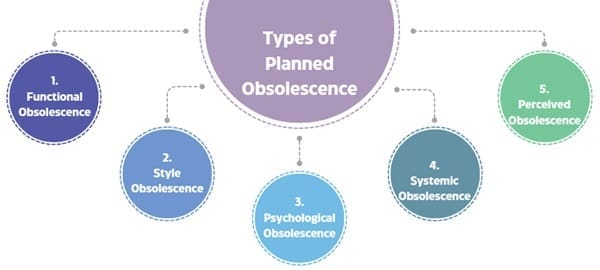
When electronics reach end-of-life status – such as being recycled by consumers or becoming unsupported by the manufacturer – they become electronic waste. This, however, encompasses a great deal of hardware that is still perfectly functional, or could be with a few small repairs.
Refurbished electronics have been extensively tested and repaired to make them work "like-new". These devices may also be called renewed, reconditioned, recycled, or recertified. Devices may have a grade to describe the amount of wear and tear on the device.
These are different from "used" or "previously owned" hardware which has not been confirmed to work to the manufacturer's original specifications. In many countries, the term "refurbished" is not legally defined or protected.
Manufacturers may sell their own refurbished hardware – such as Dell and HP. These are often returned consumer or leased business hardware. For tax purposes, corporations donate used electronics to non-profits who then refurbish them for consumers – like GreenPC and PCs For People.
This can extend their life-time and keeps them in circulation until they can be thoughtfully recycled. While they're still operational, we can use them as a starting point for our server and upgrade parts over time as we need more storage or memory.

This circular vision of electronics – where they are refurbished, recycled and reclaimed for creating newer models – can provide a solid starting point for addressing our electronics going forward. Open standards are what enable people around the globe to upgrade and repair their own computer systems.
 Modular technologies – that we can change and make our own – evoke our creativity can make our electronics more personal and repairable. A consumer's right to repair the electronic devices they paid for and own is largely unprotected in the USA. This effects our ability to keep outdated electronics out of landfills.
Noise
Computers can be loud machines – especially when using older and unmaintained parts. There are several key components that can create noise pollution, a considerable distraction.
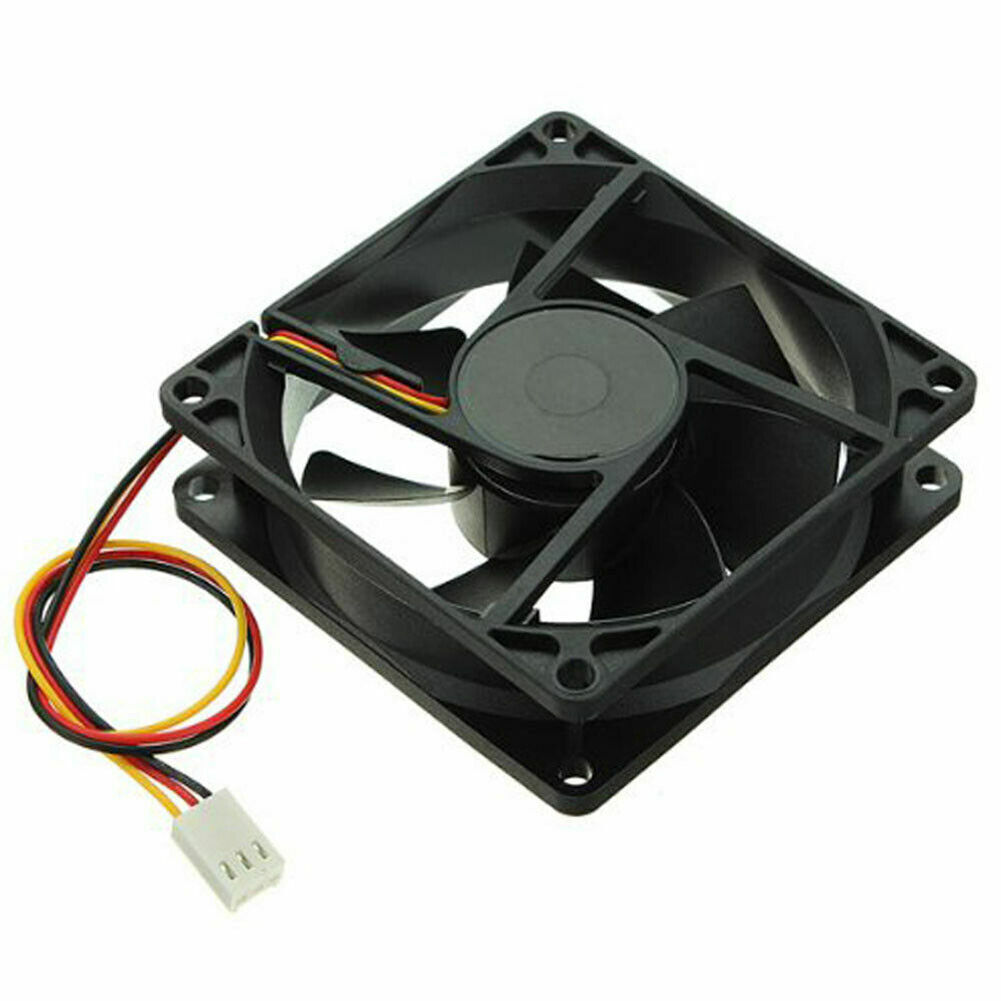
Computers can generate a great deal of heat that needs to be accommodated. Cooling components and reducing the ambient temperature within your computer case will require fans. Even when leveraging efficient water-cooling, fans cool the fluid.
 |
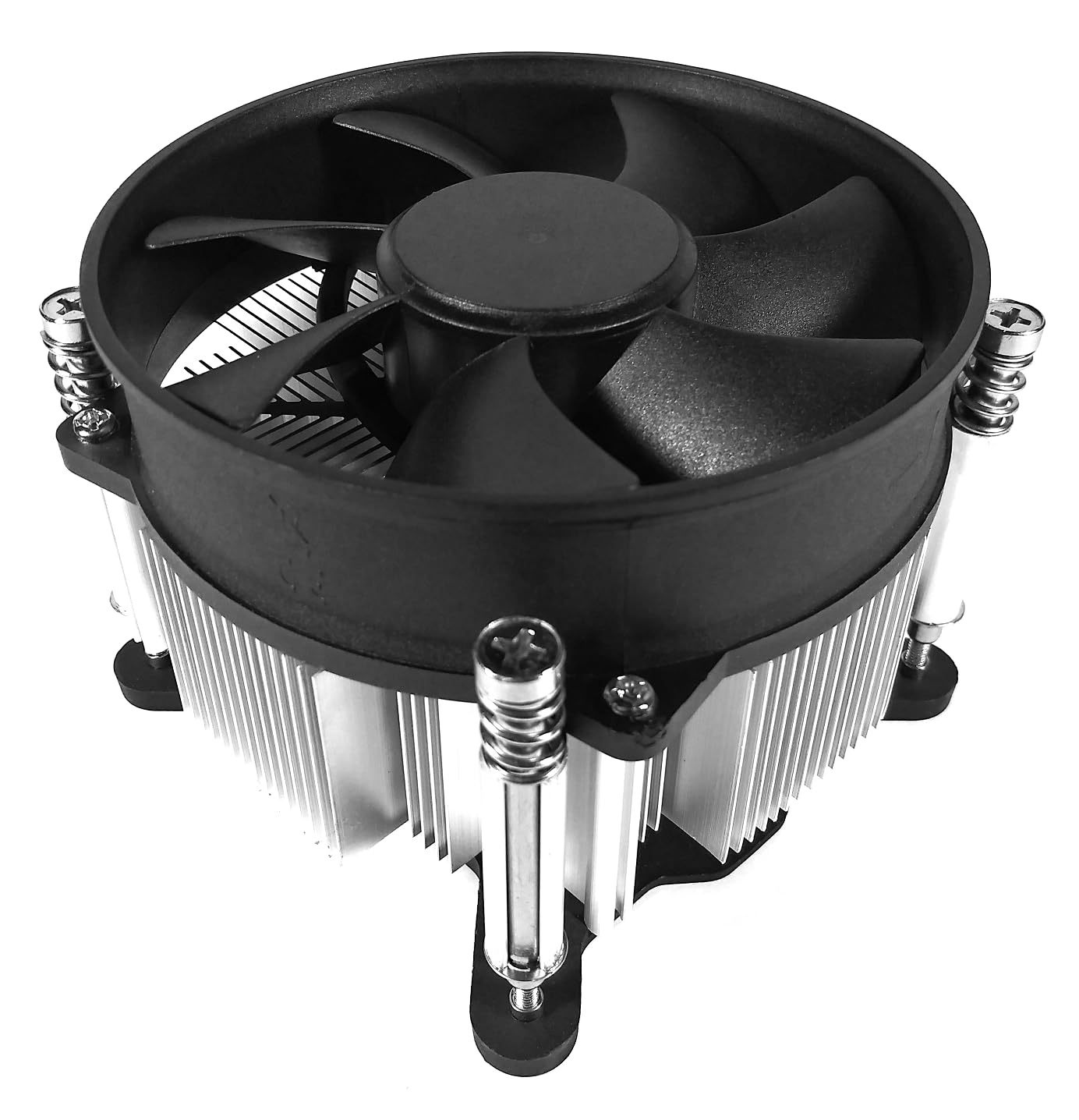 |
As fans become dirty and displace the lubricant, it is not uncommon for them to create whirring or buzzing sounds. These noises are signs of an underlying issue that needs to be proactively addressed through cleaning. When these issues are not addressed, fans can even begin to cause a grinding sound. Dirty fans not only create noise but make it difficult to keep your server cool.
Be mindful of where you're keeping an always-on server because it can affect not only your home but neighbors, too.
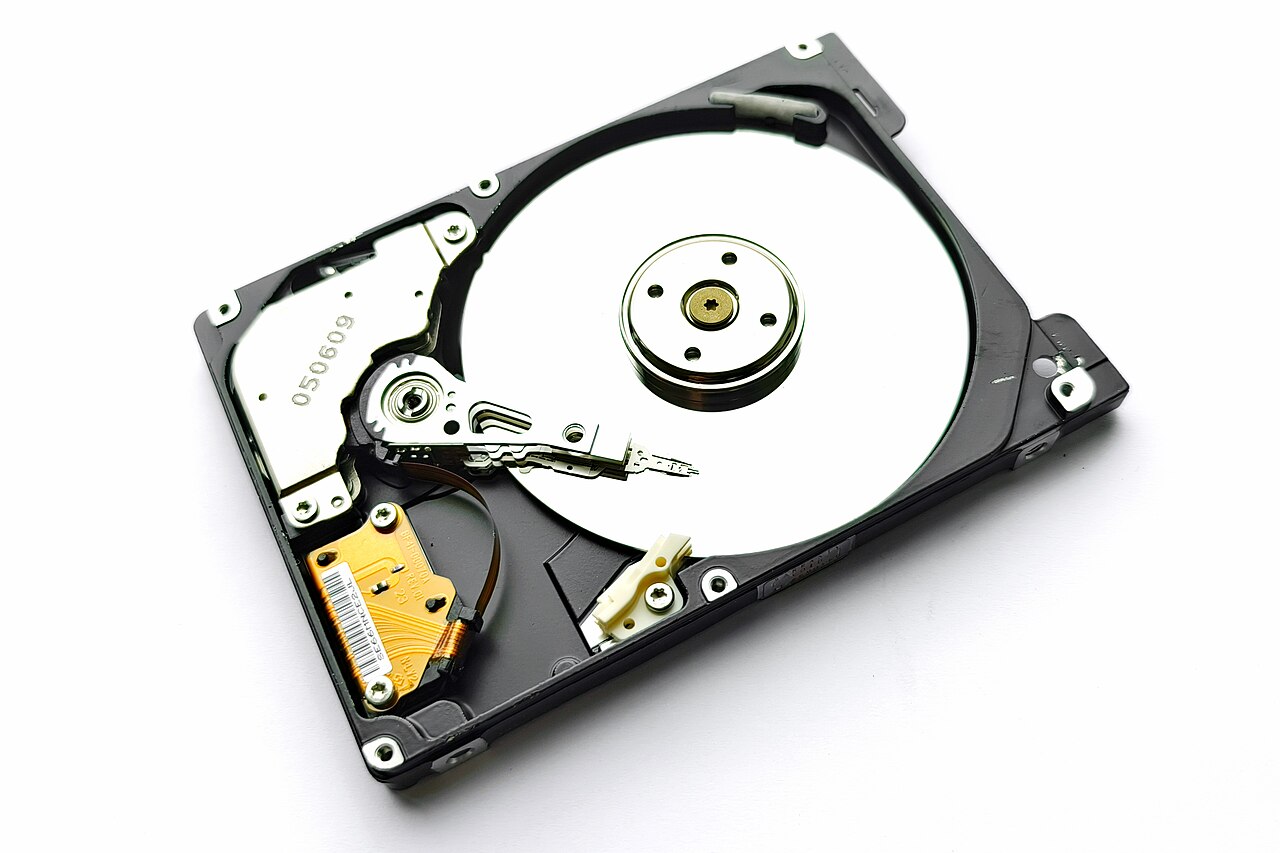
Similar to fans, platter hard disks can have moving parts that create the occasional whirring, buzzing or clicking as the device operates. Constant noise coming from a hard drive can indicate an underlying hardware issue. When not addressed, this can escalate into grinding noises and the eventual destruction of the drive.
 |
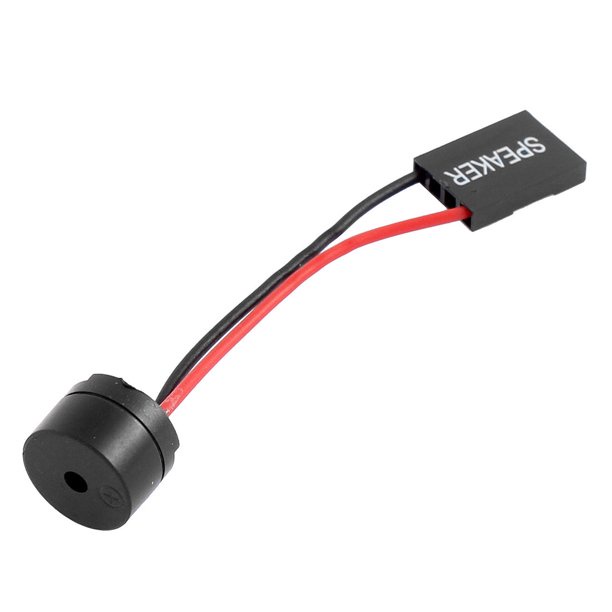 |
Many computer systems have a built-in speaker to notify about hardware-level component, such as chirping during POST while starting the machine. These are used for critical computer notifications.
Light
Computer systems can have many sensor lights and indicators that are always on – sometimes even blinking incessantly. People may be sensitive to light or distracted by their constant activity when trying to sleep or maintain focus.
These lights are often embedded into the computer case or its individual components to visually communicate what the hardware is doing. This can include power status, disk access and network data transmissions.
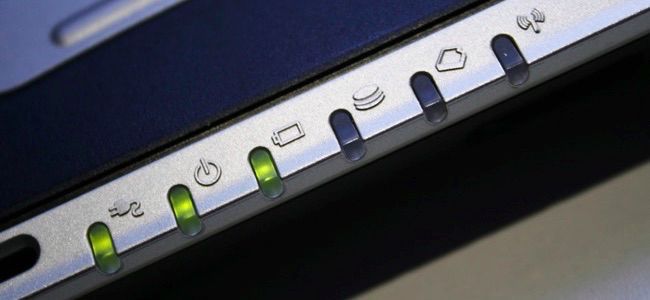
Depending on the manufacturer, individual components may have decorative or programmable lighting modules. These cannot always be disabled. Case lights can potentially be unplugged or other wise disabled. If not, blackout patches and stickers can lessen the glow.
Disabling the power and disk indicators can make it difficult to troubleshoot your computer at a glance.
Vibration
Computer systems may vibrate during operation as a result of numerous moving parts. This can be exacerbated when placed on an unsecured surface like a table or shelf.
Most computer cases come with rubber feet to dampen this, but they can become lost or degraded over time. Placing a rubber mat beneath the server or adding fan dampeners can help.
Public Utilities
When using services provided to the public, like internet and electricity, we must share them by necessity. By knowing of requirements, we can acknowledge our commitment for our communities.
Heating and Cooling
Computer servers can generate heat through their processors and chips. When performing intensive tasks for an extended time, this heat can quickly build up and needs to be accommodated for. While single-board computers like the Raspberry Pi can operate without a fan, heat can build up until the computer throttles itself – or operates more slowly to decrease heat generation.
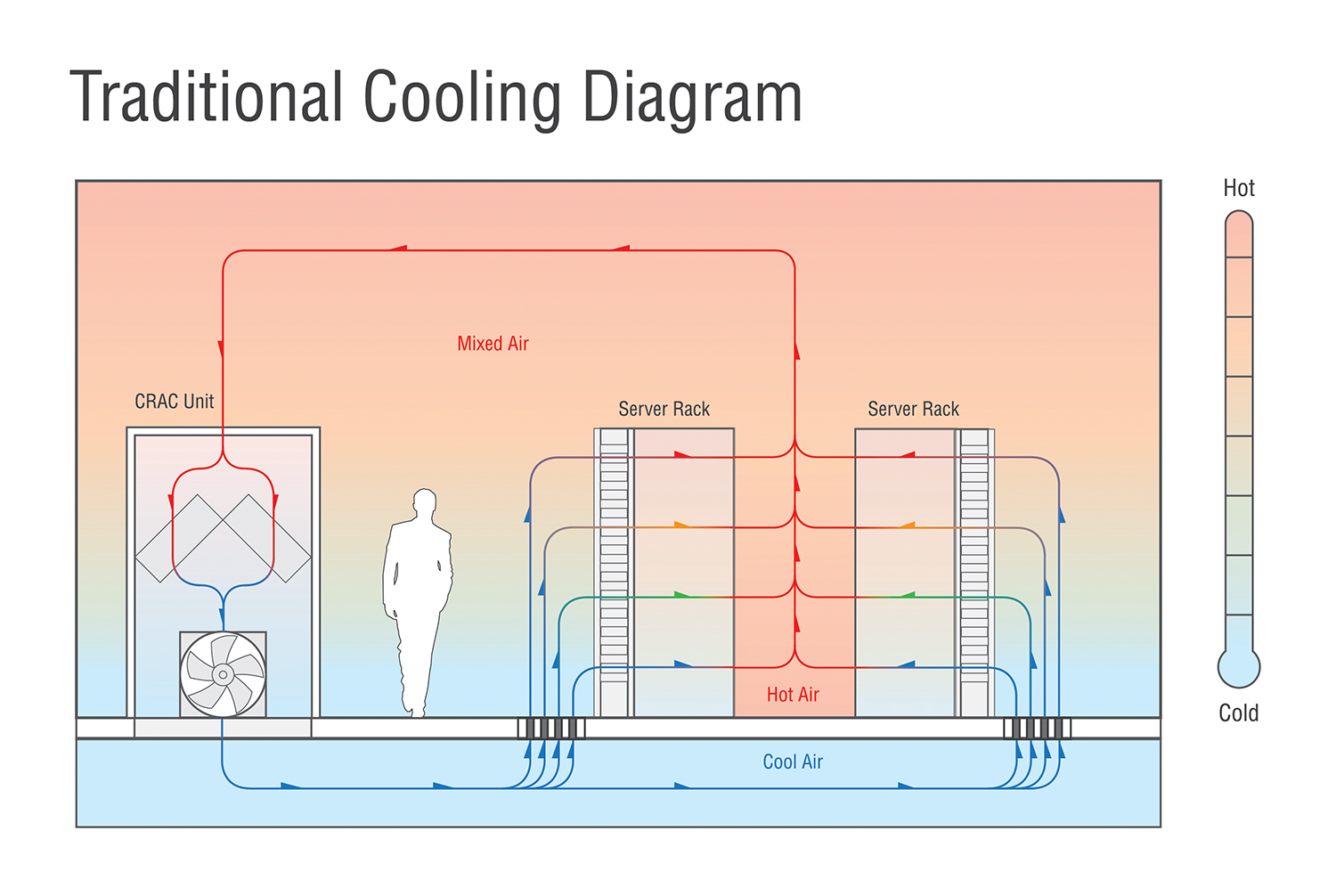
Modern computer systems can remove heat from components through efficient airflow or water-cooling. This relies on several fans located within the computer case and on individual components. When the fans aren't maintained, their ability to cool the system can be lessened. Once heat leaves the server, it will progressively warm it's enclosure – such as your living room, basement, garage or attic.
Depending on the layout of your space and the location of your server, this can cause problems during warm months and a boon during cold months. In a cool basement, a server can maintain reasonable temperatures, but that heat will radiate upwards through your house. By contrast, an attic will radiate heat away from your home quickly, but can be more reliant on ambient temperatures.
In an apartment complex, this can have drastic effects on your neighbors, too.
Computers work more efficiently the cooler they are, but generate heat the more consistently they are used. Sporadic processing – such as converting an audio file every 15 minutes – make it much easier for a computer to maintain an optimal temperature.
When the room becomes too hot, air conditioning unit may be needed to keep the computer system cool. This will not only require more energy, but increase ambient noise and produce additional heat to be managed.
Internet
Servers have the potential to negatively impact the internet connection quality for other devices on their local network. When devices connect to the Internet within your home, they are connecting through a central router device.
Modern routers are often miniature computers in their own right with processor resources that must be managed. When your server transmits massive amounts of data – such as a movie or television show – it is consuming router resources while it directs traffic on your local network. When a server is controlling a third of the traffic on your network, the remainder must be split among every other device connected to the Internet in your home.
Diagram showing a stacked bar graph of 30% being the server with the rest being other devices.
Certain Internet connection types – such as cable, satellite or fixed wireless – might be promising theoretical connection properties. Advertised speed and bandwidth may be limited during peak Internet usage hours. While this may seem nefarious, it is often due to a limitation of older or more centralized Internet access technologies.
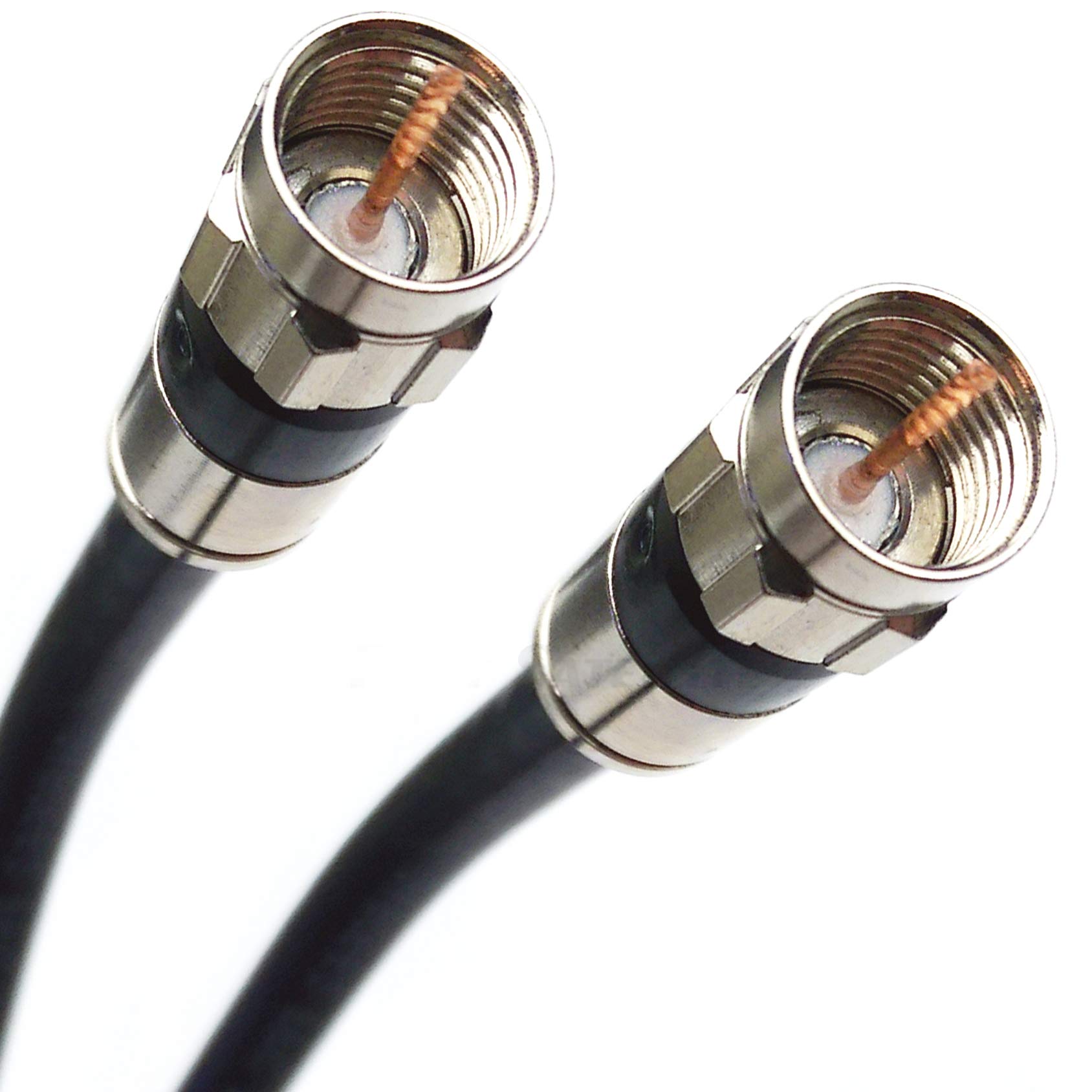
Cable Internet gets it name because by leveraging the existing infrastructure for transmitting analog cable television signals using a coaxial cable. This technology is popular for "last-mile" Internet access service by a local regional provider. As a result of the underlying infrastructure, multiple residences will often share bandwidth to the Internet. If your server uses a sizeable portion of the upload and download speeds, less is available for your neighbors.
This is similarly true for fixed wireless, satellite, mobile broadband and DSL Internet connection options.
Fiber Internet is an increasingly popular in urban and suburban regions. This Internet connection uses rapid flashes of light to transmit encoded data through an optical cable. It does not have the same bandwidth limitations as Cable – even when serving Internet to an entire block or apartment complex.
Diagram Cable vs fiber Internet connection for local area.
Power
Running a server and the networking devices that connect us to the Internet will require electricity. Our home setup will require nowhere near as much energy as a data center, but we should still consider how our power usage effects those around us.
Within your home, a server has the potential to draw a large amount of power – and quickly. This can put strain on the circuit or breaker that feed into the wall plug that powers your computer. When multiple high-power devices are plugged into that circuit – such as an AC, heater, or refrigerator – there is potential to blow a fuse or trip a circuit breaker.
Always make sure that you aren't overloading a power line or wall socket.
By running an always-on server, we should critically assess our power usage and reflect on how it effects those around us. This is a near-constant background strain on electrical systems and that can cause problems during times of peak energy usage.
During a heatwave, everyone running their ACs can cause rolling brownouts. During a blizzard, heating units keep people alive. By opening ourselves to the consider the effects one home server can have, we can begin to unravel our relationship with technology and how it effects the planet.
When surveyed, only a fifth of people knew whether their personal computers were configured to sleep when unused. Small scale surveys suggest that about a third of people shut down their desktop computers at night. Within the United States, nearly a third of people leave their personal computer systems running overnight. Not only does this lower your electricity bill, it is the start of our journey to computing responsibility.
Firmware Configuration
Single-board computers use a file-based system store their settings while traditional computers use a low-level operating system like BIOS or UEFI. We explore some basic configuration options for an always-on server.
Single-Board Computers
The Raspberry Pi computer series do not have a battery source to ensure that firmware settings are saved even if the computer loses power. This means that they do not use a conventional BIOS or EFI architecture.
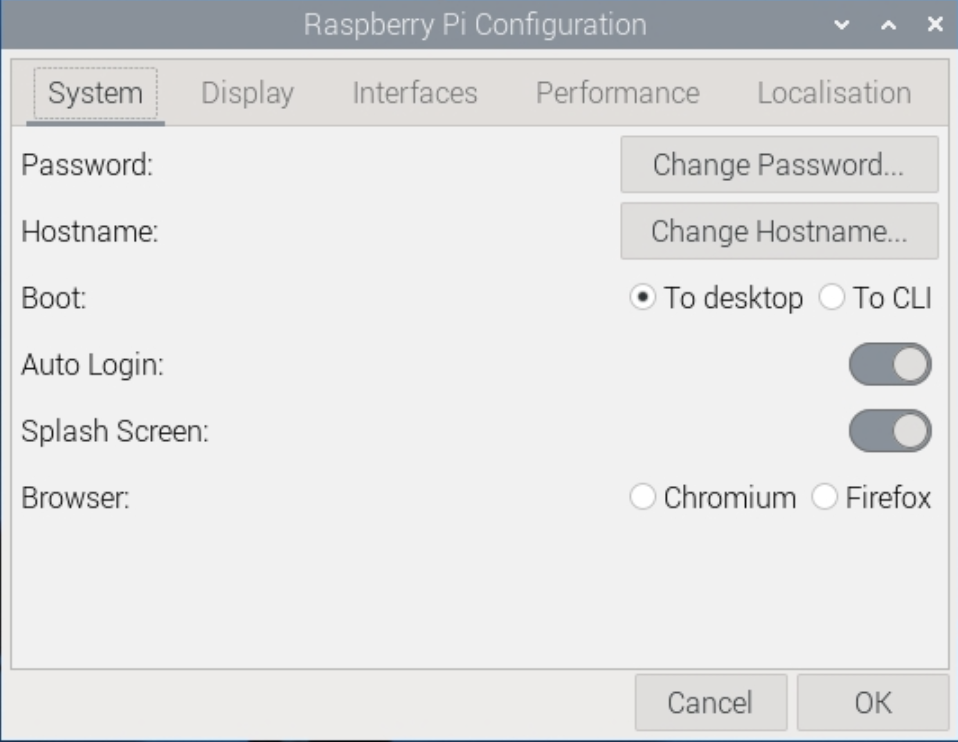
Instead, these systems use a configuration file that is stored on the hard drive and used to configure the system during the boot process. These settings are configured through the command line or a graphic user application.
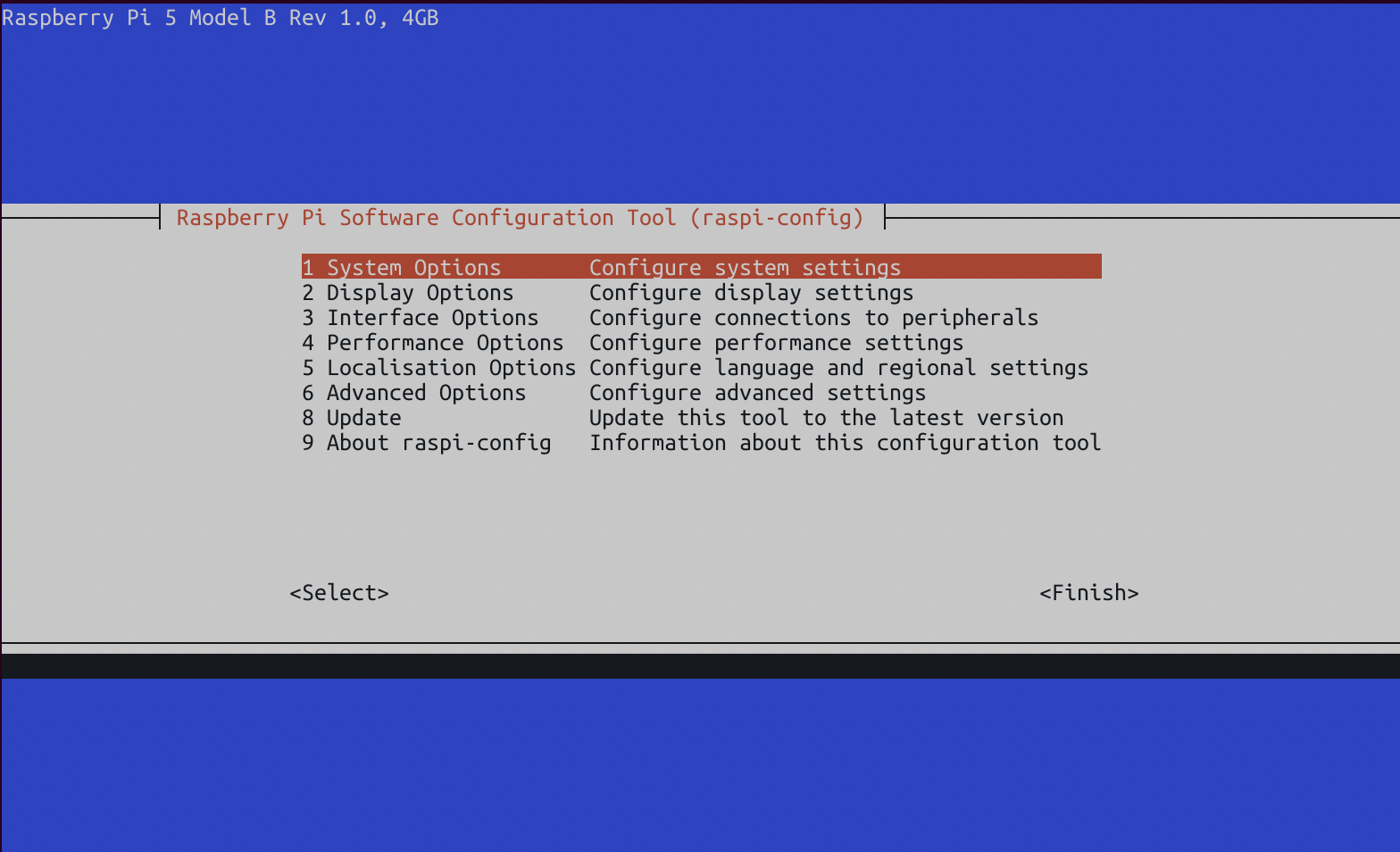
Performance Options
These settings pertain to the overall hardware performance configurations for your single-board computer.
Overlay File System
This option allows the Raspberry Pi to boot in a mode where files on the SD card cannot be altered and any modifications are only temporarily saved in memory while the operating system is powered on.
This increases the Raspberry Pi's life expectancy, but cannot be used for interactive systems that need to store long-term data between power cycles.
Recommended: Disabled
GPU Memory
This allows you to change the amount of memory allocated to the graphical processing unit of the Raspberry Pi.
Due to fundamental differences in the way that system-on-a-chip computers handle their graphical processing, this setting is an optimized default for your specific model. There is no need to alter these settings and doing so many decrease performance.
Recommended: Default
Interface Options
These settings control the different physical and digital interfaces that can be used to interact with the Raspberry Pi.
SSH
This allows you to remotely connect to your server through a terminal and run commands to administrate your server.
Recommended: Enabled
VNC
This provides remote access to your Raspberry Pi's user desktop environment. We are disabling it to install RDP, a similar, more modern alternative. If desired, you can leave it on for additional access options.
Recommended: Disabled
SPI
The Serial Peripheral Interface is used by the Raspberry Pi to communicate with external sensors through the GPIO port.
Recommended: Disabled
I2C
The Inter-Integrated Circuit is an alternate standard used to communicate with devices through the GPIO port.
Recommended: Disabled
Serial Port
This disables serial connections through the GPIO port.
Recommended: Disabled
1-Wire
This disables a communication protocol that uses one wire on the GPIO port.
Recommended: Disabled
System Options
These pertain to general settings of the core Debian operating system.
Change Password
For security, it is imperative that you change the default password for your Raspberry Pi computer.
Change Hostname
This allows you to change the name that your server uses while on your network; such as "raspberrypi.local".
Power LED
If desired, you can turn off the LEDs on the Raspberry Pi.
Wait for Network Connection
This requires that an internet connection is available before the Raspberry Pi will boot into the operating system.
Recommended: Enabled
Disable Unused Hardware
Using rfkill to disable Bluetooth and wifi
EFI & BIOS
Computer hardware has evolved over the years and the industry stardard have continued to shift. This has led to computer hardware that leverage different mechanisms to achieve the same end. For low-level firmware, there are two technologies widely available for configuring hardware.
BIOS
Older PC systems use a BIOS – or Basic Input/Output System – to handle core functions before the computer has loaded an operating system. The BIOS is used to configure fundamental computer settings that affects how hardware interacts with the operating system. This architecture stores your settings on a small memory chip powered by a coin-cell battery. Through a user navigable interface, core computer features can be configured.
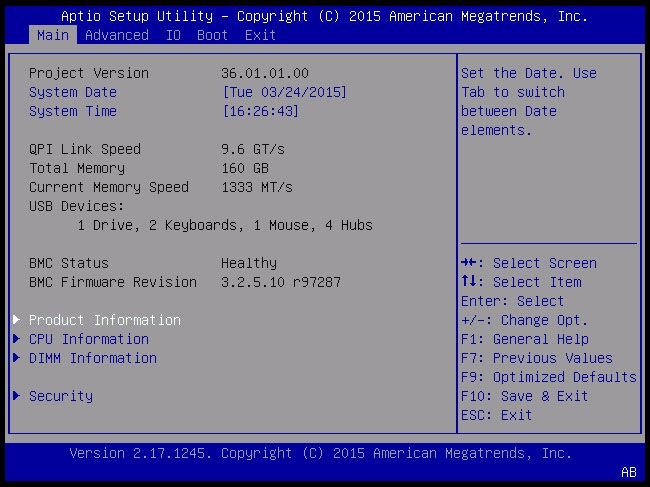 AMI BIOS AMI BIOS |
EFI
Modern computer systems use UEFI – or the Unified Extensible Firmware Interface – to manage these settings through a graphic interface. Some systems require enabling an advanced or administer mode to access all firmware settings.
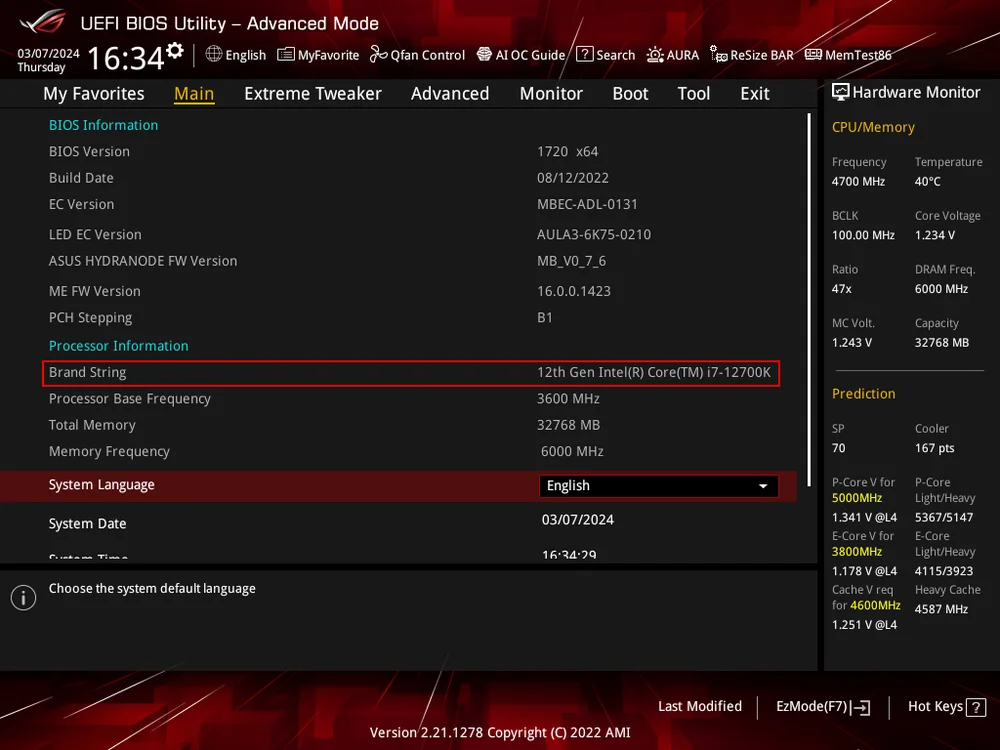 AMI UEFI AMI UEFI |
Configuring Your Hardware
There are numerous manufacturers who use different BIOS and UEFI software for their computer systems. There is no definitive standard for BIOS or EFI systems, resultibg in many different descriptive names for the same features. While we try to cover the most common names, you may need to do some personal research. It's entirely possible that feature is not available on your computer system.
If a feature is missing, don't panic! You may still be able to follow these guides without running into any issues.
Some OEM systems, such as business-grade workstation PCs, have simplified firmware with minimal configurable options. This computer can work as a server but may require configuration through the operating system to properly manage power and efficiency settings.
These are some common keyboard commands to enter the BIOS or UEFI menu by manufacturer:
| ASRock | F2 or Del |
| Asus | F2 or Del |
| Acer | F2 or Del |
| Dell | F2 or F12 |
| Gigabyte | F2 or Del |
| HP | F10 |
| Intel | F2 |
| Lenovo | F1 |
| MSI | Del |
| Samsung | F2 |
| Toshiba | F2 |
Disable Unused Hardware & Features
You can increase the overall security of a home server by disabling extraneous hardware as a proactive measure to decrease your cyber attack surface area.
Some common hardware components to disable are:
Serial Port
This legacy protocol is used for old modems and printers.
Recommended: Disabled
Parallel Port
This legacy protocol is used for old printers, scanners and storage devices.
Recommended: Disabled
Audio Ports
Our server ideally will be running "headless" (without a display) and should not be used as a media player.
This can include 3.5mm, optical, HDMI and other audio ports.
Recommended: Disabled
Bluetooth
Bluetooth can be left on for connecting smart devices to Home Assistant, but the protocol can be insecure.
Recommended: Disabled
Thunderbolt
This technology can be enabled for daisy-chaining multiple displays and storage devices, but it has known vulnerabilities and should be disabled if not in use.
Recommended: Disabled
Wireless Internet
We will use a hardwired connection for our server and the wireless card should be disabled if not in use.
Recommended: Disabled
Trusted Platform Module
This technology is used predominantly for Windows 11 and ensures operating system files are not tampered with. Linux can use the module for encrypting hard drives, but it should be disabled otherwise.
Recommended: Disabled
Power-Saving Features
We are running an always-on server which means our power efficiency settings are an important consideration. Turning off certain hardware when the computer is idle can increase their life expectancy, while turning off other hardware components can decrease stability.
Cool'n'Quiet or SpeedStep
Cool'n'Quiet (AMD) and SpeedStep (Intel) slow down the processor when idle to decrease overall power usage.
Recommended: Enabled
EIST
Enhanced Intel SpeedStep is an advanced mechanism for dynamically scaling the processor's speed and power consumption.
Recommended: Enabled
C-States
This feature allows the CPU to temporarily disable processor sections when they are not being used by the operating system.
Recommended: Enabled or Auto
C1E
This is an advanced power-saving state that temporarily decreases the processor speed when idle while allowing for rapid return to an active state.
Recommended: Enabled
ErP Mode and EuP Mode
This is a comprehensive power feature related to an EU directive that aims to decrease overall device power usage.
While useful for a standard computer, the setting can fundamentally alter system performance by disabling or underclocking hardware.
Recommended: Disabled
Boot Settings
We can ensure that our server correctly boots into the operating system and restarts automatically in the event of a power failure.
Boot Priority
If your server has multiple storage disks, you need to ensure that the disk with the operating system installed has first boot priority.
For security, you can disable booting from additional hard drives.
Keyboard and Mouse Halt
Our server will be remotely accessible and we do not always need input devices – such as a mouse and keyboard – connected to it.
Without this setting disabled, the server will fail to boot without them connected.
Recommended: Disabled
Secure Boot
This feature is used to verify operating system files during boot to ensure that malicious software cannot start.
By default, the hardware is configured for Microsoft Windows and can be configured for use with Debian if desired. Otherwise, it should be disabled.
Recommended: Disabled
Fast Boot
This feature disables several important power-on hardware tests and has been known to interfere with some operating system features.
This feature is not supported by Debian out of the box and needs to be configured.
Recommended: Disabled
Restart After Failure
In the event that your server loses power unexpectedly, it can be configured to turn back on when power is restored.
Recommended: Enabled
Wake-on-LAN
Your server can be powered on through your Ethernet connection over the Local Area Network when it receives a "magic packet".
Recommended: Enabled
Power Schedule
Our server should remain on at all times and we do not want our server operating on a power cycling schedule.
Recommended: Disabled
Storage Interface
There are some settings related to the way hard drives and solid state disks communicate with the operating system.
SATA Mode
Advanced Host Controller Interface, or AHCI, enables the use of SSD drives through a SATA connection.
Additionally, it improves performance by strictly enforcing hardware communication standards that can be leveraged by the operating system.
Recommended: AHCI
RAID
Redundant Array of Independent Disks, or RAID, enables your system to duplicate hard drive writes in real-time.
This creates a fully functional backup in the event of a hard drive failure. This architecture needs to be setup before installing an operating system and cannot be installed after.
Recommended: Disabled
Next Steps
Now that we have our server properly configured, we can install our operating system and the software required to get our services running.