While connecting through [RDP](https://hub.subspace.services/books/monitoring-maintenance/page/remote-desktop "Remote Desktop"), this terminal command temporarily allows the root user's GUI applications to launch through your user account: *xhost si:localuser:root*
The first time we open Timeshift, it'll start a configuration wizard. [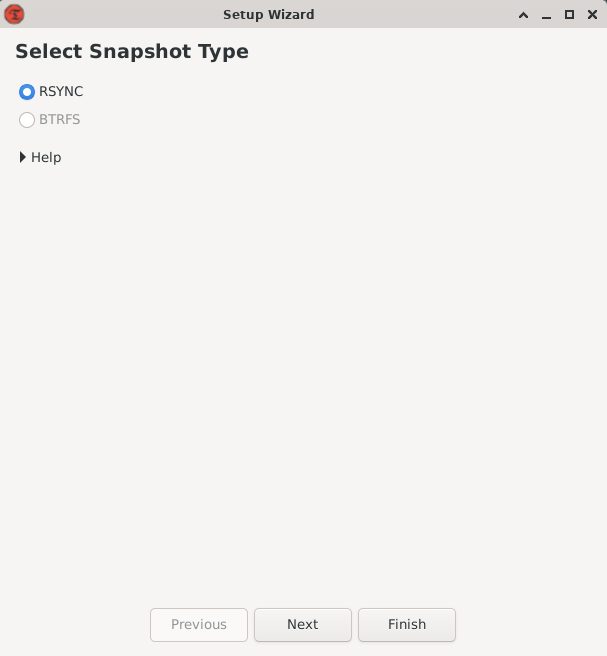](https://hub.subspace.services/uploads/images/gallery/2025-03/afDimage.png) We will be asked what Snapshot style we want to use for our backups and select 'rsync'. [Rsync](https://rsync.samba.org/) is open-source command-line application that specializes with incremental file transfers. [](https://hub.subspace.services/uploads/images/gallery/2025-03/R8Timage.png) Timeshift will estimate the backup size by scanning our system files. This should not take long because we are setting up a brand new operating system. [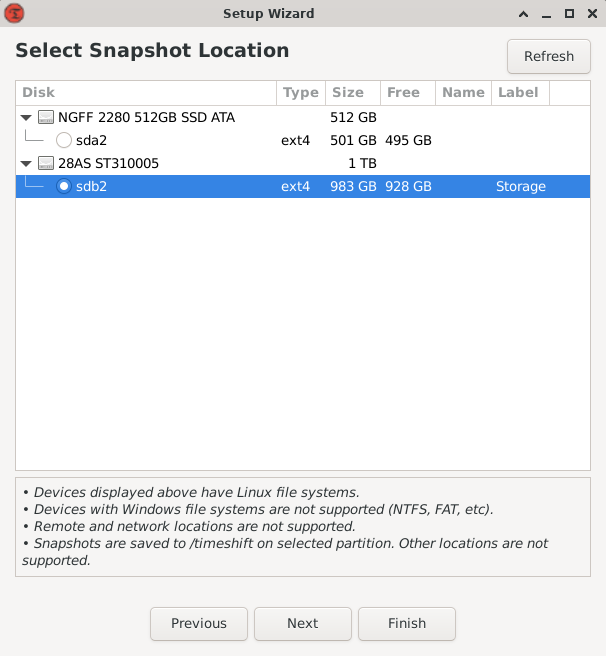](https://hub.subspace.services/uploads/images/gallery/2025-03/Y0fimage.png) Once it's completed, we'll be asked where we will be storing our backups. We will select the Storage drive that [we mounted earlier](https://hub.subspace.services/books/software/page/mounting-your-disks "Mounting Your Disks"). Timeshift will create a folder within the root of that drive, in our case: */mnt/storage/Timeshift*. [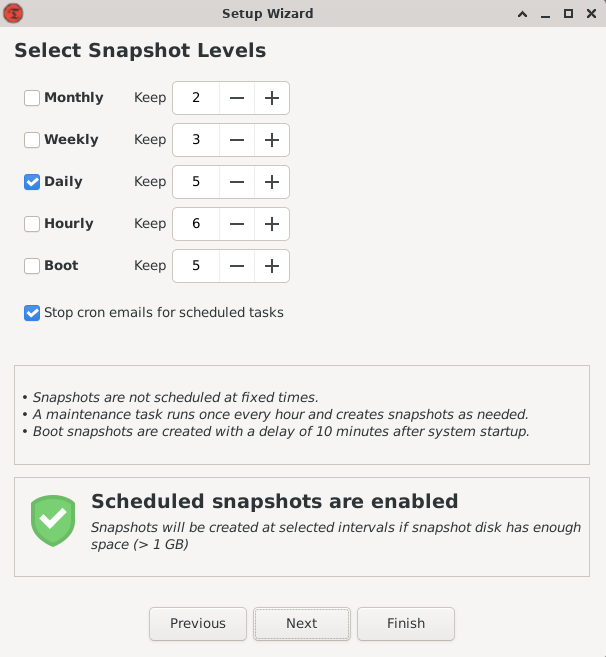](https://hub.subspace.services/uploads/images/gallery/2025-03/zYfimage.png) Next, we'll have choose our snapshot level. This allows us to customize how often we want our backups to run, as well as how many to keep. Weekly backups are a great starting point, but running them nightly can help you get back up and running faster. Enabling monthly, weekly, and daily backups will provide the most protection by ensuring you have received data going back months. [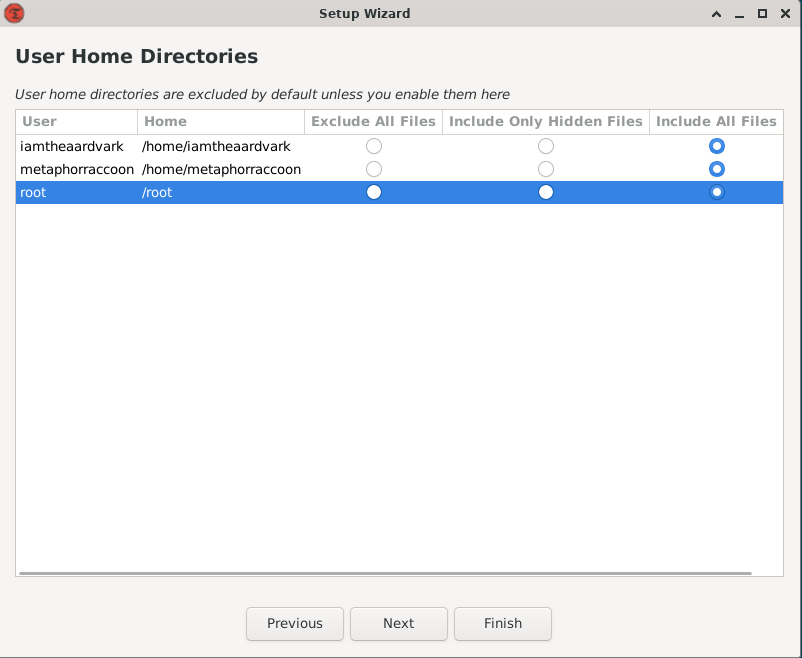](https://hub.subspace.services/uploads/images/gallery/2025-03/tHBimage.png) Timeshift will ask if you want to backup the home directories for root and your account system accounts. We will choose to enable both to include all files. [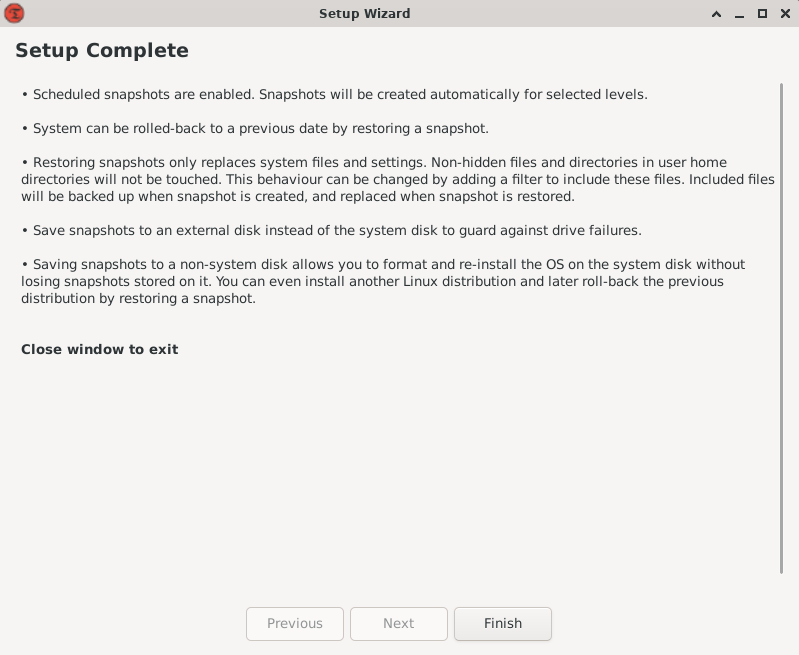](https://hub.subspace.services/uploads/images/gallery/2025-03/FpIimage.png) Now that we have finished setup, we can create our first backup by hitting the vertical\_align\_bottom 'Create' button. [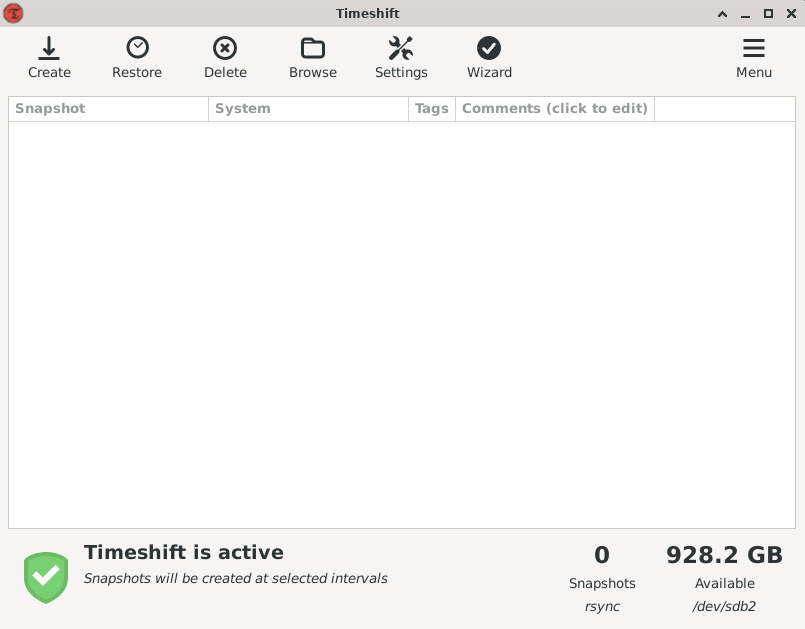](https://hub.subspace.services/uploads/images/gallery/2025-03/pBGimage.png) A window will appear to show us the current progress. The first backup of your freshly installed operating system shouldn't take too long. [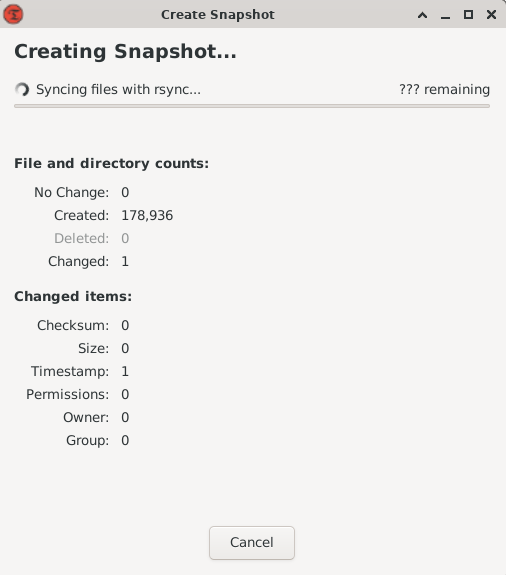](https://hub.subspace.services/uploads/images/gallery/2025-03/8IGimage.png) Once the backup is completed, you're safe in the event of a backup. [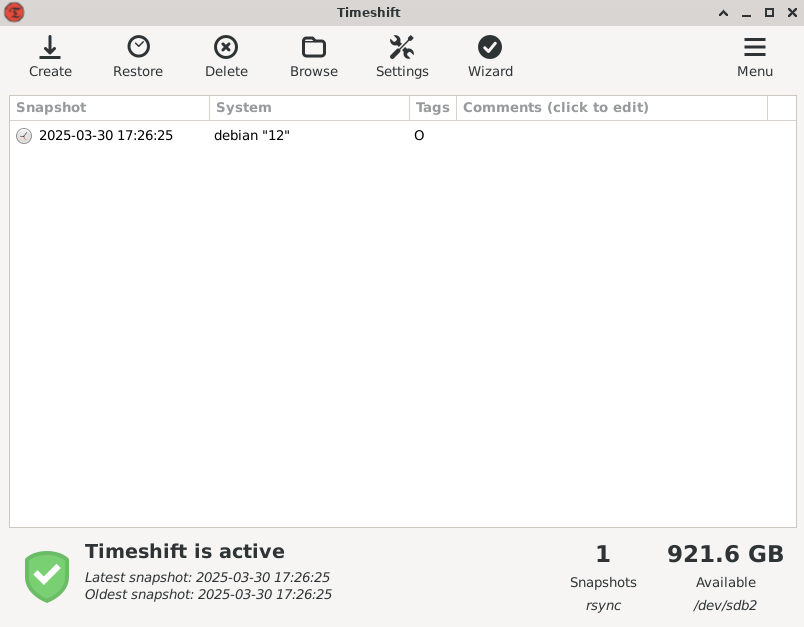](https://hub.subspace.services/uploads/images/gallery/2025-03/jAOimage.png) Timeshift will automatically backup your computer on the schedule we selected. [Your system and files can be restored](https://github.com/linuxmint/timeshift#system-restore) through the graphical interface, on your current system or through a [Debian Live CD](https://www.debian.org/CD/live/).