You will need to know your [username set during the installation process](https://hub.subspace.services/books/software/chapter/installing-an-operating-system "Installing an Operating System") and the IP Address you set during [network configuration](https://hub.subspace.services/books/software/page/networking "Static Network IP").
You can open a terminal and ensure that SSH is installed by running the command: ```bash sudo apt-get install -y ssh ```| [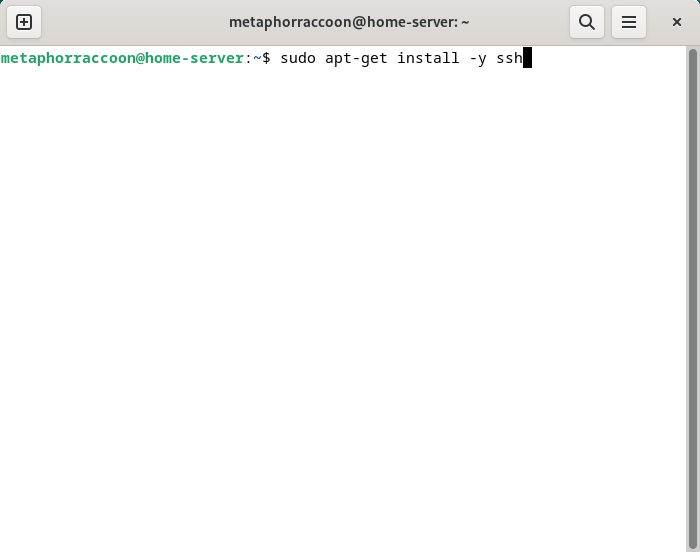](https://hub.subspace.services/uploads/images/gallery/2025-04/lWFimage.png) | [](https://hub.subspace.services/uploads/images/gallery/2025-04/RYmimage.png) |
You will need to know your [username set during the installation process](https://hub.subspace.services/books/software/chapter/installing-an-operating-system "Installing an Operating System") and the IP Address you set during [network configuration](https://hub.subspace.services/books/software/page/networking "Static Network IP").
You can open a terminal or PowerShell and run the following command: ```bash ssh username@192.168.68.100 ``` [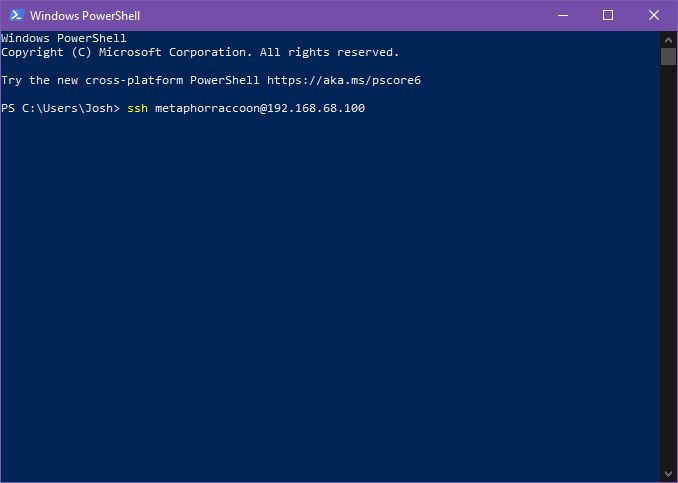](https://hub.subspace.services/uploads/images/gallery/2025-04/8dEimage.png) You will be alerted that the authenticity of the host server could not be verified. This happens because we have never connected to the server before and it can't ensure the server's fingerprint. [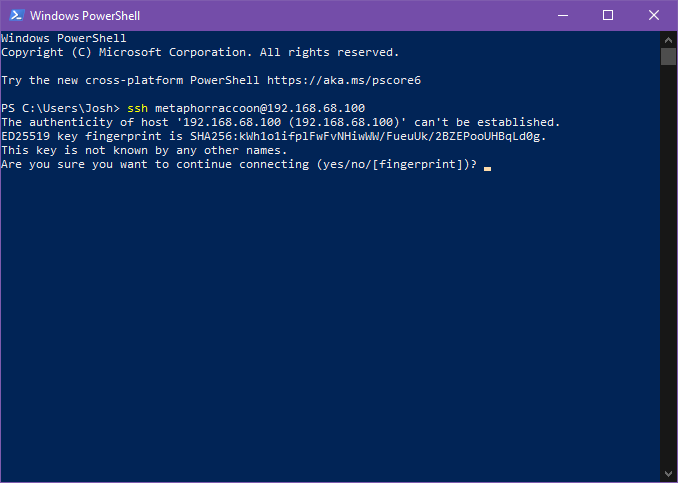](https://hub.subspace.services/uploads/images/gallery/2025-04/2MNimage.png) We can type 'yes' then hit 'enter' to accept the newly generated host fingerprint and remember it for future use. [](https://hub.subspace.services/uploads/images/gallery/2025-04/jnEimage.png) Now, you will be prompted for your password. After hitting 'enter', you will be connected to your server and can run commands. [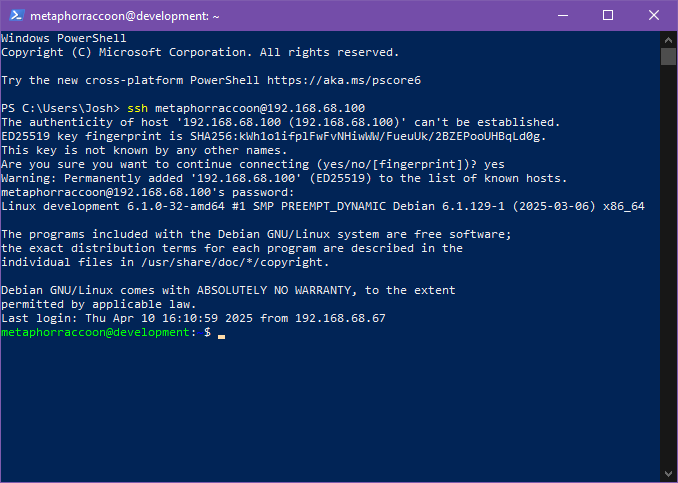](https://hub.subspace.services/uploads/images/gallery/2025-04/518image.png) You can disconnect from the SSH connection with the following command: ```bash exit ``` ## MacOS MacOS, and the legacy OS X, come with SSH already installed so you can remotely connect to your server.You will need to know your [username set during the installation process](https://hub.subspace.services/books/software/chapter/installing-an-operating-system "Installing an Operating System") and the IP Address you set during [network configuration](https://hub.subspace.services/books/software/page/networking "Static Network IP").
We can connect to our server through the terminal using the *ssh* command. We will be connecting to our user account what is at our server's IP address: ```bash ssh username@192.168.68.100 ``` You will be alerted that the authenticity of the host server could not be verified. This happens because we have never connected to the server before and it can't ensure the server's fingerprint. We can type 'yes' then hit 'enter' to accept the newly generated host fingerprint and remember it for future use. Now, you will be prompted for your password. After hitting 'enter', you will be connected to your server and can run commands. You can disconnect from the SSH connection with the following command: ```bash exit ``` ## Android & iOS There are apps available through the Google Play Store and Apple App Store that allow you to remotely connect to your server using SSH. We recommend [Termius](https://termius.com/), a freeware application for Android 7 and iOS 16 or newer. You can create a profile for your server with the credentials pre-saved for quick connection. As a premium paid feature, you can also sync these hosts between the mobile and desktop clients. [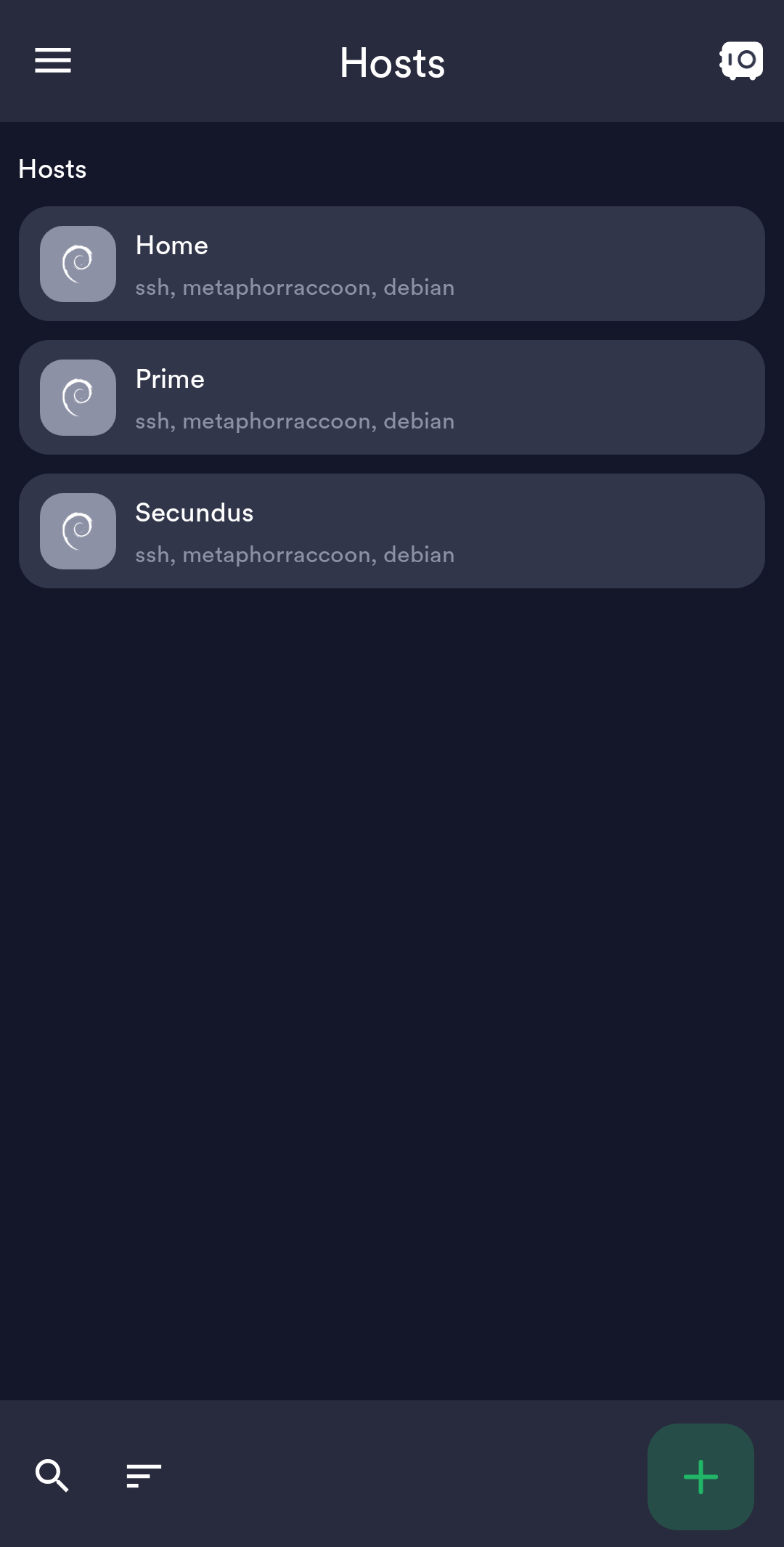](https://hub.subspace.services/uploads/images/gallery/2025-02/1000006219.png) ## Web Access SSH is a great option for connecting to your server over your local network, but is not available through the world wide web. The easiest way to accomplish this is to use our home server to host [Guacamole](https://hub.subspace.services/books/administration-monitoring/chapter/guacamole "Guacamole"), a web application that facilitates remote connection to RDP, VNC and SSH through your web browser. [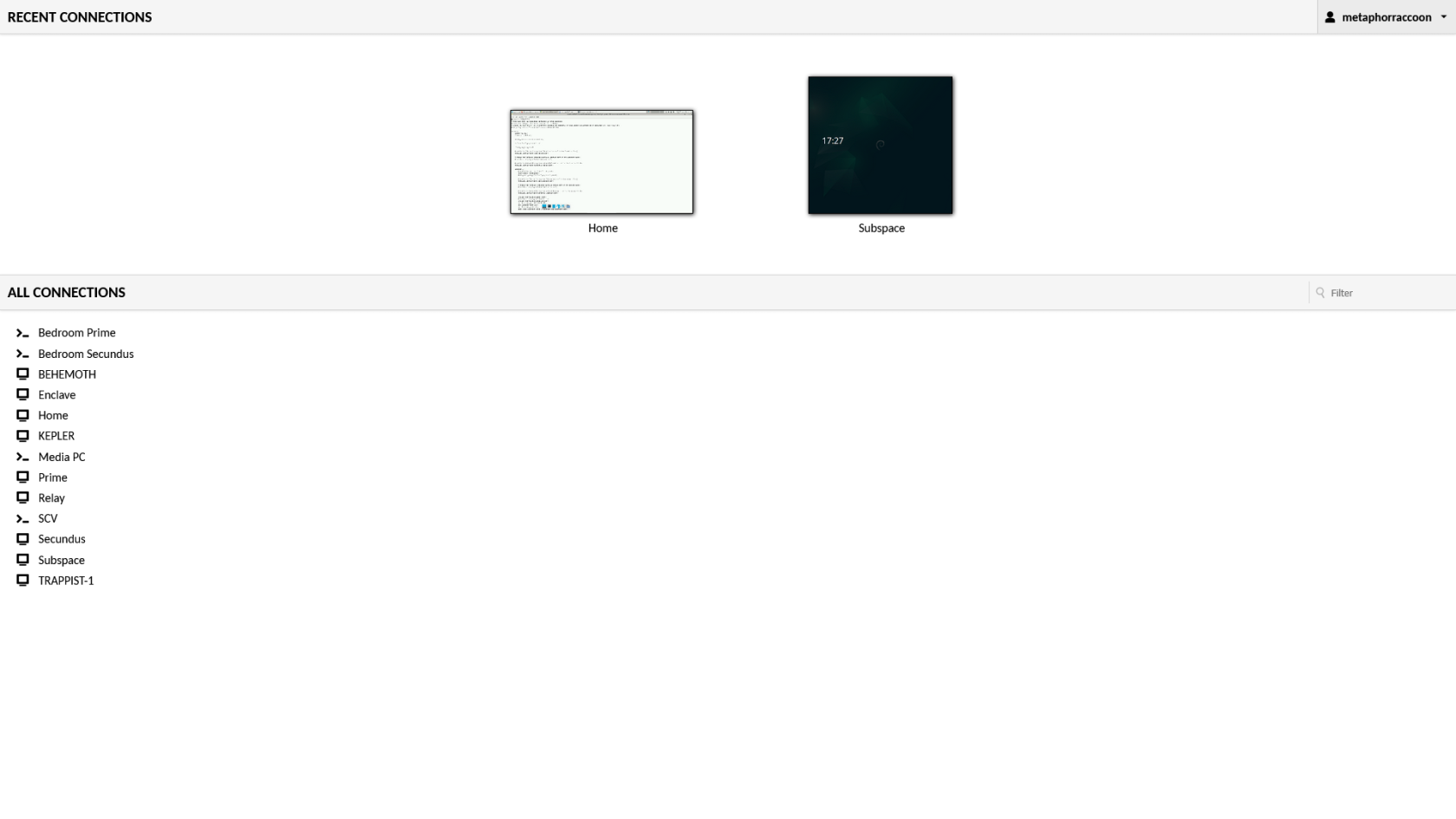](https://hub.subspace.services/uploads/images/gallery/2025-03/screen-shot-2025-03-09-at-21-24-24.png)