A "[repository](https://en.m.wikipedia.org/wiki/Software_repository)" is the location that your software manager searches for available software.
Using the repository on your USB flash drive as the default may cause errors when trying to install software that is not locally available. In order to disable it, we need to open the [Synaptic Package Manager](https://en.m.wikipedia.org/wiki/Synaptic_(software)). This program is a visual interface for installing software and managing repositories that is available by default on Debian. When we open it from the Start Menu in the bottom right and navigate to "Administration", and then the program "Synaptic Package Manager". [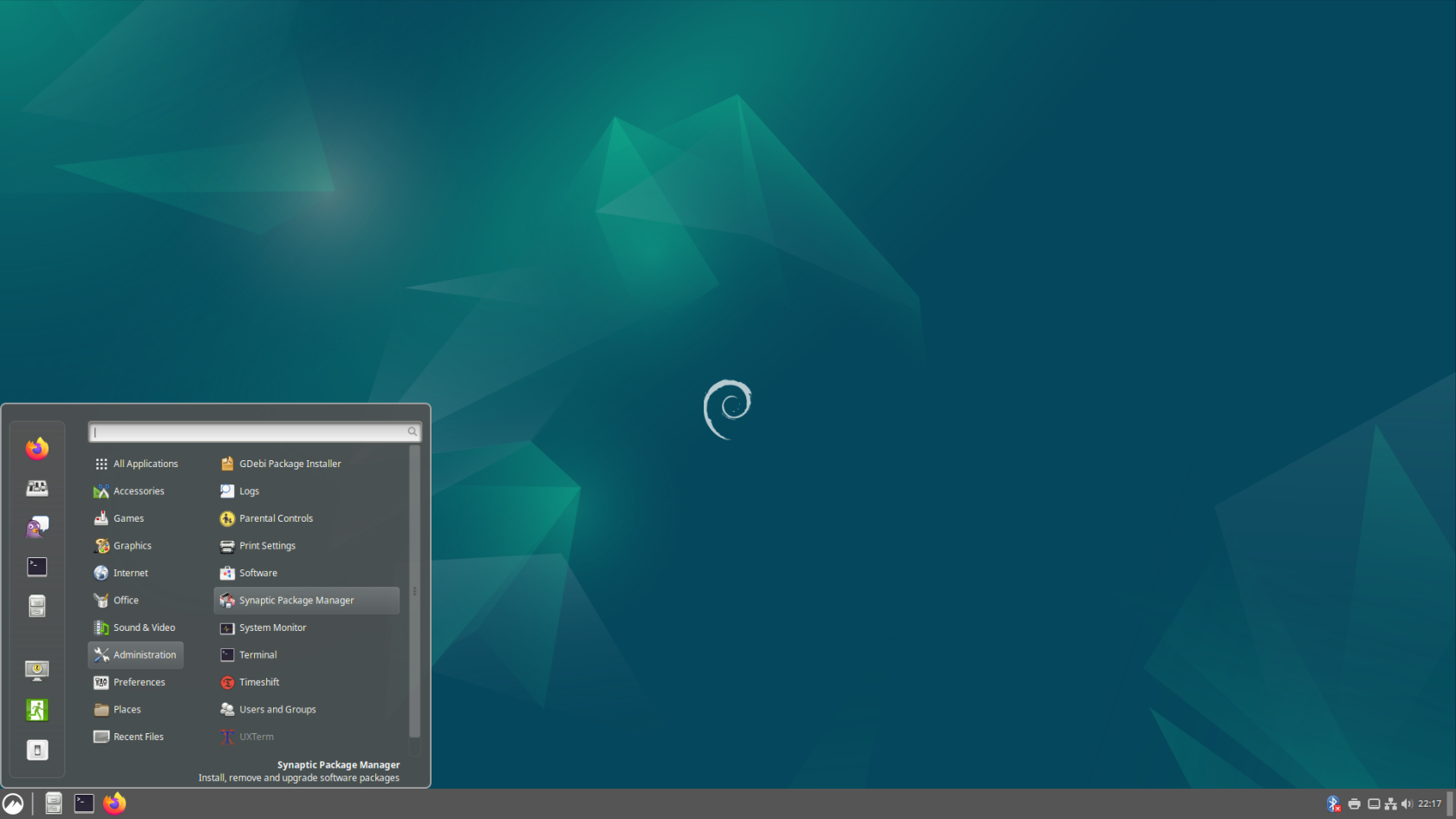](https://hub.subspace.services/uploads/images/gallery/2025-04/screenshot-from-2025-04-14-22-17-39.png)You will need to enter your account password.
Opening this program will ask us to end the password for the root user account that we created during the [Debian installation process](https://hub.subspace.services/books/software/chapter/installing-an-operating-system "Installing an Operating System"). [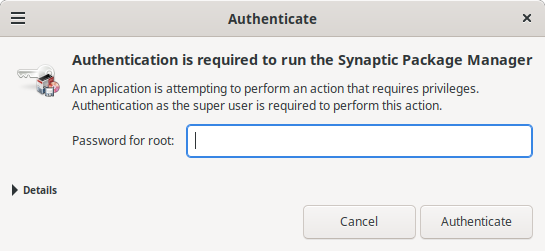](https://hub.subspace.services/uploads/images/gallery/2025-04/aXKimage.png) After we enter the password and open the program, we will be prompted with a help prompt that we can close. Now, we are presented the Synaptic Package Manager that is used to install software. [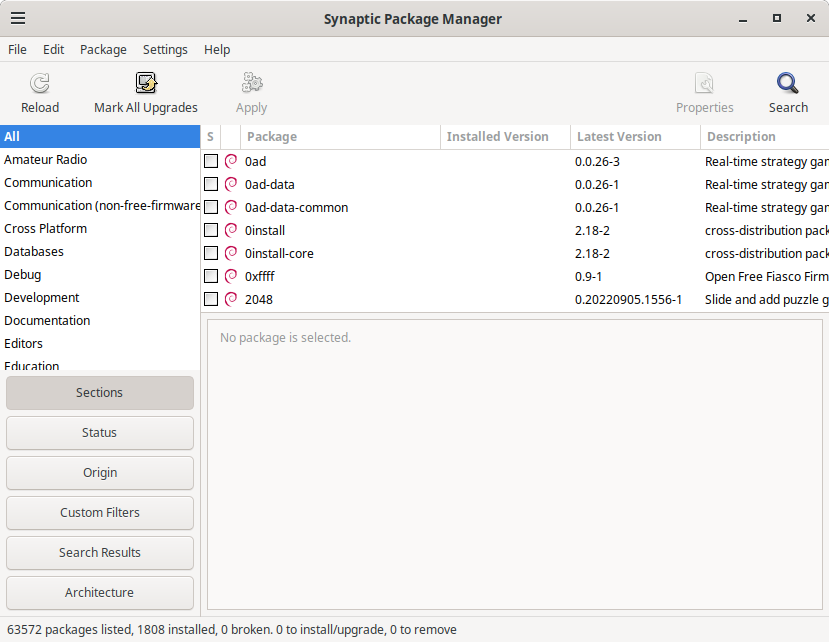](https://hub.subspace.services/uploads/images/gallery/2025-04/YeEimage.png) We are using Synaptic to change the Repositories used by this computer. Under the "Settings" menu, select "Repositories". This will open the "Software & Updates" window. We need to go to the "Other Software" tab and deselect the "**cdrom:**" entry. [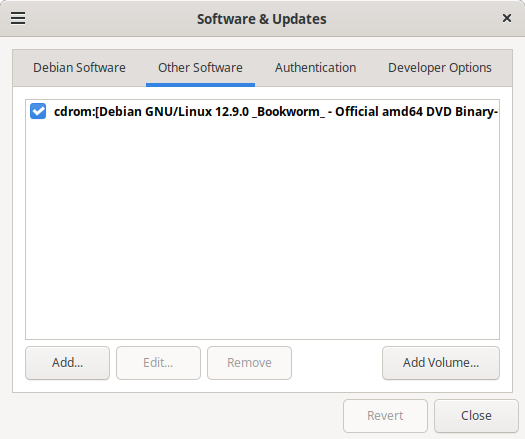](https://hub.subspace.services/uploads/images/gallery/2025-04/4Msimage.png) Once the option is deselected, it will prompt you to reload repository information so it knows what programs are available for download. [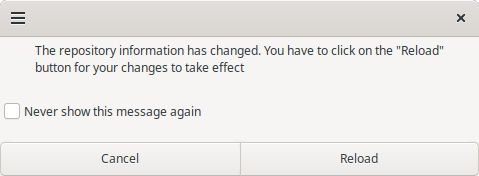](https://hub.subspace.services/uploads/images/gallery/2025-04/9NKimage.png) Once you do that, the system may request to update your repository because it is out of date. This will ensure that you are installing the most up-to-date software.