Understanding The Requirements
When deciding on what hardware you need for your server, you need to know what you're going to use it for.
Ourselves
When we approach technology projects – either as an individual or part of a larger community – there are many things we need to take into account. There is one domain that has the potential to be overlooked in the grand scheme of things, but it is perhaps the most foundational essence of creation:
Who am I and how do I relate?
Our individuality makes it mark through our communities – friends, family, neighbors. How we envision ourselves within technology informs how we will approach not only the problem at hand, but the ways we navigate ourselves. We cannot build equitable systems by ourselves through nothing but isolation and grit.
By grounding ourselves within this time and space, we can build relationships outside of ourselves. Our continued growth – and our shifting place with our community – depends on the moments we take to reflect. We connect ourselves to something greater.
Do you already know that your existence — who and how you are — is in and of itself a contribution to the people and place around you? Not after or because you do some particular thing, but simply the miracle of your life. And that the people around you, and the place(s), have contributions as well? Do you understand that your quality of life and your survival are tied to how authentic and generous the connections are between you and the people and place you live with and in?
— adrienne maree brown
Who Am I?
- Objective: In this assignment, learners will
Create a summary document appraising the skills and values they bring to teaching
Identify potential barriers to becoming a successful instructor
Analyze their positionality in relation to teaching in an information setting
Reflection is a very useful learning process, though it is also one of the most difficult. For many of us, it feels like there simply isn't time to step back and think--about some incident at the workplace, where we want to be instead of where we are, how we got here, what steps we should take next. Chances are, you could make time, but you're not prioritizing it: reflection means not only looking at things that went well, but also things that perhaps could have gone differently and that can be very uncomfortable.
Well, welcome to the discomfort zone: you're going to be reflecting this quarter. Ultimately, the question you're going to be reflecting on is "who do I want to be as a teacher?" but we're going to take it in stages. - What you bring also includes looking at your positionality: how do various aspects of your identity influence how you see, and as a teacher, how you shape your world? There's a good graphic overview of the concepts of intersectionality, positionality, and privilege here.
- You'll no doubt come up with some pinch points/barriers in your reflection, as well: what's keeping you from being who you want to be as a teacher? That could range from lack of opportunity to a list of specific skills you want to learn, to a more vague feeling of dread when you think about talking to a group of people. Identifying those challenges is important, as those challenges can become opportunities to learn, grow, and move forward.
- What you bring to teaching/instruction planning--skills, values, hopes
What is your positionality in terms of teaching? What parts of your identity influence your work?
Perceived obstacles to who you want to be as a teacher--and what opportunities you want to see in this course that can help remove those barriers - Technology can feel exclusionary
- Personal skills
- We learn that factors beyond our control determine the quality of our lives—something as random as which skin, gender, sexuality, ability, nation, or belief system we are born into sets a path for survival and quality of life.
- there's no "right" answer here, as you each bring something different to this endeavor, and have varying goals.
- We learn to be quiet, polite, indirect, and submissive, not to disturb the status quo.
- In the United States specifically, though I see this most places I travel, we learn that we only have value if we can produce—only then do we earn food, home, health care, education.
- Who are you? Have you asked yourself recently? What is it that you do? Who do you do it for? What drives you?
- Curiosity
- intentional
- adaptation: a change in a plant or animal that makes it better able to live ina particular place or situation; the process of changing to fit some purpose or situation: the process of adapting intention: the thing that you plan to do or achieve: an aim or purpose
- Radical optimism
- Can you appreciate yourself, so that you can appreciate others and their own complex relationship with reality.
- Do you know where you are in your journey and have you taken time to appreciate the journey? Before you can see and appreciate someone else's progress, you must first acknowledge that you yourself have changed and embrace it.
What Am I Doing?
- Winner, L. (2004). “Technologies as forms of life.” In Kaplan, D M. (Ed.) Readings in the Philosophy of Technology. Rowman & Littlefield, pp. 103-113. Winner - Technologies as forms of life.pdf
- Running a server can take a wide array of technical and design skills, but it can also take curiousity and a compassion.
- We are each capable of so many things when given the time and space to work through understanding our relationship with something new. Something might seem scary until you try it out and realize the similarities to something you're already doing or already know.
- Thinking skills
- Critical thinking
- Logical thinking : if this then that. These are the core fundamentals of the way computers think.
- Basic understanding of how to use a computer and ideally install software.
- Know how to install a computer networking device, such as plug in a computer to a router.
- For any server hardware modifications, you might need to be able to change a graphics card or install a hard drive.
- Troubleshooting problems : how to systematically work through a problem to know which avenues you can explore to attempt a fix. If the Internet isn't working, is it on just one computer or is it every device? Are your neighbors Internet out?
- Modular thinking
- Systems thinking
- Designer
- Developer
- Administrator
- Steward
- Custodian
- What is the difference between a designer and developer? A developer works on the foundations that create something while designers look into the ways these foundations work as part of a system. Many people perform both roles, often without even realizing it. Baking vs decorating a cake.
How Do I Navigate?
- SAMHSA’s Concept of Trauma and Guidance for a Trauma-Informed Approach (2014) (p. 10-11 “Six Key Principles of a Trauma-Informed Approach”)
- Tuck, E., & Yang, K. W. (2012). Decolonization is not a metaphor. Decolonization: Indigeneity, Education & Society, (1), Article 1. https://jps.library.utoronto.ca/index.php/des/article/view/18630
- Arellano Douglas, Veronica. (2020). "Moving from Critical Assessment to Assessment as Care." Communications in Information Literacy, 14 (1), 46-65. UW Catalog
- Less on point. More on purpose.
- How do I handle change, especially emergent change?
- We learn to disrespect Indigenous and direct ties to land.
- What you pay attention to grows. emergent strategy
- We learn to compete with each other in a scarcity-based economy that denies and destroys the abundant world we actually live in.
- We learn to deny our longings and our skills, and to do work that occupies our hours without inspiring our greatness.
- Perhaps the most egregious thing we are taught is that we should just be really good at what’s already possible, to leave the impossible alone.
- Growth mindset. We will make mistakes but that is how we learn.
- Transformation doesn’t happen in a linear way, at least not one we can always track. It happens in cycles, convergences, explosions. If we release the framework of failure, we can realize that we are in iterative cycles, and we can keep asking ourselves—how do I learn from this?
- A fractal is a never-ending pattern. Fractals are infinitely complex patterns that are self-similar across different scales. They are created by repeating a simple process over and over in an ongoing feedback loop. Emergent strategy
- Never a failure, always a lesson.*° emergency strategy
- Change is constant. (Be like water). Emergent strategy
- It's okay to try again from scratch
- Assessing your limits and knowing when to step away. this may be frustrating and you may be discouraged, but we can always approach again later
- We learn as children to swallow our tears and any other inconvenient emotions, and as adults that translates into working through red flags, value differences, pain, and exhaustion.
- We learn that tests and deadlines are the reasons to take action. This puts those with good short-term memories and a positive response to pressure in leadership positions, leading to urgency-based thinking, regardless of the circumstance.
- We learn that the natural world is to be manicured, controlled, or pillaged to support our consumerist lives. Even the natural lives of our bodies get medicated, pathologized, shaved or improved upon with cosmetic adjustments.
- Do you let yourself be yourself, or is that something just below the mask you share with the world?
How Do I Communicate?
- It troubleshooting for users
- Communicating needs
- Transparency and accountability
- Ant societies function through individual ants acting collectively in accord with simple, local information to carry on all of their survival activities. Every ant relies on the work of others in producing their own work. Cooperative work. Collective. Sustainability. Emergent strategy
- Decentralization: the dispersion or distribution of functions or powers, the delegation of power.
- Interdependence is mutual dependence between things. If you study biology, you'll discover that there is a great deal of interdependence between plants and animals. “Inter-” means “between,” so interdependence is dependence between things, the quality or condition of being interdependent, or mutually reliant, on each other.
- Starlings. The synchronized movement patterns of a starling flock is also known as a murmuration. Guided by simple rules, starling murmurations can react to their environment as a group without a central leader orchestrating their choices; in any instant, any part of the flock can transform the movement of the whole flock. Collective leadership/partnership. Adaptability.
- Similarly, we learn our organizations are only as successful as our fundraising results, whether the community impact is powerful or not.
- We learn to bond through gossip, venting, and destroying, rather than cultivating solutions together.
- We learn to manipulate each other and sell things to each other, rather than learning to collaborate and evolve together.
- How to design an information query
- Getting support on a forum or within a community
- How to ask questions
- There is a conversation in the room that only these people at this moment can have.*® Find it. Emergent strategy
- Trust the People. (If you trust the people, they become trustworthy) .* Emergent stategy
- This is a space where everyone deserves to have their voices and needs heard. Open source software is intended to get a democratic space
- Your choices affect your community and your ecosystem
- Empathy
- Healing
- Building trust
- Ask for and receive what you need
- Love may seem silly. But it is the root of compassion and care. It leads to passion for what we do and strive to support those we care for. While this is leveraged in the creation of technology, it is
- Move at the speed of trust. Focus on critical connections more than critical mass—build the resilience by building the relationships. Emergent strategy
Computer
What you're planning on doing with your server will dictate the hardware you'll need to fulfill those requirements.
|
Raspberry Pi 4 |
 Desktop Computer Desktop Computer |
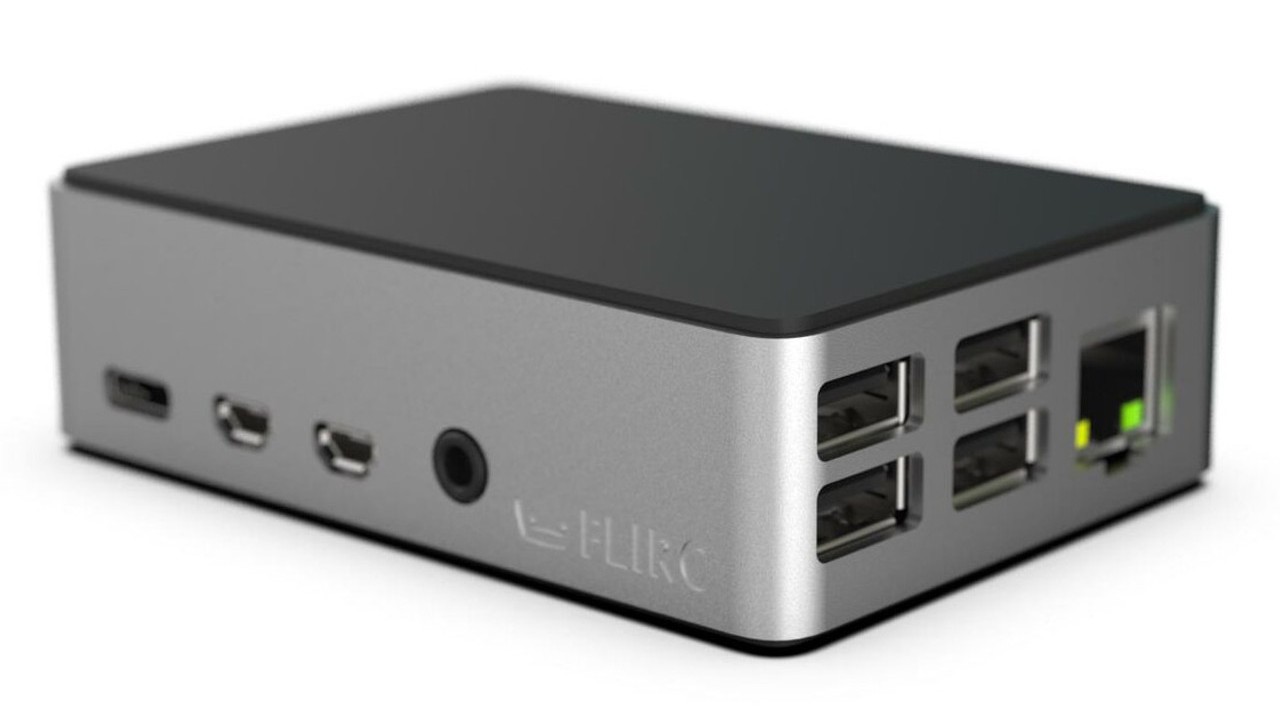
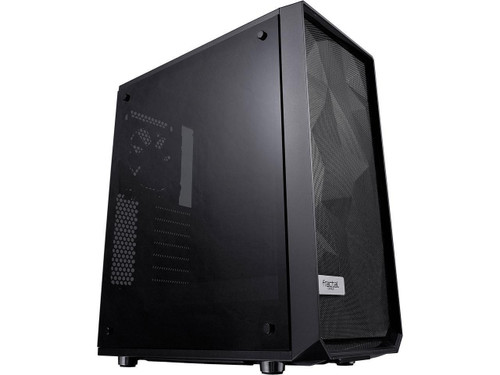
When you're running one or two services, a Raspberry Pi would probably suffice, while running your own personal cloud services may require a refurbished desktop computer.
Running a media server may require a faster processor, a decent graphics card and adequate storage space for digital media. We provide "Quick-Start" examples to help you make up your mind.
Core Processor
Choosing the type of main processor you will use for your server is a core decision to building a server.
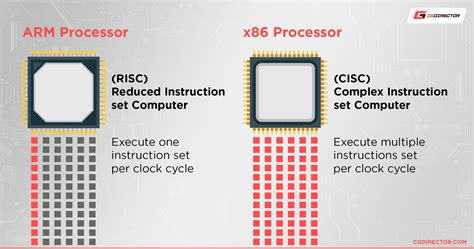
There are two primary families of processors designed and developed to meet specific criteria:
| Desktop_windows |
x86 Processor Traditional computers – such as desktops, laptops and servers – use an evolution of the same processors first developed in the 1970s. These x86 processors are named after the Intel 8086 that the architecture is based on.
Traditional x86 processors utilize a Complex Instruction Set that is more equipped to juggle multiple tasks. They focus on sustained processing power and can handle a larger workload. Traditional computers come with active heat management – such as fans or liquid cooling.
These types of computers are great for hosting your own personal cloud with a variety of services, such as OwnCloud, Jellyfin, qBittorrent, or media procurement services.
|
| Mobile |
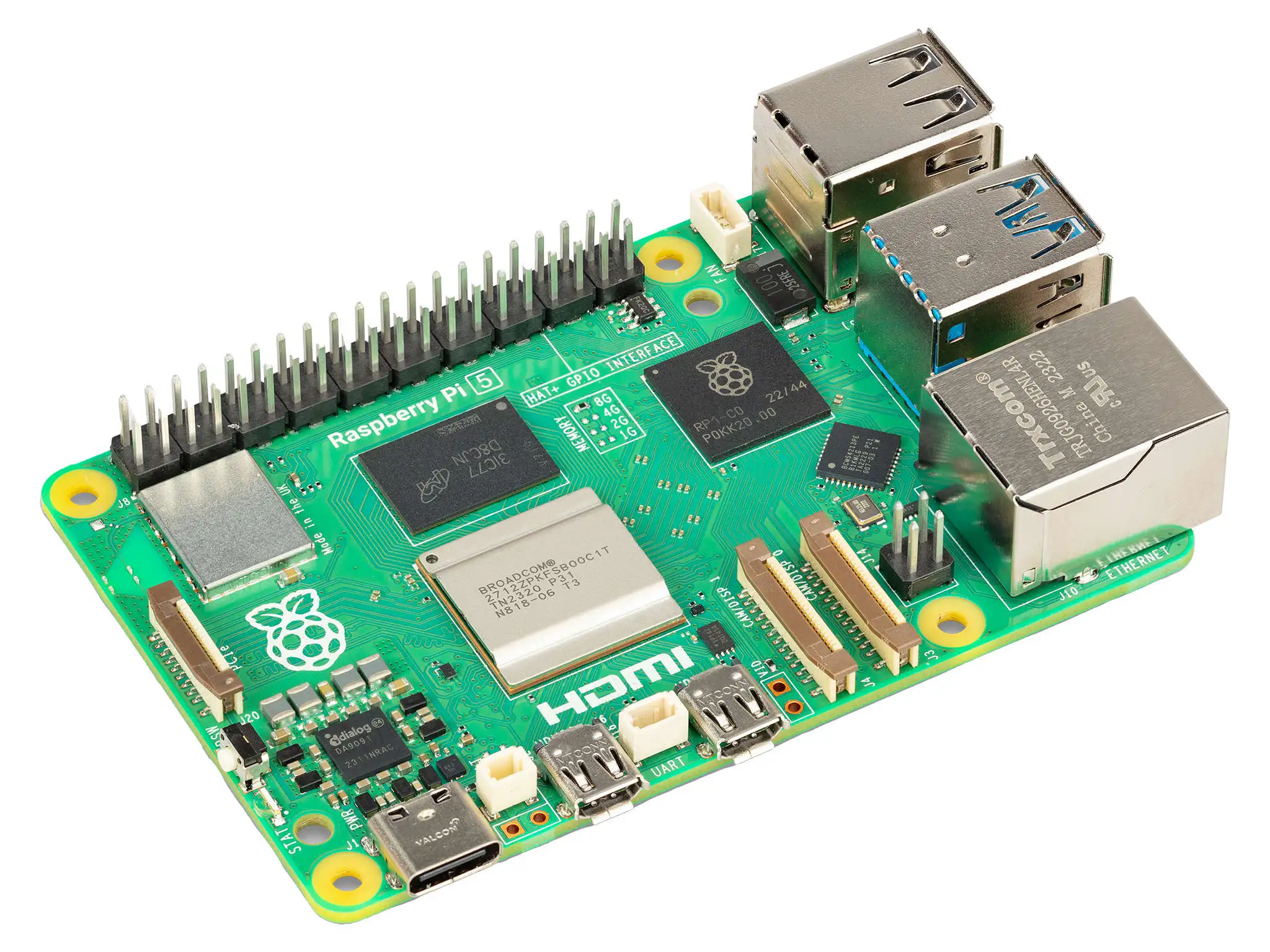
ARM Processor ARM (Advanced RISC Machine) is a new class of processors that are in the same family as the one that power your cellphone.
The Raspberry Pi – and other single-board computers – use this type of processor for their power efficiency. On the flip side, they can't juggle running multiple programs like an x86 processor. Without adding fans to cool them, these system-on-a-chip are susceptible to overheating.
These extremely cost-effective systems are great hosting a single service – such as a personal website, BitWarden, Home Assistant or Grocy. |
|
Recommended Specs |
|
| Acute |
Released 2011 or newer |
| speed |
Speed 1.8GHz or higher |
Graphics Processor
When it comes operating a server, graphics cards can be leveraged by certain applications. Compared to computational processors, graphics cards have the ability to run many processes in parallel. This is a great advantage for image and video processing, as well as data analysis and number cruching.
Within modern computer systems, there are two classes of graphics processors.
| Memory |
Integrated Graphics Many modern processors come with graphics cards directly embedded into the processor. This provide enough power for basic operations – such as running a web browser or basic image editor.
Integrated graphics cards share hardware resources with the processor decreasing their overall power. They may not be robust enough for complex image or video processing tasks.
Modern desktop systems can be modified to add more graphical processing power. Most single-board computers – like the Raspberry Pi – cannot be modified to increase their graphic processing.
While Raspberry Pi computers are useful for small computational tasks, they can often lack the graphical processing necessary to do complex image processing tasks. These computers do not dedicated graphics processors and instead rely on a "system-on-a-chip" that shares graphical and computational power.
|
| Developer_board |
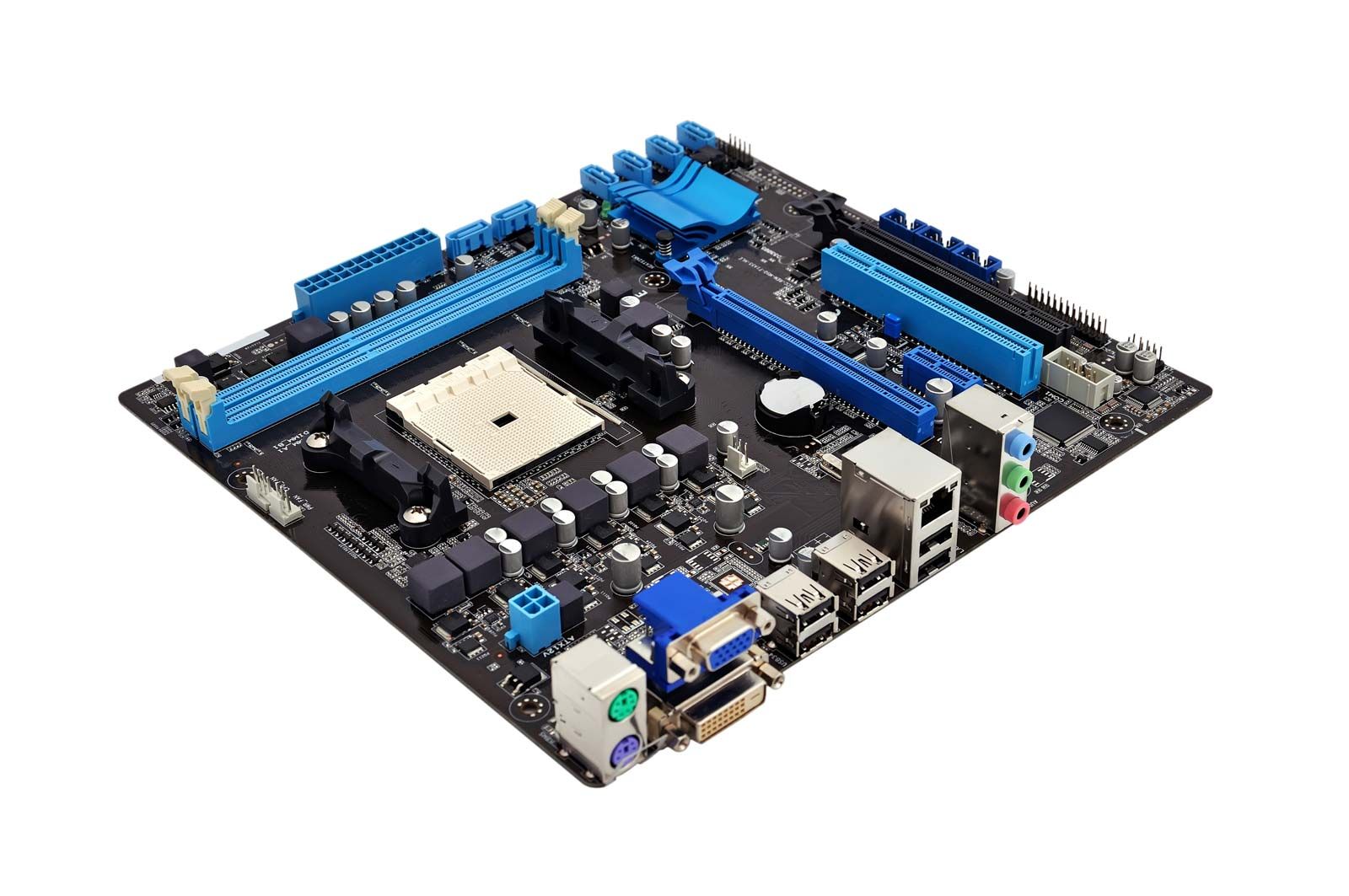
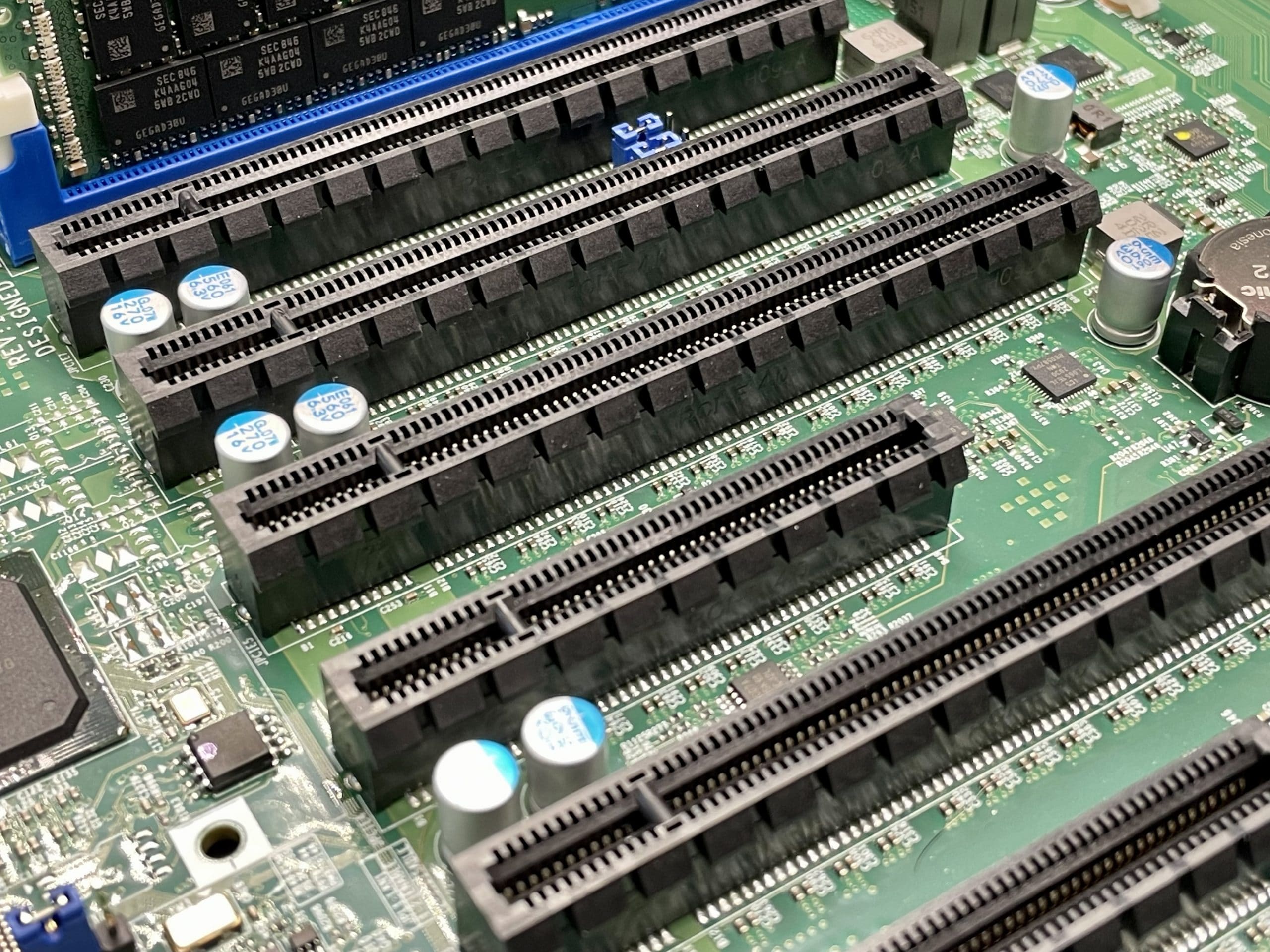
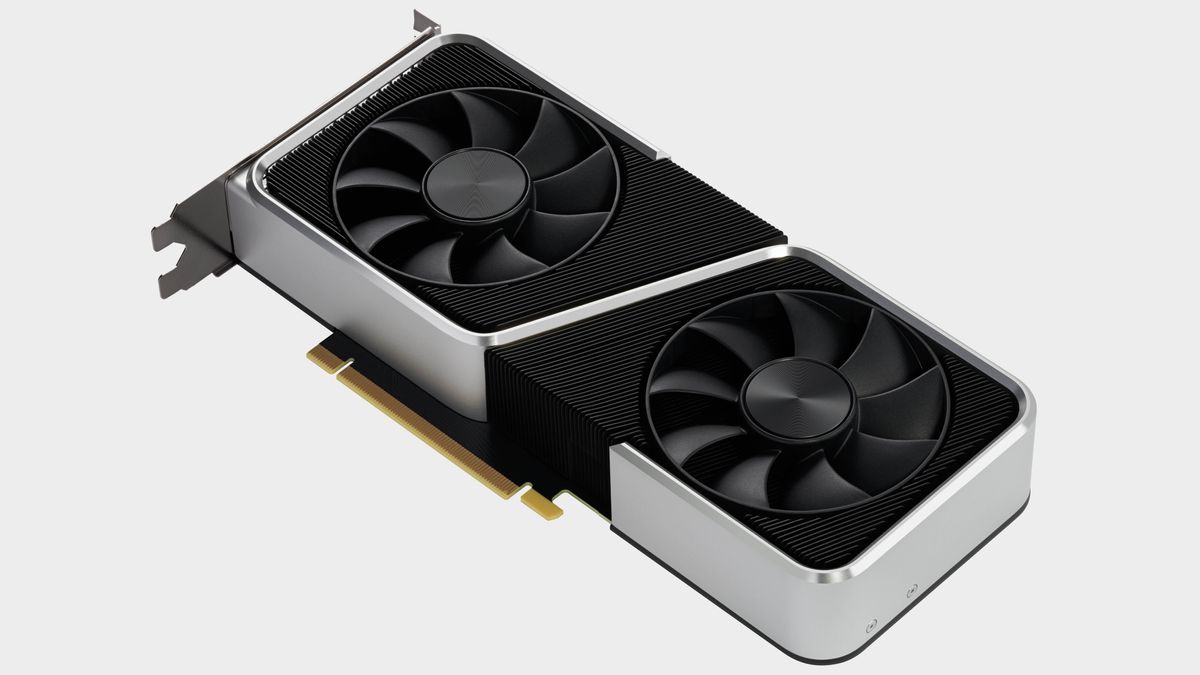
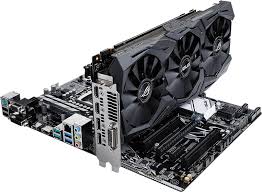
Dedicated Graphics Traditional computers have a powerful advantage here because they are so customizable. Thanks to the extensible PCI-e interface, additional graphics processor – or a graphics cards – with much more dedicated power can be installed.
Dedicated graphics cards have specialized cores that allow them to convert videos more efficiently than a CPU. In addition, they come with their own memory to lessen the strain on the rest of the computer system's hardware.
These can be helpful for tasks that deal with images and videos – such as Jellyfin processing a movie for streaming through a media server. |
|
Recommended Specs |
|
| Acute |
Released 2016 or newer |
| Speed |
Processor Speed 1.0GHz or higher |
| Memory |
Memory Capacity 4GB or higher |
| Developer_board |
Expansion Interface PCI-e 3.0 or newer |
Memory
The amount and speed of Random Access Memory – or RAM – can affect the responsiveness of your server. Your server will need more memory when it needs to juggle multiple services at once.
| Memory |
Integrated Memory Single-board computers have memory that is built directly into the hardware board and cannot be upgraded after the initial purchase.
They often use a "low-powered" variant of memory called LPDDR that can decrease its overall speed and responsiveness during multitasking.
|
||
| Developer_board |
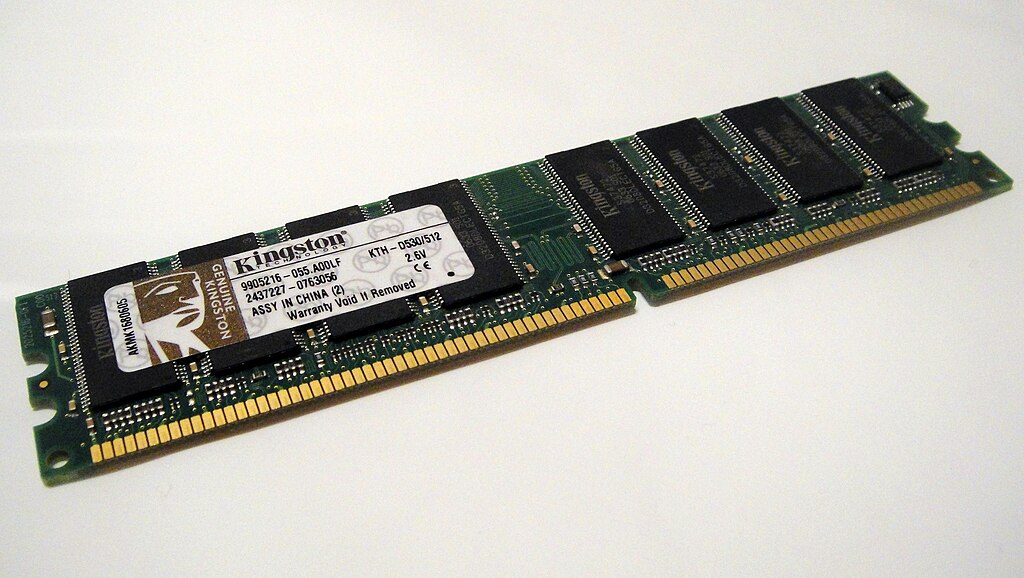
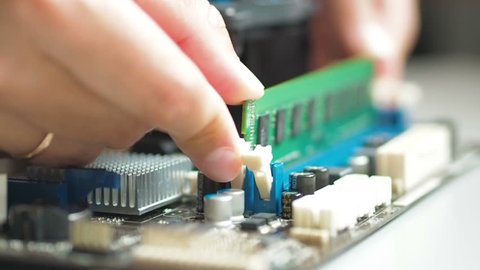
Extensible Memory Traditional computers use the DDR class of RAM that has been progressively updated since the 1990s – currently up to DDR5. Each successor is not backwards compatible, but provides sizable advancements over previous iterations. With these systems, memory can be upgraded by purchasing RAM modules of the same type and speed.
|
|
Recommended Specs |
|
| Memory |
Capacity 8GB or higher |
| Category |
Type DDR4 or newer |
Storage
There are three types of storage hardware that are employed to fulfill server needs:
| Hard_drive |
Platter Disks These are based on an older, well-tested technology originating in the 1950s. Modern hard disk drives commonly use the SATA protocol.
They are slower, but can hold up to 20TB of storage on each drive – making them great for longer-term multimedia or document storage. |
||||
| Hard_drive |
Solid State Disks These use the newer solid state memory standard popularized by the smart phones. SSDs are incredibly fast, but spacr comes at a premium.
These drives can use the SATA protocol like traditional hard drives, but they are increasingly available using an M.2 port. These "Non-Volatile Memory express" – or NVMe drives – transport data over the speedy PCIe interface.
Solid state drives, especially NVMe drives, are the best option for storing the operating system and other configuration files. When hosting a media server – such as Jellyfin, Audiobookshelf or Kavita – storing databases, metadata, and other cache files on an SSD can greatly improve the media server's responsiveness.
|
||||
| Hard_drive |
Flash Disks When using a Single-Board computer – such as the Raspberry Pi – the primary operating system is typically stored on a MicroSD flashcard.
These use classification systems to gauge their overall speed and performance. These are signified by symbols on the SD card and it's packaging. They are used to ensure performance with certain devices – like cameras or cell phones.
Two common certification are:
For the best performance, Raspberry Pi recommends a Speed Class of C10 – or a UHS Speed Class of U1. These provide a guaranteed transfer speed of 10MB/second. |
 Platter Hard Disk Drive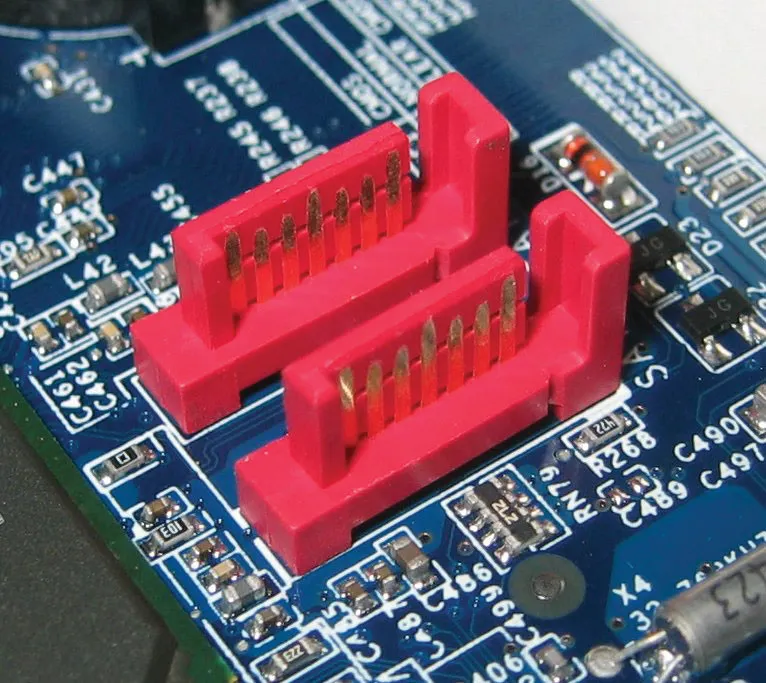
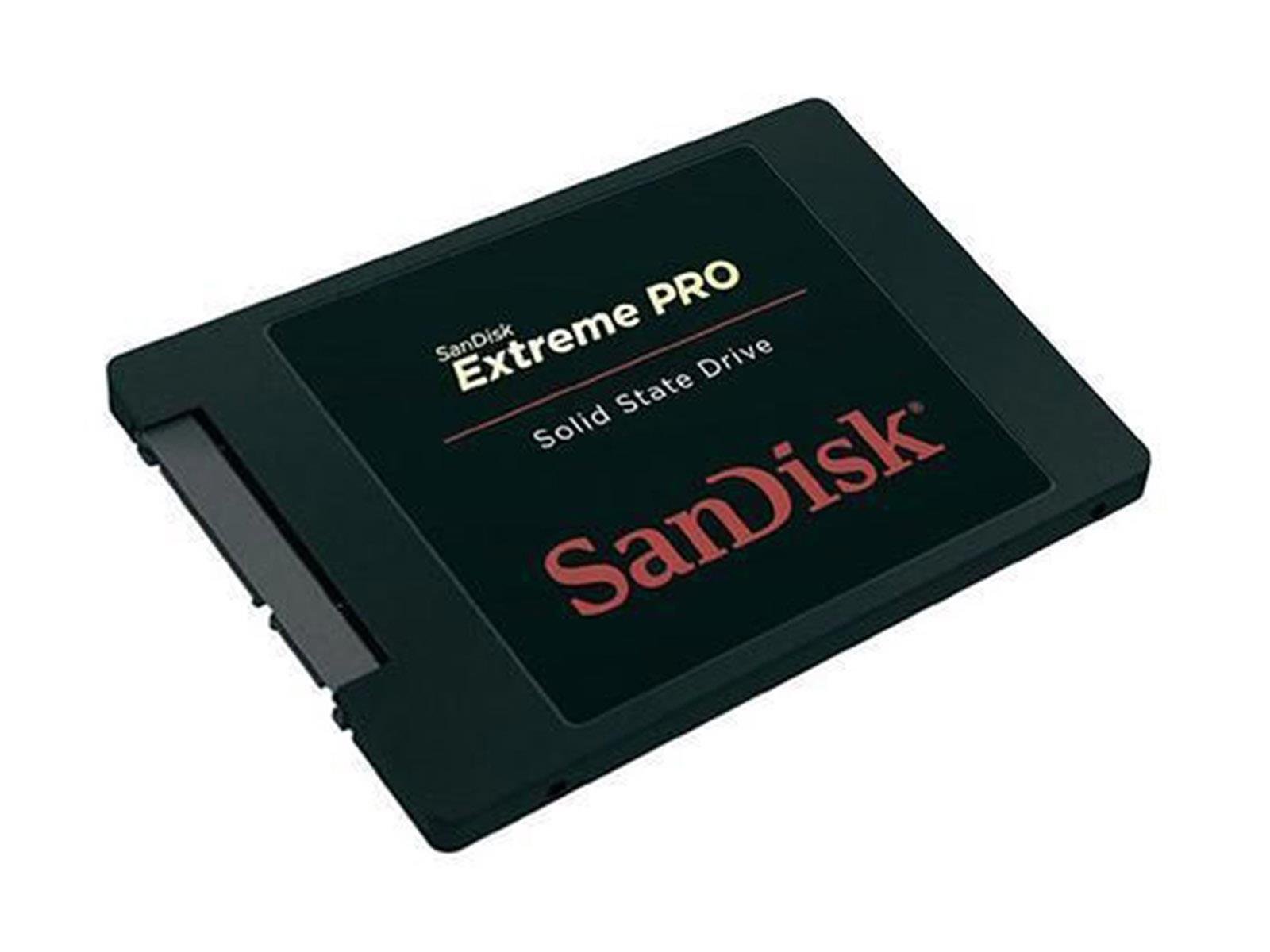
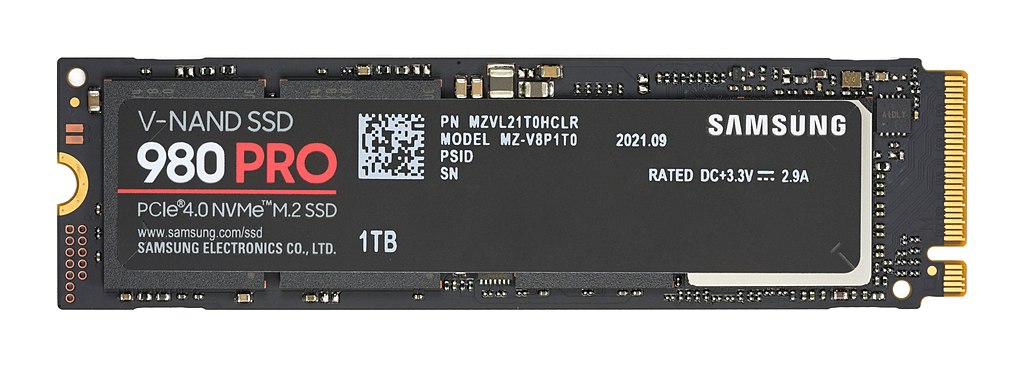
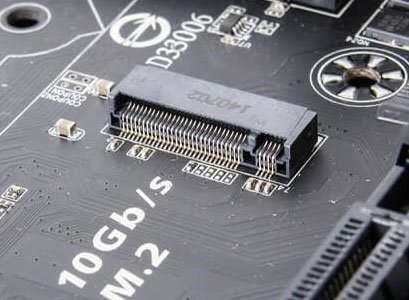
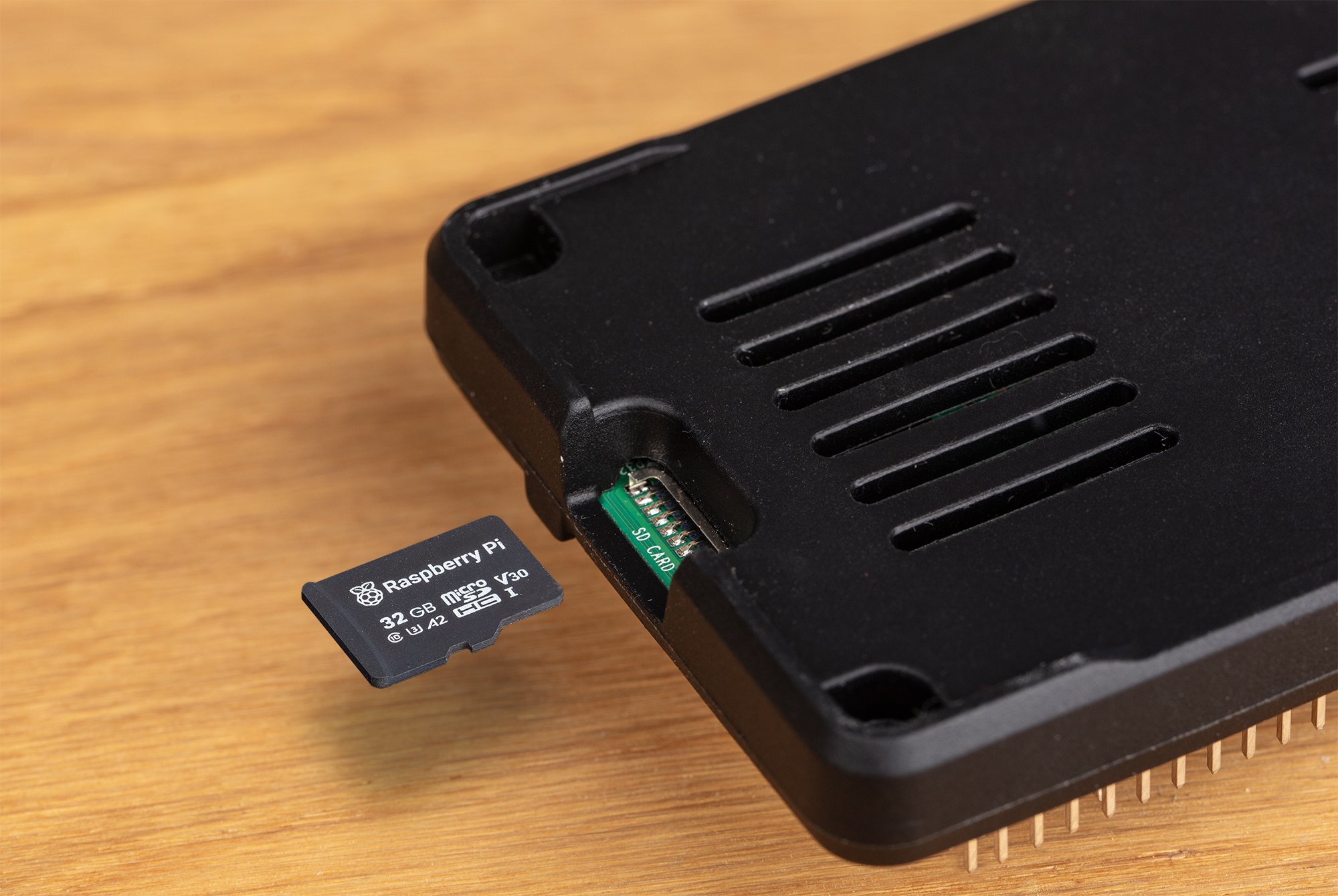
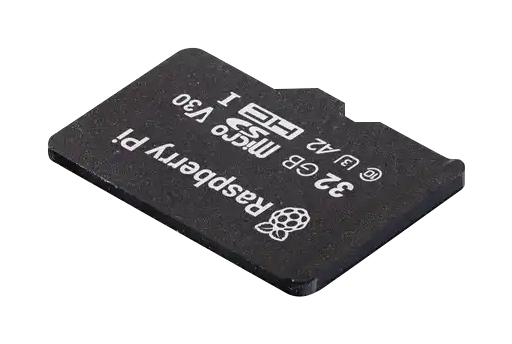


Graph/table of different speeds SD, HDD, SSD, nvme, ram
| Type | Read Speed | Write Speed | Capacity |
| MicroSD C1 | 10 — 100 MB/s | 10 — 100 MB/s | 16GB — 1TB |
| MicroSD U1 | 10 — 100 MB/s | 10 — 100 MB/s | 16GB — 1TB |
| SATA HDD | 80 — 160 MB/s | 80 — 160 MB/s | 250GB — 32TB |
| SATA SSD | 200 — 600 MB/s | 200 – 600 MB/s | 250GB — 20TB |
| NVMe SSD | 5000 MB/s | 6000 MB/s | 120GB — 4TB |
| RAM | 40 GB/s | 40 GB/s | 4GB — 512GB |
Depending on the form factor, there is a variability in both the types and quantity of storage connectors. Compact PCs often support one or two drives, while a full computer case can often accommodate more.
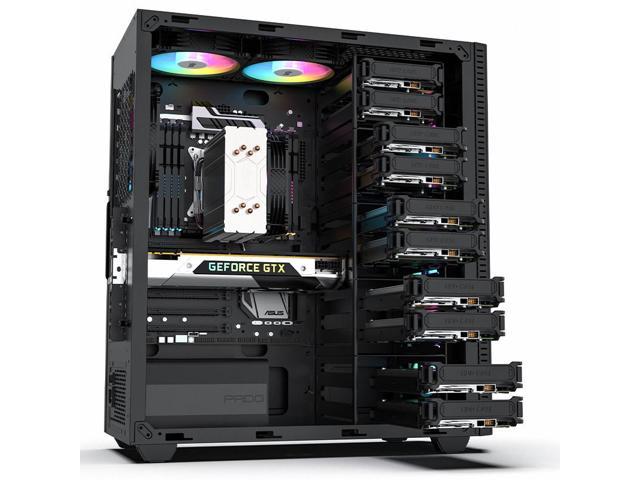
Each of these storage drive technologies are also available to be used as an external disk over a USB, Thunderbolt or eSata connection. This expands storage options beyond what will fit inside of the computer case. However, external drives can create a "bottleneck" where speed and efficiency become limited, so they should not be used for system files.
When hosting multiple services from a single server – such as a personal Jellyfin media server and a public WordPress site – it can be advantageous to store each of their files on seperate storage drives. This has security benefits, as well as balances the load across multiple drives to avoid a bottleneck.
Similarly, storing sporadically accessed files – like your multimedia – on traditional platter drives allows them to conserve power by turning off hard disks that haven't been used recently.
|
Recommended Specs |
|
| Terminal |
Operating System SSD 150GB or greater, NVMe or SATA |
| Manufacturing |
Service Files SSD 150GB or greater, NVMe or SATA |
| Subscriptions |
Multimedia & Documents HDD 2TB or greater, SATA |
Connectivity
A network-connected server should be connected to your router with a hard-wired Cat6 Ethernet cable.
| Settings_ethernet |
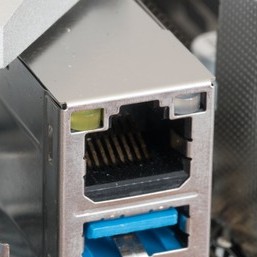
Wired Connection Your Network Interface should have a 1Gbit or preferably 2.5Gbit connection speed. This is the throughput available within your Local Area Network and is separate from your ISP speed.
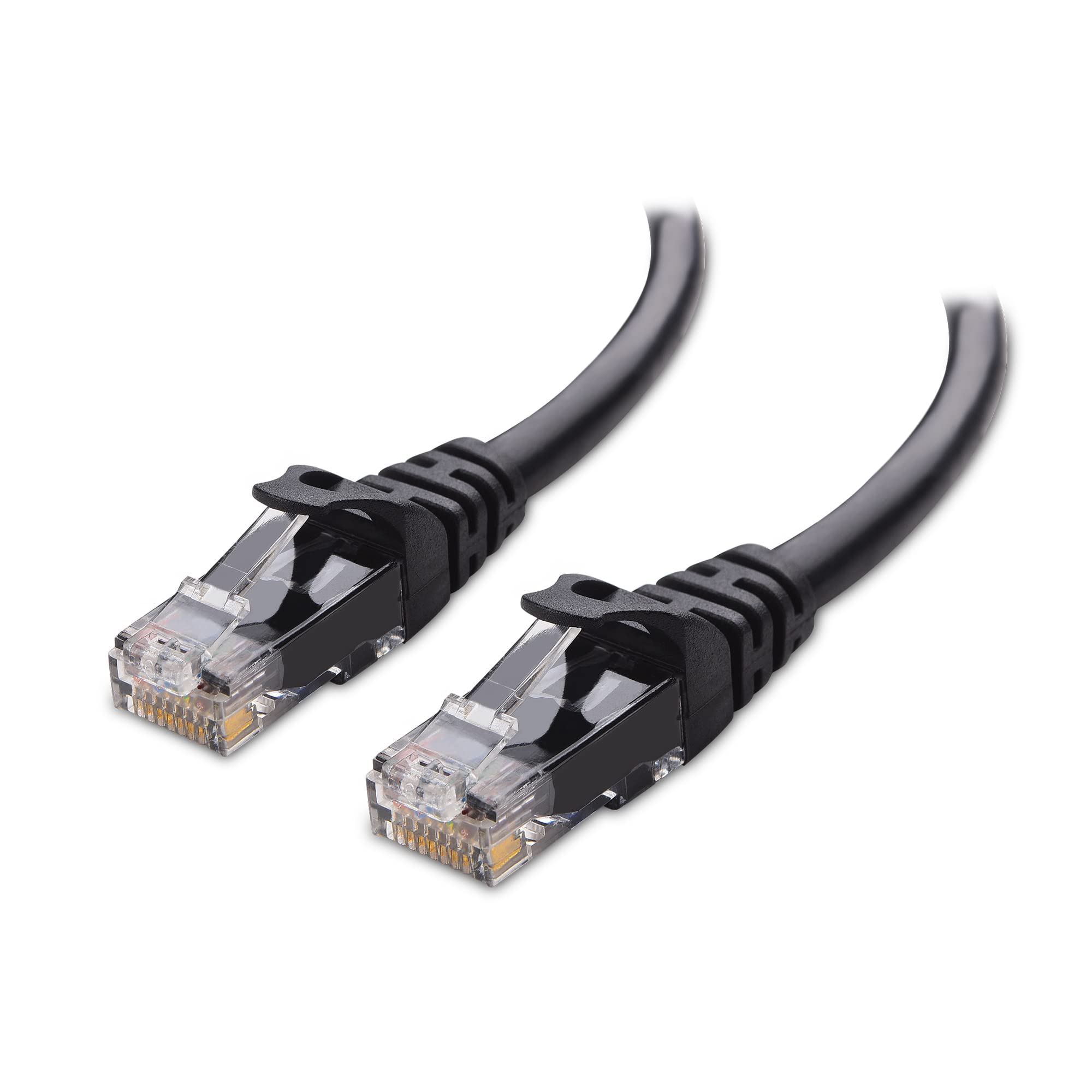
Ethernet cables use a classification system to ensure speed and reliability over certain distances – such as Cat5, Cat6 or Cat8. When possible, using Cat6 Ethernet cables will provide reliable performance over short distances.
|
|||
| Wifi |
Wireless Connection Wi-Fi should be avoided while running a server where reliability is crucial. When not in use, disabling the wireless card improves security by decreases unintended means of access.
|
|||
| Bluetooth |
BlueTooth This can be used to connect smart devices to Home Assistant, but is not crucial for any server functions. When not in use, it should be completely disabled because BlueTooth hacking is a common avenue for exploitation when left on.
|
|||
| Usb |
External Wired Connections There are many protocols and connectors that can be used to attach additional peripherals – like USB, eSATA, Thunderbolt, USB 3.0, and FireWire.
These can be used to attach hardware peripherals to a computer through a physical, wired connection. Ranging from hard drive storage to a ZigBee adapter for smart home devices, external connectors are how you can expand your server outside of its case. |
Power
Operating a server requires electricity to power all of the running parts – from the server itself to the electronics that maintain your Internet connection or attach external storage disks. By choosing to self-host, we not only retain digital autonomy but can consider our effect on the ecosystems around us.
When paying your power bill, wattage is how we quantify how much energy is being used per second. The power draw of a device is measured over time – typically expressed as kilowatt-hours or kWh. Utility companies offer consistent access to power by the kilo-watt hour, generated from both renewable and consumable fossil fuels.
Energy can comes from many sources and some are harmful. Learn more about where your energy comes from.
Home electronics are made to work with standard power outlets and do not require much conscious planning – plug a device in and it just works. Despite this, electronics must have information about their power requirements right on them. This can help estimate how much an always-on computer costs to operate per payment cycle.
Power Consumption
Power Supply Units – or PSUs – provide electricity to individual components within a computer. These specify the wattage that the power supply can draw during a heavy work load. This is only maximum possible power draw and isn't an indication of how much power the computer will consume while idle.
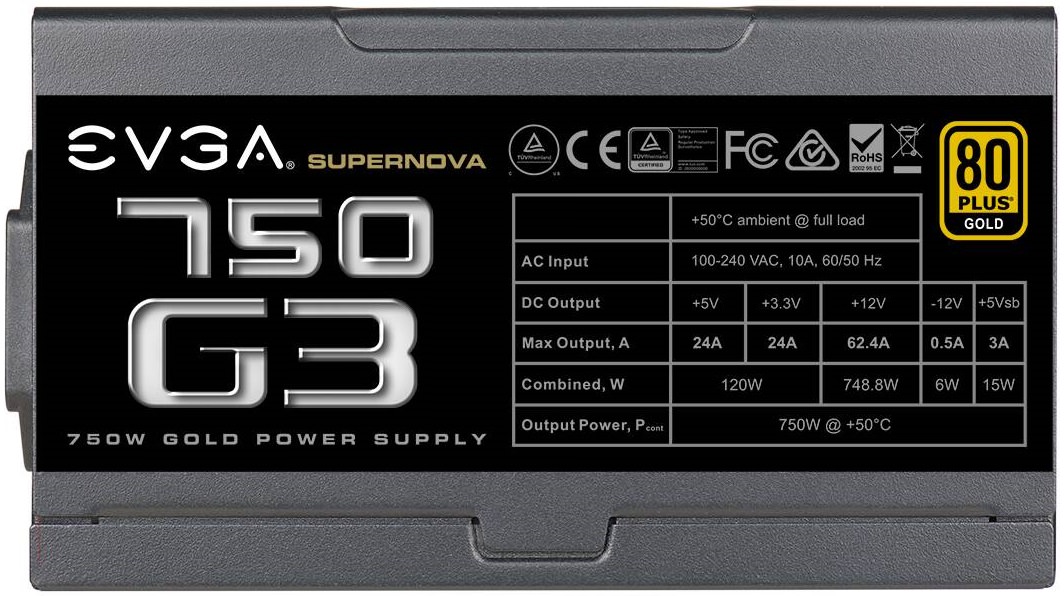
Each component connected to the PSU will need to draw power in order to function and every computer has different parts. The exact amount fluctuates based on their workload and the function being performed – converting a video requires more power than inputting text into a text editor. An operating system manages power, putting idle parts to sleep – or a low-power mode that conserves electricity.
Servers can draw a lot of power at once and should be plugged directly into a wall socket, not a power strip or extension cable.
CPUs and GPUs generally require the most power, but parts designed for mobile devices are extremely efficient. By exploring the average power usage for computer components – both idle and under load –you can estimate how much power the server will consume over the course of a day.
Power Consumption in Watts
| Component |
Idle | Under Load |
| Motherboard | 15 | 25 — 100 |
| Desktop CPU | 10 — 30 | 75 – 250 |
| Desktop GPU | 10 — 50 | 200 – 500 |
| Mobile CPU |
5 — 15 |
15 — 65 |
| Mobile GPU | 10 — 100 | 35 — 150 |
| Hard Disk Drive | 5 | 5 — 15 |
| Solid State Drive | 1 | 1 — 5 |
| RAM module | 2 | 2 – 5 |
These numbers are the instantaneous power usage by the computer – measured in watts. These are a helpful baseline, but power draw will fluctuate. When not actively in use, a modern system might consume around 100W. Office tasks like browing the web or writing an email may require 250W, while a graphic-intensive video game could draw up to 800W.
Want a better idea? Try out pcpartpicker.com and add your exact components.
When connecting your server to the Internet, the modem and router will also consume electricity. While this may be a lot less than a server, that power still needs to be accounted for. These devices will also draw more power when under a heavy load – such as streaming multiple videos.
Graph comparison of device wattage
Power Consumption in Watts
| Device | Idle | Under Load |
| Raspberry Pi 5 | 3 | 3 — 7 |
| Laptop | 5 | 30 — 200 |
| Mini PC | 5 — 20 | 20 — 400 |
| Desktop PC | 35 — 100 | 150 — 300 |
| Workstation | 75 — 150 | 300 — 800 |
| Wi-Fi Router | 5 | 5 — 20 |
| Modem | 5 | 5 — 20 |
Want to be exact? Try out a digital power meter to find your exact energy usage.
Cost Estimates
Once we have a better idea how much energy we'll require – in the form of wattage – we can estimate how much power that will consume over the course of an entire day.
Don't want to do math? Try out this wattage calculator from EnergyBot.
You calculate this by multiplying the total wattage you estimated by the number of hours a day the server will be drawing power. This will be 24 hours per day. We now have our wattage per hour. Finally, we can divide this number by 1000 to achieve our kilowattage per hour.
E(kWh/day) = P(W) × t(h/day) / 1000(W/kW)
A 200 watt Mini PC will use 4.8 kWh per day – or 144 kWh per month – when left running all day, every day.
Knowing the kilowatt hours consumed by the server, you can estimate the monetary cost per day. Your utility provider will list the exact unit price per kW/h on your account summary or service bill.
The cost of energy varies widely across the country – depending on a host of factors – and ranges all the way from $0.10 to $0.43 per killowat-hour. Energy rates for homes and residences are often higher than prices for businesses due to the economy of scale.

With this information, it's simple to calculate a monetary cost. By multiplying the cost per kilowatt by the quantity of kilowatts, we arrive at the final cost. When estimating per month, we can see how much our server affects our monthly bill.
Energy costs $0.12 per kWh in Washington State and a 200 watt computer uses 144 kWh over 30 days. This means that it costs $17.28 per month to run an always-on server.
Internet
You will need internet access for your home server and the devices connecting to it. Your Internet Service Provider (ISP) is the primary factor leading to the quality and stability of your server connection.
Connection
Outside of your hardware, your internet connection dictates how many people can access your server as well as their connection quality, stability and uptime. There are many different consumer options for connecting your home to the World Wide Web.
|
stylus_laser_pointeR |
One of the fastest connections available, this uses flashing light to transmit data over long distances.
|
| Cable |
Fast and cost-effective, this connection uses television infrastructure to transmit data to an internet provider.
|
| satellite_alt |
Available even in remote areas, this connection occurs through satellites in orbit around the planet.
|
| Wifi_tethering |
This allows devices to connect to a wireless network broadcast over a large area by an service provider.
|
| settings_phone |
One of the first consumer options, this connection uses telephone infrastructure to transmit data.
|
| Signal_cellular_alt |
Quickly gaining in popularity, this internet option uses wireless cellular data infrastructure to create a local area network for your devices.
|
Hardwired internet connection – such as cable or fiber – are preferred because they are more reliable. Wireless connections – like satellite and mobile broadband – can be heavily reliant on other external factors like congestion and weather.
Exact upload and download speed requirements will depends on what services you're hosting, as well as how many people will be accessing them. Hosting a home server serving your immediate family, here is a good starting point:
|
Download |
Download Minimum: 200Mbps Recommended: 1,000Mbps
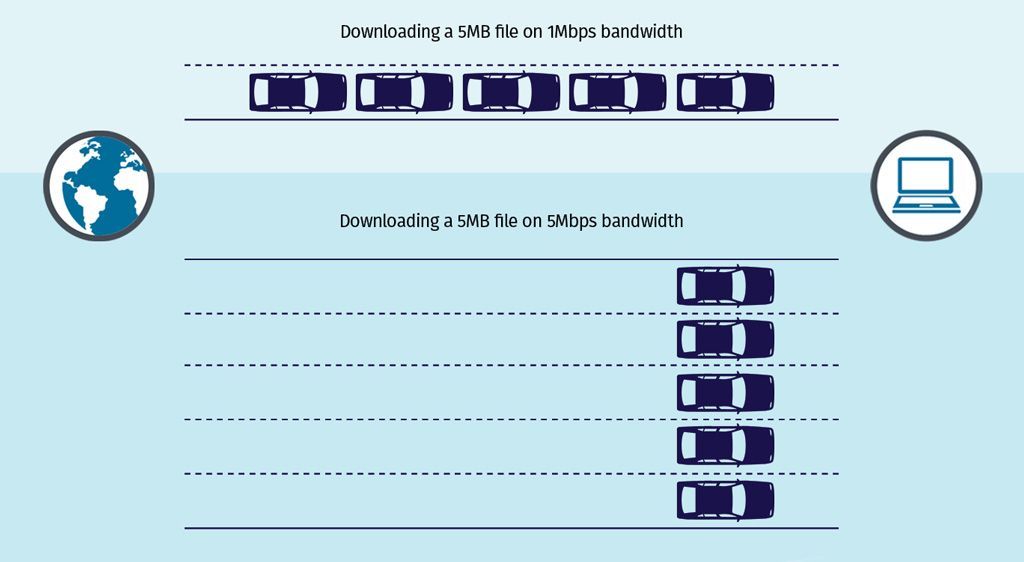
This will be most important for downloading data from the internet – such as multimedia, metadata and updates. Internet bandwidth will be shared between every internet-connected device in your home, so it's important to have enough to go around.
|
| Upload |
Upload Minimum: 20Mbps Recommended: 200Mbps
This will primarily be used to share multimedia and files outside of your home – like friends, family on the World Wide Web. Residential internet connections often provide significantly lower upload bandwidth than download under the assumption that you will not be running a personal server.
|
Gigabit connection speeds are recommended for hosting media servers, but low-bandwidth websites that don't serve many images or videos may perform acceptably at slower speeds.
Depending on your Internet service provider and connection type, there may be restrictions on how data can be transmitted outside your network.
Self-Hosting
You are not breaking any laws by self-hosting a server at home. However, not all ISPs expressly permit web hosting from residential internet connections. While a few embrace self-hosting, many others choose not to advertise the feature. Unfortunately, ISPs are increasingly blocking the ability to host a Web server from home.
Each Internet Service Provider has their own rules and regulations about server hosting on residential contracts. Business contracts are more costly, but often explicitly allow web-hosting and provide features explicitly to support it.
Your provider may have additional stipulations regarding the nature of the content you can host. Self-hosting personal services may draw less attention than for-profit commercial storefronts or public discussion forums. Controversial content may be explicitly censored as a result of your Internet Service Provider contract.
Before proceeding, you must understand the terms of your agreement with your internet service provider.
Restricted Access
If your ISP blocks web server hosting, there are still options to connect while away from home. These vary in cost, complexity and contractual concerns:
|
Contract |
Commercial Contract When feasible, purchasing a business plan with your ISP may expressly permit web hosting. This may be available at your current residence and would provide added benefits – such as a static IP address.
|
| Private_connectivity |
CloudFlare Tunnel This method allows your server to communicate with the CloudFlare service without needing to directly connect it to the World Wide Web. This circumvents the block by channeling web-based traffic through the CloudFlare remote servers first. They explicitly forbid using this service for transferring multimedia.
|
| Vpn_lock |
Virtual Private Network Hosting your own VPN server – or utilizing the one built into your router – will allow your devices to remotely connect to your Local Area Network. This means that your devices can interact with your server as if you were at home. |
Router
You will need a relatively modern router to connect your server to the Internet – through the publicly accessible World Wide Web or a Virtual Private Network to securely connect while away from home.
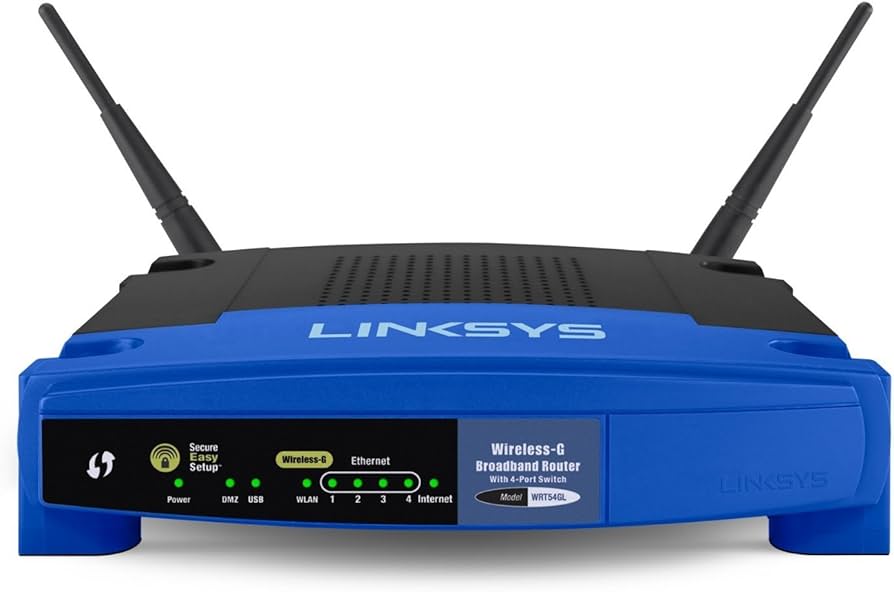
There are open hardware router options like the Turris Omnia and the OpenWRT One, but they can be expensive or require construction. Consumer routers may work with open firmware like OpenWRT and FreshTomato, but the installation process can be tedious – especially with no prior experience.
 |
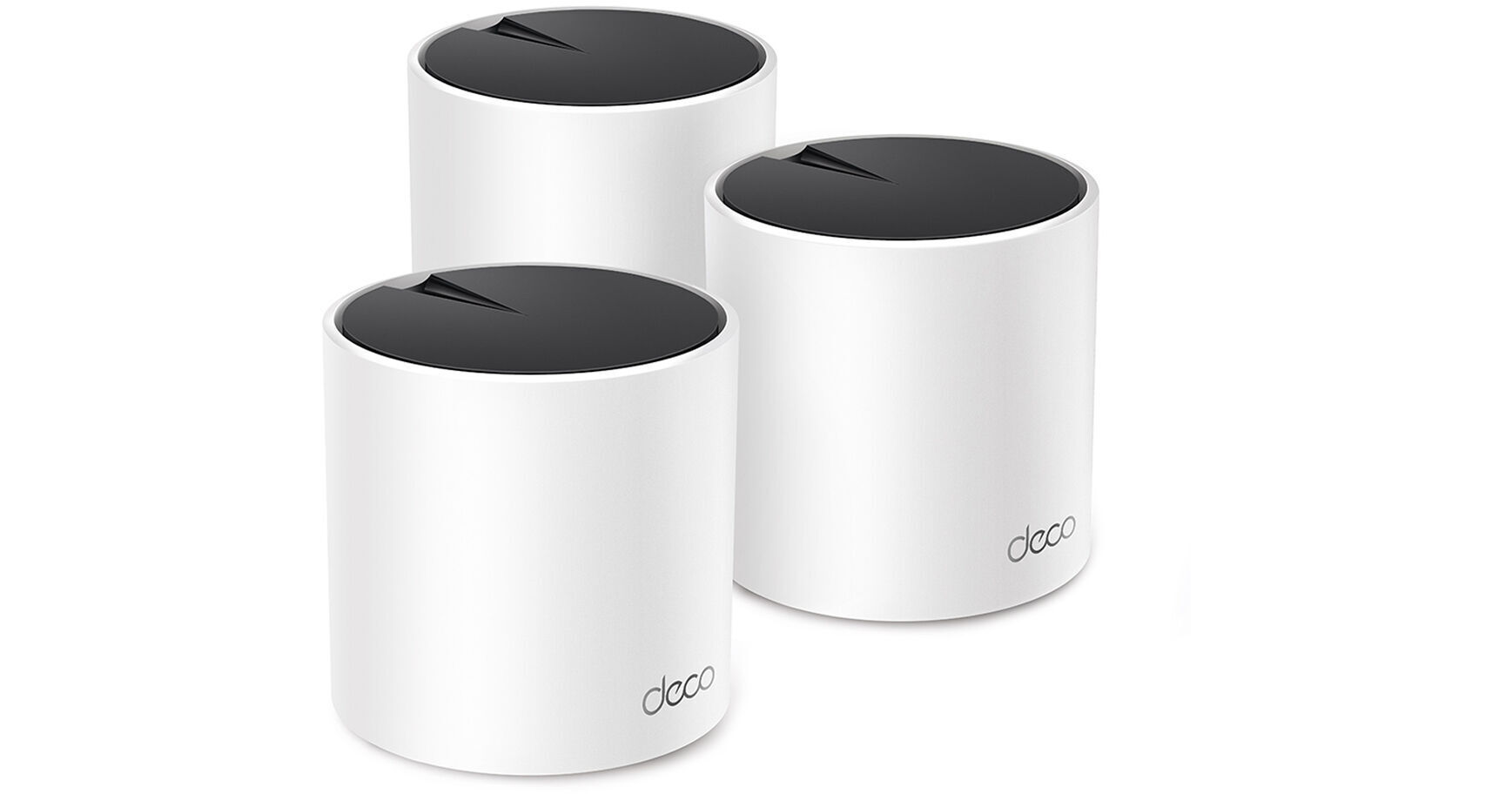 |
Thankfully, most modern routers will fulfill the requirements to host your own home server. Mainstream manufacturers – such as TP-Link, Netgear, and ASUS – offer routers that cover the gamut between performance and price.
When using a mesh router, connecting your server to the hub closest to the modem will provide the best performance.
When investigating a router that can be used to host a personal server, these are the features required:
|
Alt_route |
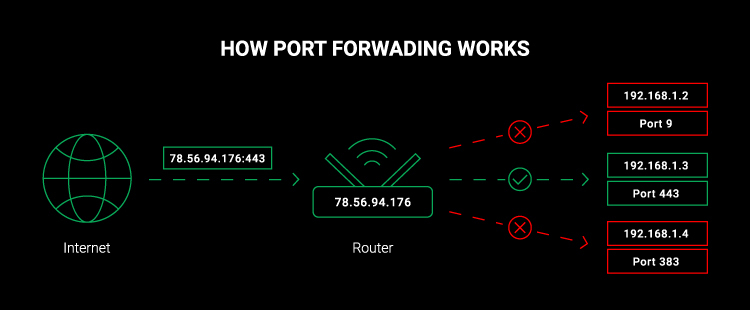
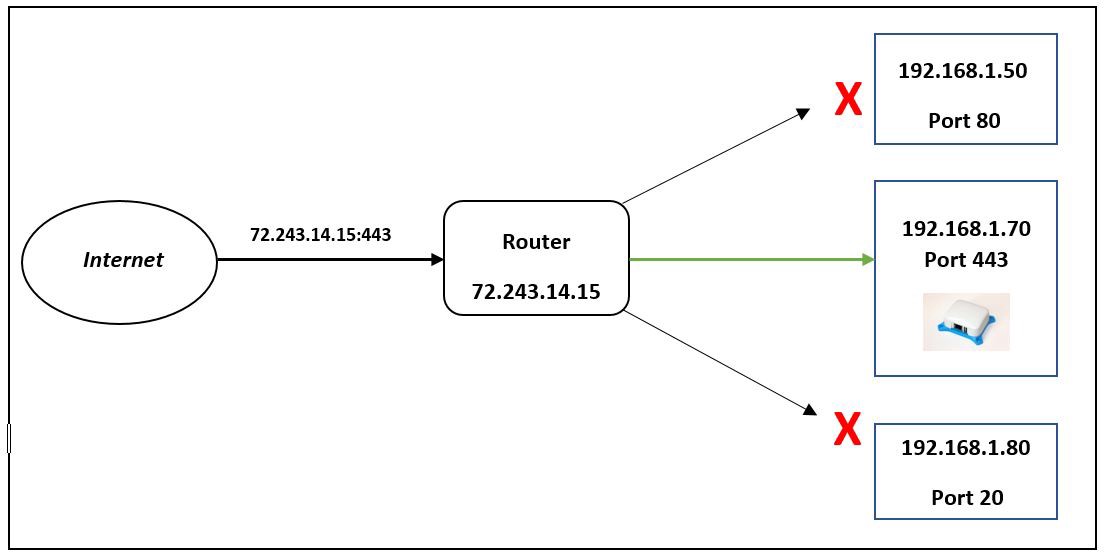
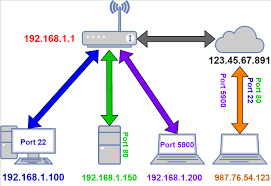
Port Forwarding You will need a router that supports Port Forwarding to allow traffic from outside the internet to be routed to your server within your Local Area Network.
While it is not illegal to host a server from home, your Internet Service Provider may restrict self-hosting a web server through a residential connection contract. You may be able to circumvent this by using an aftermarket router, but it may be considered a breach of contract.
|
|||
| Diamond_shine |
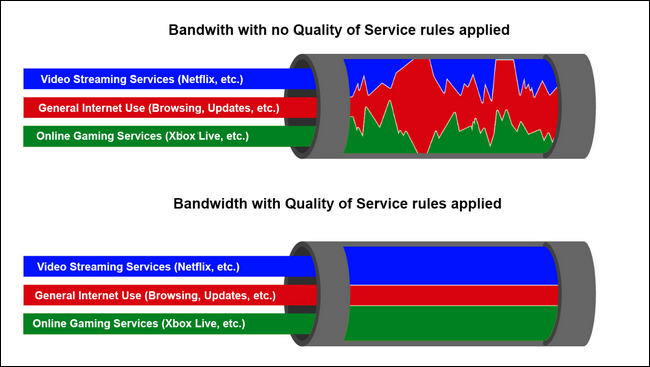
Quality of Service QoS (Quality of Service) enables you to give bandwidth priority to your server and other computer. Many consumer routers allow you to set the theoretical bandwidth provided by your Internet Service Provider and leverage that information to ensure that specific network devices have a minimum Internet bandwidth.
|
|||
| Vpn_lock |
Virtual Private Network The option to configure your router as both a VPN Server and VPN Client is becoming more common. A Virtual Private Network allows devices and networks to securely connect to each other over the open internet.  When acting as a server, your router makes it simple to connect to your Local Area Network, even while away from home. This will allow you to access your self-hosted services without making them available to the open Internet. While acting as a VPN server, you can connect to a VPN service you subscribe to – such as Proton VPN, Mullvad, and IVPN. This will hide all of the traffic on your Local Area Network behind the VPN service. This can transmit a lot of data through your VPN provider. Make sure your plan has the monthly bandwidth to accommodate every device in your home.
|
|||
| Dns |
Dynamic DNS Many modern routers provide a Dynamic DNS service, such as ASUS, TP-Link and Netgear. This allows you to connect to your home server as a subdomain of their service instead of buying your own domain. |



Cables & Accessories
Aside from the primary hardware – such as the server computer and a router to connect it to the Internet – we will also need miscellaneous cables and accessories to get everything setup.
Display
Our server will be "headless" – meaning we will be able to control it remotely over the network without using a keyboard, mouse or display. However, we will still need a display during the initial installation process or while troubleshooting.
|
Desktop_windows |
Display You will need a compatible display with a resolution greater than 640x480.
|
| Cable |
Cables You will need any applicable power cables or adapters. Similarly, we will need a compatible cable for connecting the display to our server. |
Input Devices
While we will be accessing our server remotely, we need some human interface devices – such as a mouse and keyboard for controlling the computer.
|
Mouse |
Mouse You will need a compatible USB mouse.
|
| Keyboard |
Keyboard You will need a compatible USB keyboard. |
Networking
We explored the router as an important piece of networking equipment, but there are other components that we will need to host a server.
|
Settings_ethernet |
Modem When you pay for access to an Internet Service Provider, they may lease or sell a modem that provides access to their service. Some ISPs also allow customers to purchase their own modem hardware.
|
| Keyboard |
Cables You will need at least two Category 6 Ethernet cables. These can handle blazing fast 2.5Gbit connection speeds over short cables while still maintaining minimum 1GBit speeds over distances of up to 100 meters – or 328 feet. |
External Storage
Computer systems are equipped with internal storage drives for storing the operating system, as well as your applications, files and media. When setting up and running a server, external storage devices are just as important.
These storage devices will be erased and any important data should be backed up.
|
Security_key |
Flash Drive We will need a USB Flash Drive to install the operating system on our computer and enable us to install server applications. This will need to be at least 8GB to fit the free Debian Linux image we will be downloading.
|
| Hard_drive |
External Storage Drive Connecting an external hard drive to our server – using USB, eSata or Thunderbolt – can expand your storage beyond what will fit inside your computer case.
Even more importantly, an external hard drive provides an easily accessible option for creating backups in the event there is a systems failure. |
Domain
You will need a domain name – such as example.com – to directly access your services from outside your Local Area Network (LAN). We will using this domain name to forward traffic to our Public IP address on the Wide Area Network (WAN).

You can also access your services away from home without a domain by using a VPN. Using a domain name can add a level of convenience for accessing your own services while still restricting access to your local area network.
Web Domain
Domain names are purchased through a domain registrar and there is a wide potential price range. Registrars often algorithmically assign prices for available domains based on expected popularity and ICANN registration fees.
Dynamic DNS
There are also free services that allow you to register an account and link your web server to their domain as a subdomain – such as DuckDNS or a similar Dynamic DNS service on your router. These give you a sub-domain name to use – such as user.duckdns.org – that can be automatically updated to point at your server.
VPN Provider
Your Internet Service Provider has the power to see information about the websites and data services you access while using their modem. While they cannot see the data being transmitted, they can see the servers you connect to. This is often used to build user profiles for targeted advertising or enforcing copyright law on peer-to-peer traffic.
Aggregation
We can lessen this by creating a private, encrypted tunnel to a VPN server connected elsewhere in the world. This will not provide total anonymity, but it can help obscure your traffic and make it harder to tell your traffic from other clients.

Behind a Virtual Private Network, your ISP can see that you've connected to a remote server but the traffic between is encrypted. Your web data is aggregated with other users to make your traffic less traceable back to you. This can also channel your Internet traffic to a specific geographic region.

If you're looking for additional privacy from your internet service provider – such as downloading files with qBittorrent or obscuring your AdGuard Home lookups – then a VPN service could be an option. Gluetun can connect individual containers to your VPN allowing you to circumvent geo-restrictions by changing your location – such as a MeTube server that can access Swedish internet content.
Learn more about the advantages of using a VPN provider.
Privacy Assurance
Not all VPNs are created equal and they have the same opportunities to snoop on your data just like your ISP. They may store logs and submit them to law enforcement agencies when asked. If they don't follow industry practice, they may have their databases hacked. Some providers have been implicated in data collections for government surveillance purposes. Others use your data to build user profiles they can sell to brokers.
|
|
|
VPN providers can, however, volunteer for third-party audits to ensure consumer privacy and build community trust. Privacy Guides is a non-profit that educates about personal privacy and independently reviews service providers. They recommend Proton VPN, Mullvad, and IVPN services.